
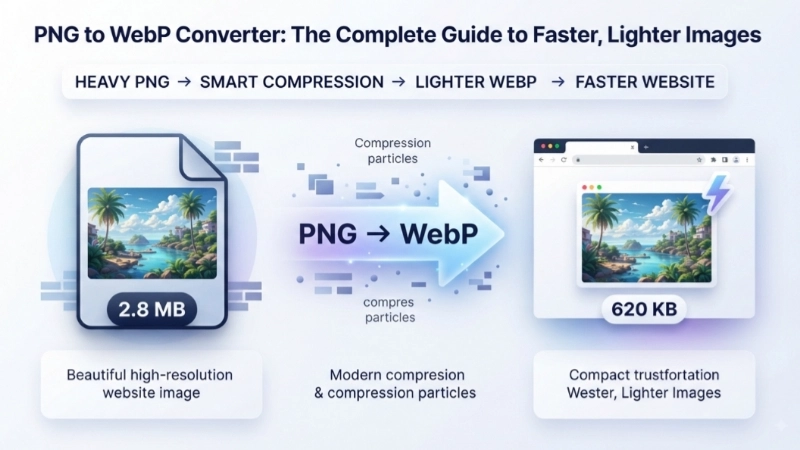
Let’s be honest—we’ve all been there. You’re building a website, writing a blog post, or designing a graphic, and you realize your PNG files are just too heavy. They take forever to load, eat up your storage, and slow everything down.
That’s where a PNG to WebP converter comes to the rescue. It’s one of the smartest, easiest swaps you can make for better website performance. In this guide, I’ll explain what WebP is, why it matters, and how to convert PNG to WebP online in seconds—completely free.
Why Convert PNG to WebP? The Simple Truth
Here’s what I’ve learned from years of working with website speed and SEO: image optimization is the secret weapon for faster websites. And WebP is Google’s gift to anyone who wants their site to load fast.
The WebP format was created by Google to make images smaller without making them look worse. Think of it like this—PNG images are beautiful but often bloated. They’re like packing a suitcase perfectly for a 3-day trip but bringing enough clothes for a month.
The difference is real:
- WebP lossless images are about 26% smaller than PNGs
- WebP lossy images are 25-34% smaller than JPEGs at similar quality
- For images with transparency, WebP can be up to 3x smaller than PNG
What Exactly is a PNG to WebP Converter?
A PNG to WebP converter is a tool that takes your standard PNG files and transforms them into the WebP format. It’s like a translator for images—it keeps all the visual information but makes the file much lighter.
PNG to WebP convert online tools work in your browser, so you don’t need to install any software. Just upload your PNG, click a button, and download your new WebP file.
How It Works in Simple Terms
- You upload your PNG—drag and drop it into the tool
- The tool processes it—using smart compression algorithms
- You get a WebP file—smaller, faster, and ready for the web
The best part? Most PNG to WebP converter online free tools do this in just a few seconds.
PNG vs WebP: Quick Comparison
Let’s break down the differences so you know exactly what you’re getting:
| Feature | PNG | WebP |
|---|---|---|
| Compression Type | Lossless only | Both lossy and lossless |
| File Size | Larger | Up to 26-80% smaller |
| Transparency Support | Yes | Yes, and better compressed |
| Browser Support | Universal | All modern browsers |
| Best For | Logos, icons, design files | Web images, photos, graphics |
| Animation Support | No | Yes |
How to Convert PNG to WebP Online
You can convert PNG to WebP online in just a few clicks. Here’s a practical step-by-step guide:
Step 1: Choose Your Tool
Find a PNG to WebP converter online free that you trust. Look for one that:
- Works without signing up
- Preserves image quality
- Supports batch conversion
- Processes quickly
Step 2: Upload Your PNG
Most tools let you drag and drop files or click to browse. Some even let you paste image URLs or upload from cloud storage.
Step 3: Convert and Download
Click the convert button, wait a few seconds, and download your WebP file. That’s it.
Try It Yourself: Top Image Fixer PNG to WebP Converter
I personally recommend using the Top Image Fixer PNG to WebP Converter for a smooth experience. Here’s why:
✅ Free to use—no hidden charges
✅ No signup required—just convert and go
✅ Fast processing—results in seconds
✅ Maintains quality—your images stay sharp
✅ Works on any device—phone, tablet, desktop
👉 Try it now: Top Image Fixer PNG to WebP Converter
The Benefits of Using WebP

Here’s why switching to WebP is a game-changer for your website:
1. Faster Loading Times
When you convert PNG to WebP online, your images become much lighter. This means your web pages load faster, especially on mobile devices. Google considers page speed a ranking factor, so faster sites rank better.
2. Better Core Web Vitals
Google’s Core Web Vitals measure how users experience your site. Using next-gen formats like WebP is one of the easiest ways to improve your LCP (Largest Contentful Paint) score.
3. Lower Server Costs
Smaller files mean you use less storage space and bandwidth. If you’re paying for hosting, this can save you real money over time.
4. Improved User Experience
Nobody likes waiting for images to load. Faster pages keep visitors happy and engaged.
5. SEO Benefits
When you convert PNG to WebP online, you’re directly improving your site’s technical SEO. Google explicitly recommends serving images in next-gen formats.
Common Uses for PNG to WebP Conversion
Here’s when you’ll most want to convert PNG to WebP online:
- Blog images—make your articles load faster
- Product photos—e-commerce sites need speed
- Logos and icons—keep transparency while reducing size
- Graphic designs—portfolio sites and design projects
- Email newsletters—lighter images for faster email loading
Is WebP Supported by All Browsers?
Yes. Major browsers have supported WebP for years, including:
- Google Chrome (desktop and Android) since version 17-23
- Microsoft Edge since version 18
- Firefox since version 65
- Safari since version 14
- Opera since version 11.10
- Android browsers since version 4.0+
Today, WebP is supported by over 97% of browsers worldwide. The few that don’t support it are mostly older versions, so it’s safe to use WebP for almost all modern websites.
Tips for Best Results When Converting PNG to WebP
1. Choose the Right Quality Setting
Most PNG to WebP converter online free tools let you adjust quality. For photos, 70-80% quality is usually perfect—small files without noticeable quality loss. For graphics and logos, you can often use 90%+ quality.
2. Preserve Transparency When Needed
If you’re converting a PNG with a transparent background, make sure your tool preserves the alpha channel. WebP supports transparency, and you’ll get even better compression than PNG.
3. Batch Convert for Efficiency
When you have many images to convert, batch processing saves time. Look for a PNG to WebP convert online tool that handles multiple files at once.
4. Keep Your Originals
Always keep your original PNG files as a backup. If you need to edit the image later, the PNG gives you the full quality to work with.
Is It Safe to Use Online PNG to WebP Converters?
Good question! I’ve used many online converters, and they’re generally safe when you choose reputable tools. However, here are a few safety tips:
✅ Use SSL-enabled sites—look for “https” in the URL
✅ Check privacy policies—reputable tools delete uploaded files after conversion
✅ Avoid uploading sensitive images—if it’s confidential, use a desktop tool
✅ Look for no-signup tools—if they ask for personal info, be cautious
The Top Image Fixer PNG to WebP Converter uses secure processing and doesn’t store your images. Upload, convert, download—done.
Frequently Asked Questions
1. Is a PNG to WebP converter really free?
Yes! Many PNG to WebP converter online free tools work without any charges. You can convert PNG to WebP online as many times as you want without paying.
2. Will I lose image quality when I convert PNG to WebP?
Not noticeably. WebP is designed to maintain visual quality while reducing file size. You can often choose the compression level to balance quality and file size.
3. Can I convert multiple PNGs to WebP at once?
Yes, many online tools support batch conversion. You can upload several images and convert PNG to WebP online in one go.
4. Can I keep transparency when converting PNG to WebP?
Absolutely. WebP supports transparency (alpha channel) and often compresses transparent images much better than PNG.
5. Which is better—PNG or WebP?
For the web, WebP is better because it’s smaller. For design work where you need lossless editing, PNG is still valuable. Many professionals use both—PNG for working files and WebP for web delivery.
6. Do I need to sign up to use a PNG to WebP converter online?
No. Reputable PNG to WebP converter tools work without requiring registration or email.
7. Is WebP supported in all web browsers?
WebP is supported in all modern browsers, including Chrome, Firefox, Edge, and Safari. For older browsers, you can use fallback options.
8. Can I convert WebP back to PNG?
Yes, you can convert WebP back to PNG using similar online tools. However, you won’t recover the original file size—PNG will be larger again.
Conclusion: Time to Convert PNG to WebP Online
If you run a website, blog, or any online business, image optimization isn’t optional—it’s essential. Converting your PNGs to WebP is one of the easiest, most effective upgrades you can make.
Actionable Steps You Can Take Today
- Start with your largest PNG files—convert them using a PNG to WebP converter online free
- Compare the file sizes—see how much you’ve saved
- Replace your old images—upload the WebP files to your site
- Check your site speed—use tools like Google PageSpeed Insights to see the improvement
- Make it a habit—convert all new PNG images to WebP before uploading
Ready to speed up your website? Try the Top Image Fixer PNG to WebP Converter now —it’s free, fast, and works great. Your website visitors will thank you!
Internal Linking Suggestions
Here are a few ideas for related articles you could link to:
- “How to Optimize Images for Web Performance”
- “Complete Guide to Image Formats: PNG, JPEG, WebP, AVIF”
- “Core Web Vitals: What They Are and How to Improve Them”
This guide was written with beginners in mind—no tech jargon, just practical advice. If you found this helpful, share it with someone who’s struggling with slow website images.