
Let me start with a quick story. A few months ago, I was building a website for a friend’s photography business. Everything looked great—except the images were taking forever to load. His beautiful PNG photos were huge, and visitors were leaving before the page even finished loading. That’s when I discovered WebP, and honestly, it changed everything.
If you’re here because you searched for an online PNG to WebP converter, you’re probably facing a similar problem. Your images are too big, your website is slow, or you just want to make your files smaller without losing quality. I’ve been there, and I’m going to show you exactly how to fix it.
What Is WebP and Why Should You Care?
Before I show you how to convert PNG to WebP online, let me explain what WebP actually is.
WebP is a modern image format created by Google. Think of it as a smarter, more efficient way to store images. While PNG has been around since the 90s, WebP was designed specifically for today’s web—where speed matters more than ever.
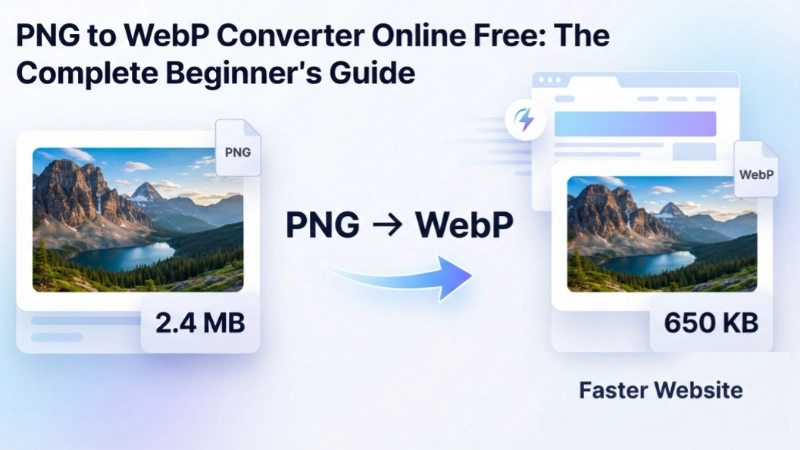
Here’s the key difference: WebP uses better compression than PNG. This means your images look just as good but take up much less space. According to tests, WebP files are typically 25-34% smaller than PNG files while maintaining the same visual quality .
Why Should You Convert PNG to WebP?
| Reason | Benefit |
|---|---|
| Faster website loading | Visitors stay longer and enjoy smoother experience |
| Better SEO | Google rewards fast-loading websites with better rankings |
| Save storage space | 25-34% smaller files mean more room on your server |
| Lower hosting costs | Less bandwidth usage means cheaper hosting bills |
| Modern browser support | All major browsers now support WebP |
I’ve personally seen websites cut their image file sizes in half just by switching to WebP. The difference is truly remarkable.
How to Convert PNG to WebP Online Free
Now let’s get to the good stuff—actually converting PNG to WebP online. This is the easiest way to do it, and you don’t need to install any software.
Method 1: Using Top Image Fixer’s PNG to WebP Converter
I’ve tried many online converters, and Top Image Fixer’s PNG to WebP Converter is one of the most straightforward tools out there. Here’s how simple it is:
- Visit the PNG to WebP Converter on Top Image Fixer
- Upload your PNG file by clicking the upload button or dragging it into the box
- Wait a few seconds while the tool processes your image
- Download your WebP file immediately
That’s it. No sign-ups, no confusing settings, no watermarks. Just a fast, free solution for converting PNG to WebP.
Method 2: How to Convert PNG to WebP Using Other Online Tools
If you want to convert PNG to WebP online using other tools, here are some excellent alternatives:
GroupDocs PNG to WebP Converter :
- Free to use
- Works on any device (Windows, Mac, Android, iPhone)
- Files are automatically deleted after 24 hours
- No registration needed
Pixlr PNG to WebP Converter :
- Converts up to 20 PNG files at once
- Each file up to 20 MB
- Simple three-step process
Cloudinary PNG to WebP Converter :
- AI-powered image transformations
- Batch conversion support
- Secure, ad-free, works directly in your browser
Filestack PNG to WebP Converter :
- Instant conversion
- Generates a CDN link for fast delivery
- Supports stripping metadata if needed
How to Convert PNG to WebP Online Free: Step-by-Step Guide
Let me walk you through the typical process using Top Image Fixer:
Step 1: Upload Your PNG
Click the upload button or drag your PNG file into the designated area. Most tools support files up to 20-25 MB.
Step 2: Wait for Conversion
The tool will process your image. This usually takes only a few seconds for standard images.
Step 3: Download Your WebP
Once the conversion is complete, click the download button. Your new WebP file is ready to use.
Understanding the Difference Between PNG and WebP
Let me explain the differences in plain English so you know exactly what you’re working with.

PNG (Portable Network Graphics)
PNG is like that friend who never loses anything. It uses lossless compression, which means every single pixel stays exactly as it was originally. This makes PNG perfect for:
- Logos with transparent backgrounds
- Graphics with sharp text
- Images where every detail matters
- Screenshots and screen captures
The downside? PNG files are big. Really big, sometimes. And those big files take longer to load on websites.
WebP (Web Picture Format)
WebP is like a suitcase that folds everything down smaller. It was designed by Google to make images load faster on the web . WebP:
- Supports both lossy and lossless compression
- Handles transparency (just like PNG)
- Can even do animations (like GIF, but better)
- Usually creates files that are 25-34% smaller than PNG
The only catch? Older browsers might not support it, but all modern browsers do now.
Should You Convert PNG to WebP?
Let me help you decide whether it’s worth converting your PNG to WebP.
Convert to WebP When You Need:
- Smaller file sizes for faster website loading
- Better website performance and SEO ranking
- Lower bandwidth usage to save on hosting costs
- Modern image format that works on today’s web
Stick with PNG When You Need:
- Maximum compatibility with very old browsers
- Perfect quality retention for professional editing
- Transparency that you absolutely cannot compromise
Most website owners should convert their PNGs to WebP. The benefits are just too good to ignore.
How to Batch Convert Multiple PNG Files to WebP
I know what you’re thinking—”That’s great, but I have hundreds of PNG files. Do I really have to do them one by one?”
No, you don’t.
Many online PNG to WebP converters support batch conversion. Here’s how it works with most tools:
- Select all the PNG files you want to convert
- Upload them together (most tools allow 10-20 files at once)
- Click convert
- Download all your WebP files in one go
Top Image Fixer’s PNG to WebP Converter supports batch processing, making it easy to convert multiple images at once. Some tools even let you download all converted files as a single ZIP folder .
Frequently Asked Questions
What is a WebP file?
A WebP file is an image format developed by Google that provides superior compression while maintaining high image quality. It’s designed to reduce file sizes significantly, making it ideal for web use where speed and efficiency are crucial .
What’s the difference between PNG and WebP?
The main difference is that WebP offers better compression, resulting in smaller file sizes without compromising image quality . PNG files are larger but use lossless compression, while WebP supports both lossy and lossless compression.
Does WebP support transparency?
Yes! WebP supports transparency (including partial transparency), making it a great alternative to PNG for transparent images .
Is it free to use an online PNG to WebP converter?
Yes, converting PNG to WebP using online tools like Top Image Fixer, Pixlr, GroupDocs, and Cloudinary is completely free .
Can I convert PNG to WebP on my phone?
Yes! Online PNG to WebP converters work on any device with a web browser, including Android and iPhone .
Will I lose image quality when converting PNG to WebP?
No, WebP supports lossless compression, which means you can preserve the same quality as the original PNG while enjoying smaller file sizes .
Is it safe to use an online PNG to WebP converter?
Yes, if you use reputable tools. Most services delete uploaded files after 24 hours and don’t share your data with anyone .
Why should I use WebP over PNG?
Using WebP over PNG can significantly improve your website’s performance. WebP reduces image file sizes, leading to faster load times and improved user experience .
Practical Tips for Converting PNG to WebP
Here are my best tips after converting hundreds of images:
- Keep your original PNG as a backup, just in case
- Check the quality after conversion to make sure it looks right
- Batch convert if you have many images to save time
- Test on your website to see the speed improvement
- Remember that WebP transparency works just like PNG transparency
Conclusion: Start Converting PNG to WebP Today
Look, I’ve been where you are. Your images are taking too long to load, your website is slow, and you need a solution that actually works. Converting PNG to WebP is that solution.
Here’s what I want you to do:
- Take one PNG image that’s currently on your website
- Visit Top Image Fixer’s PNG to WebP Converter
- Convert it and see how much smaller it gets
- Upload it to your site and watch how much faster things load
The difference is real. Websites that convert their images to WebP load faster, rank better on Google, and keep visitors happy.
Give it a try—you’ve got nothing to lose and a faster website to gain. And if you have questions, I’m always here to help.