
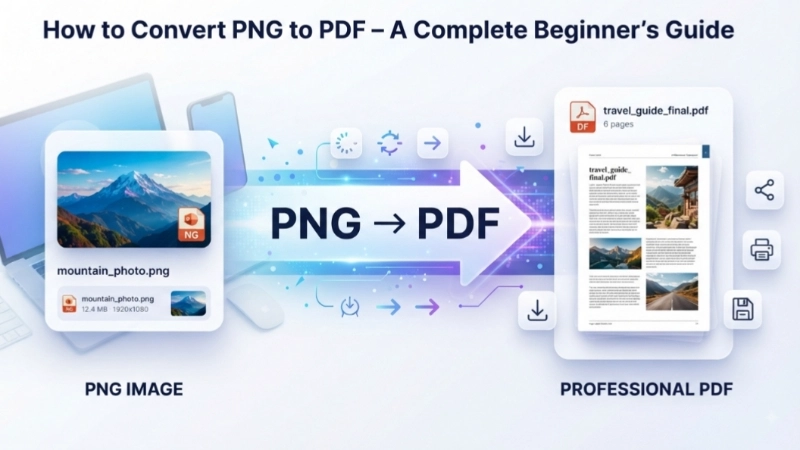
Let me be honest with you—I’ve been in your shoes. You’ve got this important PNG image sitting on your computer, and you desperately need it as a PDF. Maybe you’re submitting a job application, creating a portfolio, or trying to send a document that looks professional. Whatever your reason, you’re here because you searched for how to convert PNG to PDF, and I’m going to help you figure this out.
Here’s the thing—converting PNG to PDF isn’t complicated. In fact, once you know the right methods, you’ll be able to do it in seconds. I’m going to show you all the ways you can convert PNG file to PDF, from the simplest online tools to built-in features on your computer. And the best part? Most of these methods are completely free.
Why Would You Even Want to Convert PNG to PDF?
Before I jump into the “how,” let me explain the “why.” Understanding this will help you decide which method works best for you.
PNG files are images. They’re great for photos, graphics, and screenshots. But they’re not always ideal when you need to share a document. Think about it—when you send a PNG, anyone can edit it, crop it, or change it. Plus, if you have multiple PNGs, they’re separate files that get messy to manage.
PDF files are documents. They’re professional, secure, and look the same on any device. When you convert PNG to PDF file, you get a document that:
- Preserves your image quality
- Can’t be easily altered by others
- Combines multiple images into one file
- Prints perfectly
- Looks professional for business or academic purposes
I’ve helped many people convert images to PDF, and the most common reasons are:
- Creating a photo portfolio
- Submitting scanned documents
- Sending professional presentations
- Archiving important images
- Printing high-quality photos
Method 1: How to Convert PNG to PDF Online (Fastest & Easiest Way)
Let me tell you—I’ve tested dozens of online tools, and I’ve found some that genuinely work without any hassle. The best part about online converters is that they work on any device. You don’t need to install anything, and you can use them on your phone, tablet, or computer.
Why I love online converters: They’re free, fast, and perfect for beginners. I’ve recommended them to my friends who aren’t tech-savvy, and even they found it easy.
Here are my top recommendations for online PNG to PDF converters:
Top Image Fixer’s PNG to PDF Converter
I’ve been using Top Image Fixer for image editing tasks, and their PNG to PDF Converter is excellent. It’s designed to be beginner-friendly and works like a charm.
Here’s how to use it:
- Go to the PNG to PDF Converter on Top Image Fixer
- Upload your PNG image (you can drag and drop it or click to browse)
- Wait a few seconds while the tool converts it
- Download your brand new PDF file
That’s it. No sign-ups, no watermarks, no nonsense. Just a simple, reliable way to convert PNG to PDF online.
Other Great Online Tools
I’ve also tested several other online tools that work well:
| Tool | Best For | Free Version |
|---|---|---|
| I Love PDF 2 | Multiple images and advanced settings | Yes, completely free |
| Lumin PDF Converter | Quick single-file conversions | Yes, no sign-up needed |
| Smallpdf | Clean, modern interface | Yes (limited daily conversions) |
| Adobe Acrobat Online | Perfect quality for single images | Yes |
Quick Tip: When using online converters, choose tools that let you merge multiple PNGs into one PDF. This is incredibly useful when you have several pages or images to combine into a single document .
Method 2: How to Convert PNG to PDF on Windows (Built-in Method)
If you’re using Windows, you already have everything you need to convert PNG to PDF file. Windows includes a virtual printer called “Microsoft Print to PDF” that works like magic. I’ve used this countless times, and it’s always reliable.
Step-by-step instructions:
- Right-click on your PNG file
- Select “Open with” and choose “Photos” (or your default image viewer)
- Press Ctrl + P to open the Print dialog
- Under “Printer,” select “Microsoft Print to PDF”
- Adjust page size and orientation if needed
- Click “Print”
- Choose a file name and save location
- Click “Save”
I love this method because it works even if you’re offline, and it’s completely free. One thing to keep in mind though—if you have a scanned document with text that you want to edit later, you’ll need OCR (Optical Character Recognition) software. A PDF created this way essentially just wraps your PNG in a PDF container—the text isn’t searchable or editable .
For multiple PNGs on Windows:
- Select all the PNG files you want to convert in File Explorer
- Right-click and choose “Print”
- Select “Microsoft Print to PDF” as the printer
- Windows will combine them into a single PDF automatically
Method 3: How to Convert PNG to PDF on Mac (Built-in Method)
Mac users, you’re not left out. Your Mac has Preview, which is a fantastic tool for converting PNG to PDF file. I’ve used Preview for years, and it’s one of the most underrated tools on Mac.
Here’s how to do it:
- Open your PNG file in Preview (just double-click the image)
- Click “File” in the menu bar
- Select “Export” (or “Export as PDF” in newer versions)
- Choose “PDF” from the Format dropdown menu
- Click “Save”
Want to combine multiple PNGs into one PDF on Mac?
- Select all your PNG files in Finder
- Right-click and choose “Open With” > “Preview”
- In Preview’s sidebar, drag images to arrange them in the correct order
- Go to File > Print
- From the PDF dropdown button in the Print dialog, select “Save as PDF”
This is one of those features I wish more people knew about. It’s so easy, and the quality is always excellent.
A Quick Visual Guide: PNG to PDF Conversion Steps
![A simple illustration showing the step-by-step process of converting a PNG file to a PDF. The image should show a PNG icon on the left, an arrow pointing to a PDF icon on the right, with numbered steps in between: 1) Upload or open your PNG, 2) Select ‘Save as PDF’ or use a converter, 3) Adjust settings if needed, 4) Download or save your new PDF. Each step should have a small icon representation to make it beginner-friendly and easy to understand.]
Method 4: How to Convert PNG to PDF on Mobile
I know many of you are probably reading this on your phone right now. You can absolutely convert PNG to PDF on mobile devices too.
On iPhone/iPad:
- Use the built-in Print feature or download apps like “Image to PDF” from the App Store
- Many apps now offer offline conversion, meaning your images never leave your device for privacy
On Android:
- Various apps like “Image to PDF” are available on Google Play Store
- You can also use mobile-friendly online converters
The mobile apps often come with extra features like:
- Adjusting image size and rotation
- Setting passwords for your PDFs
- Batch conversion
- Cropping and editing images before conversion
Method 5: Advanced Methods for Power Users
If you’re someone who needs to convert PNG to PDF regularly, or you need to handle bulk conversions, there are more advanced options available.
Command Line Tools:
- img2pdf is a powerful tool that creates lossless PDFs from raster images. It works well with PNG, JPEG, and JPEG2000 images without re-encoding them
- a2ping is another command-line utility that can convert PNG to PDF and many other formats
Developer Tools:
- GroupDocs.Conversion for .NET offers a powerful API for converting PNG to PDF programmatically. It’s great for developers building applications that need this functionality
These methods are more technical, but they’re perfect if you need to convert thousands of images or integrate PNG to PDF conversion into your workflow.
When Should You Use Each Method?
Let me help you decide which method works best for your situation:
| Your Situation | Best Method |
|---|---|
| Quick, one-time conversion | Online converter like Top Image Fixer |
| No internet connection | Windows Print to PDF or Mac Preview |
| Multiple images to combine | Online tools with merge feature or built-in methods |
| Privacy concerns | Offline desktop apps or built-in methods |
| Need OCR to make text searchable | Advanced tools like I Love PDF 2 with OCR |
| Converting on the go | Mobile apps |
Is It Safe to Convert PNG to PDF Online?
This is a question I get all the time, and it’s a good one to ask. Yes, it’s generally safe—but only if you use reputable tools.
Here’s what I recommend:
- Choose trusted services like Top Image Fixer, which processes files securely
- Look for tools that delete your files shortly after conversion
- Avoid tools that require you to sign up for no reason
- For sensitive documents, use offline methods instead of online tools
Most reputable online services, like Lumin, use secure file transfer protocols and automatically delete uploaded files after processing . I always review the privacy policy before using any online tool with personal information.
Tips for Getting the Best Results
After years of helping people convert images to PDF, here are my best tips:
- Keep your original PNG as a backup—you never know when you’ll need it
- Choose the right orientation—portrait for documents, landscape for photos
- Adjust margins if you want your image to fill the page or have borders
- Compress the file for emailing, but keep higher quality for printing
- If text is important, consider using OCR to make it searchable
Remember, a PDF containing an image is still an image file at its core. If you need the text to be searchable or editable, you’ll need OCR software .
How to Convert PNG File to PDF: Quick Reference

Let me summarize everything in one quick reference:
For Quick Online Conversion:
- Visit Top Image Fixer’s PNG to PDF Converter
- Upload your PNG
- Download your PDF
On Windows:
- Open PNG in Photos
- Press Ctrl + P
- Select “Microsoft Print to PDF”
- Save your PDF
On Mac:
- Open PNG in Preview
- File > Export as PDF
- Save
For Multiple Images:
- Use online tools with merge feature
- Or use built-in methods that combine multiple images
Frequently Asked Questions
Can I convert PNG to PDF without losing quality?
Yes! PNG uses lossless compression, and good converters preserve that quality. The only way you might lose quality is if the tool recompresses the image. Most reputable converters, including Top Image Fixer’s PNG to PDF Converter, maintain the original quality .
How do I convert multiple PNGs into one PDF?
On Windows, select all your PNGs, right-click, choose Print, and select “Microsoft Print to PDF” as the printer. On Mac, open all images in Preview, arrange them, and select Save as PDF from the Print dialog. Online tools like Top Image Fixer also support this .
Is converting PNG to PDF free?
Yes! All the methods I’ve described are completely free. Online tools like Top Image Fixer are free to use, and the built-in Windows and Mac methods cost nothing .
Can I convert PNG to PDF on my phone?
Absolutely. Both iPhone and Android have apps specifically for this. You can also use mobile-friendly online converters .
What’s the difference between converting PNG to PDF and just changing the file extension?
This is important—changing .png to .pdf doesn’t actually convert the file. It just tricks your computer into thinking it’s a PDF, and it likely won’t open correctly. Always use a proper conversion tool .
How do I make a PDF with searchable text from a PNG?
You need OCR (Optical Character Recognition) software. Some online tools like I Love PDF 2 offer this feature. The software “reads” the text in your image and makes it searchable and editable .
Is it better to convert PNG to PDF or keep it as PNG?
It depends on your needs. Convert to PDF when you need to:
- Send professional documents
- Combine multiple images
- Ensure your file can’t be easily edited
- Print high-quality documents
Keep as PNG when you need:
- Transparent backgrounds
- Edit the image later
- Use it for web graphics
Conclusion: Your PNG to PDF Solution Awaits
Look, converting PNG to PDF doesn’t have to be complicated. Whether you choose the simplicity of an online converter like Top Image Fixer’s PNG to PDF Converter, the reliability of built-in Windows or Mac features, or the convenience of a mobile app, you now have all the tools you need.
I’ve walked you through multiple methods, explained the pros and cons of each, and given you practical tips for getting the best results. Now it’s your turn.
Here’s what I want you to do right now:
- Try the easiest method first—head to Top Image Fixer’s PNG to PDF Converter and convert a test image
- Learn the built-in method on your computer for when you’re offline
- Save this guide for future reference
The ability to convert PNG to PDF file is a skill you’ll use more often than you think. Whether it’s for work, school, or personal projects, having this tool in your back pocket will save you time and frustration.
Go ahead and give it a try. Convert that PNG to a PDF, and see how professional and easy it really is. If you have any questions, feel free to reach out—I’m always happy to help someone get the most out of their images and documents.