
📸 Image Size Reducer – Bulk Image Size Reduce Free
photo size reducer • size reduction image • reduce the pic size • bulk image reduce size
Shrink pic size online in seconds. Optimize JPG/JPEG, PNG, WEBP – all private, all free, no signup.
📂 Choose images (0)
tap or drag & drop – supports batch🔒 your privacy matters
We do not store any images. All conversions run directly in your browser (client‑side). No upload, no tracking, no server storage. Your files never leave your phone or computer – desktop or mobile, same privacy guarantee.
About this tool – why I built it
Hey, I'm Naresh – a small business owner and part-time coder. A few years ago, I struggled with my online store because product photos were too heavy. Pages took forever to load, and customers just left. I tried many "free" tools, but they either uploaded my images to unknown servers or limited how many I could do. That felt wrong.
So I built this one night. It works entirely in your browser – your photos never leave your computer. I've been using it for my own shop for two years, and now my neighbor who's a photographer uses it too. It's simple, private, and actually works. No sign-ups, no hidden costs. Just drag, slide, and download.
– Naresh, creator of TopImageFixer
How to reduce image size without losing quality
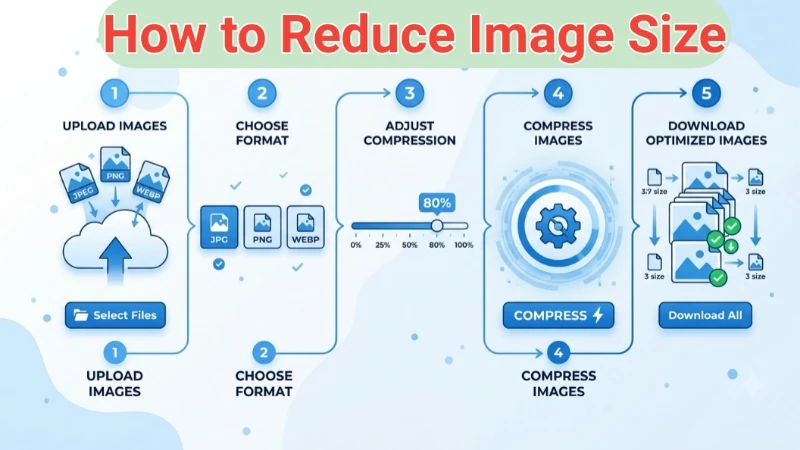
Step 1: Click the upload area and select your photos (JPG, PNG, WEBP – mix allowed).
Step 2: Choose the output format: stay in original or convert to JPEG/PNG/WEBP.
Step 3: Slide the quality bar. 80% is the sweet spot: file shrinks a lot, eyes see no difference.
Step 4: Hit “Reduce Images”. Done. Your browser does all the work; nothing is uploaded.
Pro tip: after reduction, use the download button under each image. For batch, click “Download all as ZIP”. Works perfectly on both desktop & mobile.
Tips & common mistakes
• Don’t reduce twice – re‑compressing a JPEG adds artifacts. Always start from original.
• WEBP vs JPEG: WEBP gives ~30% smaller files at same quality. Use it for websites, but keep JPEG for widest compatibility.
• Beware of low quality: below 50% you’ll likely see blockiness. Stick to 70‑85% for photos.
When to use JPEG, PNG or WEBP
JPEG: best for photographs, gradients. Use case: product images, travel photos. Slightly larger than WEBP but universal.
PNG: lossless, supports transparency. Use case: logos, graphics, screenshots with text.
WEBP: modern format, both lossy and lossless. Use case: website hero images, Core Web Vitals optimization.
Frequently Asked Questions (FAQ)
⚡ Image Optimizer – more free tools You Might Need
Check these other free Quickly your photos, pictures – most popular tools all private, no upload
📖 Helpful Articles From read our Blog
How to Reduce Image Size Without Losing Quality: A Beginner’s Guide
Have you ever tried to upload a photo online, only to see an error saying “file too large”.👉Read more ?
How to Watermark Images: Complete Beginner’s Guide for 2026
That is exactly why you should learn to learn how to watermark images. A watermark protects your work. It tells everyone: “This belongs to me.”👉Read more ?
How to Crop Photos for Instagram (Without Losing Your Mind or Your Followers)
So if you are here because you keep taking beautiful photos that Instagram keeps chopping off in weird ways, I get you. Learning how to crop photos for instagram changed my social media life. And it will change yours too.👉Read more ?
Supported Image Formats
JPG, JPEG, PNG, WEBP, PDF, SVG, BMP, GIF, TIFF and more – all work in this tool