
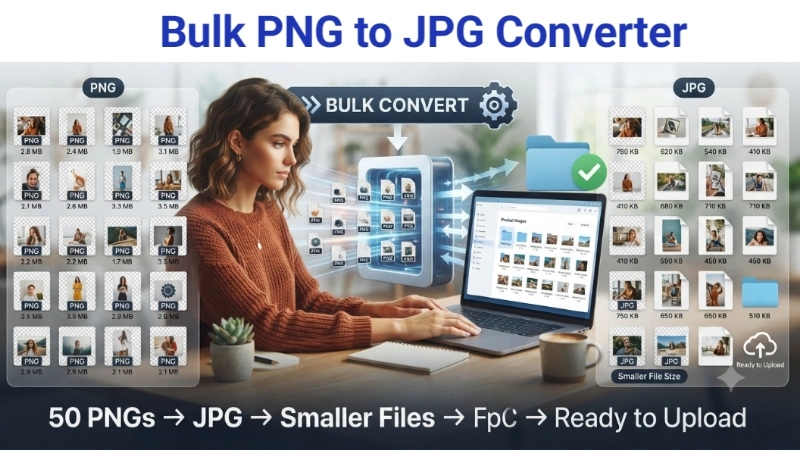
Let me tell you about the time I had to upload 50 product photos to a website that only accepted JPG files.
I had spent hours taking beautiful photos of handmade items. Perfect lighting. Great angles. Everything was ready. Then I realized all my photos were in PNG format. And the website would not accept PNG.
I thought about converting them one by one. Fifty images. One at a time. That would have taken forever.
Then I discovered batch conversion. I could convert all 50 images at once. In seconds. My mind was blown.
If you are here because you have a folder full of PNG files and you need to convert png to jpg in bulk, you are in the right place. I will show you exactly how to do it. Fast. Free. And without losing your mind.
And yes, I will point you to a free tool on Top Image Fixer that makes bulk PNG to JPG conversion incredibly simple.
Let me walk you through this like I am showing a friend.
Why Convert PNG to JPG in the First Place?
Before I show you how to use a bulk png to jpg converter, let me explain why you might need to do this.
Reason 1: Smaller file sizes
PNG files are great for quality, but they are huge. JPG files are much smaller. If you are sending photos by email or uploading to a website, JPG is usually better.
Reason 2: Website compatibility
Some websites only accept JPG images. If you have PNG files, you cannot upload them. Converting to JPG solves the problem.
Reason 3: Faster loading
If you run a website, JPG images load faster than PNG. Faster loading means happier visitors and better Google rankings.
Reason 4: Save storage space
PNG files take up more space on your computer or phone. Converting them to JPG can save a lot of storage.
Reason 5: Easier sharing
JPG is the most common image format. Almost everyone can open a JPG file. PNG is also common, but JPG is more universal.
So when you learn bulk convert png to jpg, you are learning how to save space, share files easily, and make your life simpler.
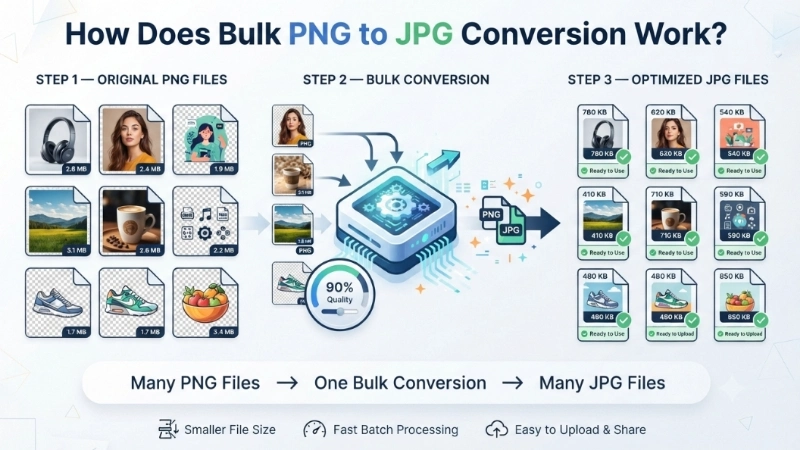
How Does Bulk PNG to JPG Conversion Work?
What Is the Difference Between PNG and JPG?
Before we talk about png to jpg batch converter, let me explain the difference between these two formats.
| Feature | PNG | JPG |
|---|---|---|
| File size | Large | Small |
| Quality | Perfect (lossless) | Very good (some loss) |
| Transparency | Yes | No |
| Best for | Logos, screenshots, text | Photos, web images |
| Compression | Lossless | Lossy |
PNG preserves every single pixel perfectly. It is great for logos, screenshots, and images with text. But the files are huge.
JPG removes some invisible details to make the file smaller. It is perfect for photos. You cannot see the difference, but the file is much smaller.
So when you convert png to jpg in bulk, you are trading a tiny bit of quality for a much smaller file size. For most uses, that trade-off is worth it.
The 10-Second Answer (For People Who Just Want It Done)
If you are in a hurry and just need to bulk convert png to jpg right now, here is the fastest way:
- Go to Top Image Fixer (free, no account, no nonsense)
- Find the PNG to JPG Converter tool
- Upload all your PNG files (you can select multiple at once)
- Click convert
- Download all your new JPG files in a zip folder
That is it. Five steps. About thirty seconds for a batch of images.
Now, if you want to understand the different ways to convert png to jpg in bulk – including online tools, desktop software, and command-line methods – keep reading.
Method 1: Top Image Fixer (The “I Just Want This to Work” Method)
Let me start with the tool I actually use. Not the complicated one. The one that works when I have 50 images and zero patience.
Top Image Fixer has a free PNG to JPG Converter tool that supports batch conversion.
Step 1: Open your browser. Go to Top Image Fixer.
Step 2: Find the PNG to JPG Converter tool. It is usually on the homepage.
Step 3: Click upload. You can select multiple PNG files at once. Hold down Ctrl (or Command on Mac) to select several files.
Step 4: The tool will show you all the images you have uploaded.
Step 5: Click convert. The tool processes all your images at once.
Step 6: Download the zip file containing all your new JPG images.
That is it. Six steps. Thirty seconds. All your PNG files are now JPG.
Pro tip: If you only have a few images, you can also use the tool for single-file conversion. But the real power is batch conversion.
Method 2: Online Bulk PNG to JPG Converters (Free Options)
Top Image Fixer is great. But there are other free online tools that also support batch png to jpg conversion.
Pixlr PNG to JPG Converter
Pixlr allows you to batch convert up to 20 PNG files to JPG at once. Simply upload all the PNG images you want to convert, select JPG as the output format, and convert them simultaneously. The conversion is free to use.
Cloudinary PNG to JPG Converter
Cloudinary offers a simple drag-and-drop converter. You can batch convert PNG images to JPG easily, or sign up for their free API to automatically convert all your PNG images.
Free Batch Image Converter (Perfect Corp)
This tool allows you to transform up to 50 images at once into the format you need. It is a free, user-friendly online batch image converter. It supports conversion to WebP, PNG, JPG, and TIFF.
iFormat.io PNG to JPG Converter
This tool supports drag-and-drop and batch upload of multiple files for bulk conversion. It preserves the original resolution and DPI.
ResizeImage.io PNG to JPG Converter
You can upload multiple files for batch conversion using their file converter. It is fast, secure, unlimited, and free – no registration required.
GroupDocs PNG to JPG Converter
This free online image converter works on Windows, Mac, Android, and iPhone. You can change PNG to JPG without losing quality.
Method 3: Desktop Software for Bulk PNG to JPG Conversion
If you prefer not to upload your images to the internet, desktop software is a great option.
WaveSpeed Desktop
This free desktop tool converts images locally on your computer. No uploads required. Your images never leave your machine. It supports conversion between PNG, JPG, WebP, HEIC, BMP, TIFF, and more.
Universal Image Converter (GitHub)
This is a free and open-source desktop app for converting images across multiple formats. It supports drag-and-drop, batch conversion, and dark/light mode. You can do batch folder conversion with custom output naming.
Imagine-plus
This is a PNG/JPEG/WebP/AVIF converter and optimization app for macOS, Windows, and Linux.
Method 4: Command-Line Tools for Bulk Conversion
For tech-savvy users, command-line tools offer powerful batch conversion options.
ImageMagick
ImageMagick is a powerful command-line tool that can automate repetitive tasks such as resizing, converting, and applying filters to large sets of images. To convert all PNG images to JPEG, you can use a simple loop in a shell script.
FFmpeg
FFmpeg can handle batch conversion from the command line. You can convert PNG screenshots to JPG, optimize images as WebP, or create GIFs from image sequences. A basic command would be: ffmpeg -i input.png -q:v 2 output.jpg.
PNGtoJPG (GitHub)
This is a command-line utility designed to convert PNG images to JPG format. It takes advantage of multithreading to process multiple images concurrently, providing faster performance on systems with multiple CPU cores.
Image Prompt 1 (For inside the article)
“A simple visual showing a folder with many PNG files on the left. An arrow points to the right, where a folder with the same number of JPG files sits. A small icon of a converter tool sits between them. Text below: ‘Bulk PNG to JPG conversion. One click. All files converted.’ Clean, friendly, very beginner-friendly.”
Place this image after the “Why Convert PNG to JPG in the First Place?” section. It shows the transformation visually.
How to Choose the Right Bulk PNG to JPG Converter
With so many options, how do you choose? Here is a quick comparison.
| Tool | Free? | Batch Limit | Privacy | Best For |
|---|---|---|---|---|
| Top Image Fixer | Yes | Unlimited | Good | Everyone |
| Pixlr | Yes | 20 files | Good | Quick batches |
| WaveSpeed Desktop | Yes | Unlimited | Excellent (local) | Privacy-conscious |
| ImageMagick | Yes | Unlimited | Excellent | Tech-savvy users |
Choose Top Image Fixer if: You want a simple, free, online tool that works for any number of files.
Choose Pixlr if: You only have up to 20 files and want a quick conversion.
Choose WaveSpeed Desktop if: You do not want to upload your images to the internet.
Choose ImageMagick if: You are comfortable with the command line and need maximum control.
Common Mistakes When Converting PNG to JPG in Bulk
Let me save you from the mistakes I have made.
Mistake #1: Not checking the quality setting
Some converters let you adjust JPG quality. If you set it too low, your images will look blurry. If you set it too high, the files will be large. Find the balance.
Mistake #2: Forgetting about transparency
PNG supports transparent backgrounds. JPG does not. If your PNG has a transparent background, converting to JPG will fill it with white. Make sure that is what you want.
Mistake #3: Overwriting original files
Always keep your original PNG files. You might need them later. Save the JPG versions as new files.
Mistake #4: Using a tool that adds watermarks
Some free tools add watermarks to your images. Avoid them. Use reputable tools like Top Image Fixer.
Mistake #5: Not checking the output
After conversion, open a few JPG files to make sure they look right. Do not assume everything worked perfectly.
Image Prompt 2 (For near the common mistakes section)
“A simple illustration showing two photos side by side. Left photo: Good JPG conversion. Clear, sharp, looks like the original. Green checkmark. Right photo: Bad JPG conversion. Blurry, pixelated, looks terrible. Red X. Text below: ‘Good conversion keeps quality. Bad conversion ruins your image.’ Clean and simple.”
Place this image near the “Common Mistakes” section. It shows what to aim for.
How to Convert PNG to JPG in Bulk Without Losing Quality
You might be worried about losing quality when you bulk convert png to jpg. Here is how to minimize quality loss.
Tip 1: Use high-quality settings
Most converters let you choose the JPG quality. Choose 90% or higher for minimal quality loss.
Tip 2: Start with high-resolution PNGs
If your PNGs are low resolution, converting to JPG will not make them look better. Start with the best quality originals.
Tip 3: Do not convert multiple times
Each time you save a JPG, you lose a little quality. Convert once. Save the JPG. Do not convert it again.
Tip 4: Use a reputable converter
Not all converters are created equal. Some use better compression algorithms than others. Stick with trusted tools.
Tip 5: Check the results
After conversion, zoom in on a few images. If you see artifacts or blurriness, try a higher quality setting.
When Should You NOT Convert PNG to JPG?
Converting PNG to JPG is not always the right choice. Here is when you should keep your PNG files.
Keep PNG if:
- Your image has a transparent background
- Your image has small text that must be perfectly sharp
- Your image has sharp lines or edges (like a logo)
- You need lossless quality for printing
Convert to JPG if:
- Your image is a photo
- You need a smaller file size
- The website or platform requires JPG
- You are sharing via email
Internal Linking Suggestions
While reading this article, you can link to these other helpful pages on your website:
- Top Image Fixer – PNG to JPG Converter (main tool link)
- Top Image Fixer – Image Reducer (for compressing JPG files after conversion)
- Top Image Fixer – Image Resizer (for resizing images)
Place these links naturally. For example:
“After you convert png to jpg in bulk, you might want to compress the JPG files further. Use our free Image Reducer for that.”
FAQs About Bulk PNG to JPG Converter
1. What is the best free bulk PNG to JPG converter?
Top Image Fixer offers a free PNG to JPG converter with batch support. Pixlr is also a good option for up to 20 files.
2. How do I convert PNG to JPG in bulk without losing quality?
Use a high-quality setting (90% or higher). Start with high-resolution PNGs. Use a reputable converter.
3. Can I convert PNG to JPG in bulk on my phone?
Yes. Online tools like Top Image Fixer work on mobile browsers. There are also apps like Image Converter on the App Store.
4. How many PNG files can I convert at once?
It depends on the tool. Pixlr allows up to 20 files. Perfect Corp allows up to 50 files. Top Image Fixer has no set limit.
5. Does converting PNG to JPG reduce quality?
Yes, JPG uses lossy compression. But at high quality settings (90%+), the difference is barely noticeable.
6. What happens to transparency when converting PNG to JPG?
JPG does not support transparency. The transparent areas will become white.
7. Is it safe to use online PNG to JPG converters?
Most reputable converters are safe. But if you are concerned about privacy, use a desktop tool that processes locally.
8. Can I batch convert PNG to JPG for free?
Yes. Many free tools support batch conversion, including Top Image Fixer, Pixlr, and WaveSpeed Desktop.
9. What is the difference between PNG and JPG?
PNG is lossless and supports transparency but has large file sizes. JPG is lossy, does not support transparency, but has much smaller file sizes.
10. How do I convert PNG to JPG in bulk on Windows?
You can use online tools, desktop software like WaveSpeed Desktop, or command-line tools like ImageMagick.
A Quick Story: How Batch Conversion Saved My Day
I was preparing images for an online store. I had 75 product photos. All in PNG format. The store only accepted JPG.
I thought about converting them one by one. That would have taken hours. I was about to give up.
Then I found a bulk PNG to JPG converter. I uploaded all 75 files. Clicked convert. Thirty seconds later, I had 75 JPG files ready to upload.
That day, I learned the power of batch conversion. It saved me hours of work.
That is why I am writing this guide. I do not want you to waste time like I almost did.
Conclusion: Your 2-Minute Action Plan
You came here asking about bulk png to jpg converter. Now you have the answer. Let me give you a simple action plan.
Minute 1: Gather all the PNG files you want to convert. Put them in one folder.
Minute 2: Go to Top Image Fixer. Open the PNG to JPG Converter tool. Upload all your files. Click convert. Download the zip file with your new JPG images.
Two minutes. That is all it takes to convert png to jpg in bulk.
Now do it for your other PNG files. Then share this guide with someone who is still converting images one by one.
Final Words From Me
Look, converting images one by one is a waste of time. When you have dozens or hundreds of PNG files, batch conversion is the only sensible way to do it.
Now you know exactly how. No expensive software. No confusing settings. Just a free tool and two minutes.
So go ahead. Convert those PNGs to JPG. Save that space. Upload those images. Stop wasting time.
Ready to convert your first batch? Visit Top Image Fixer now and use their free PNG to JPG Converter. It takes thirty seconds. And you will never convert images one by one again.
One Last Reminder
Bookmark this page. Bookmark Top Image Fixer. And next time someone asks you “how to convert png to jpg in bulk,” send them here.
You have the knowledge. You have the tool. Now go convert those images.
Your JPG files are waiting. Go create them.