
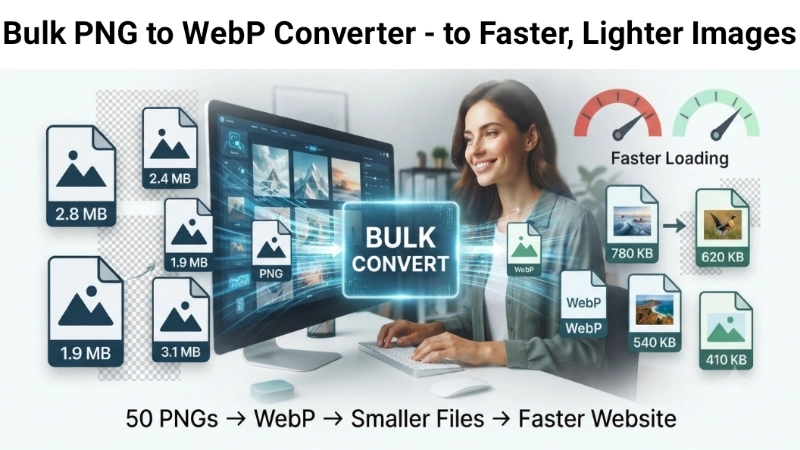
Let me guess. You have a folder full of PNG images. Maybe they are product photos for your website. Maybe they are graphics for a client project. Maybe they are screenshots for a presentation.
And you have heard about WebP. You know it makes images smaller and websites faster. But the thought of converting each PNG one by one makes you want to close your laptop and walk away.
I have been there too. PNG files are great for quality. But they are heavy. They slow down websites. They eat up storage space. And converting them one at a time feels like watching paint dry.
But here is the good news. You do not have to do it one by one. You can use a bulk PNG to WebP converter. It takes all your PNG images and converts them to WebP in seconds.
In this guide, I will show you exactly how bulk PNG to WebP conversion works. I will explain why PNG to WebP bulk conversion is one of the best things you can do for your website. And I will give you multiple methods that work on any device.
No complicated steps. No expensive software. Just real help from someone who has converted thousands of images.
By the end of this article, you will be converting dozens of PNGs to WebP in under a minute. Let me show you how.
![Image Prompt: A person at a computer looking at a folder full of PNG files with large file sizes. A magic wand labeled “Bulk Convert” hovers over the folder. On the other side of the screen, the same images are now WebP files with much smaller file sizes and a speedometer showing “Faster Loading.” Modern, friendly illustration style. 16:9 aspect ratio.]
Why Convert PNG to WebP? The Simple Truth
Before I show you how to do bulk PNG to WebP conversion, let me explain why you should care.
PNG is great for quality. It supports transparency. It keeps images sharp. But PNG files are large. A single PNG screenshot can be 2-3 MB. A logo with transparency can be 500 KB.
WebP is PNG’s smarter cousin. It gives you the same quality but in a much smaller file. According to Google, lossless WebP images are 26% smaller than comparable PNG files. In many cases, the savings are even bigger — up to 30% smaller.
Here is what that means in real life:
| What You Have | PNG File Size | WebP File Size | Space Saved |
|---|---|---|---|
| 100 product images | 50 MB total | 37 MB total | 13 MB saved |
| 500 blog graphics | 250 MB total | 185 MB total | 65 MB saved |
| 1,000 website images | 500 MB total | 370 MB total | 130 MB saved |
When you use a bulk PNG to WebP converter, those savings add up fast. Your website loads faster. Your server storage costs go down. Your visitors stay happy.
And here is the best part: WebP supports transparency, just like PNG. So you do not lose that feature. You get smaller files without sacrificing quality or functionality.
PNG to WebP: How Much Smaller Can Your Images Become?
What Is Bulk PNG to WebP Conversion?
Let me keep this simple.
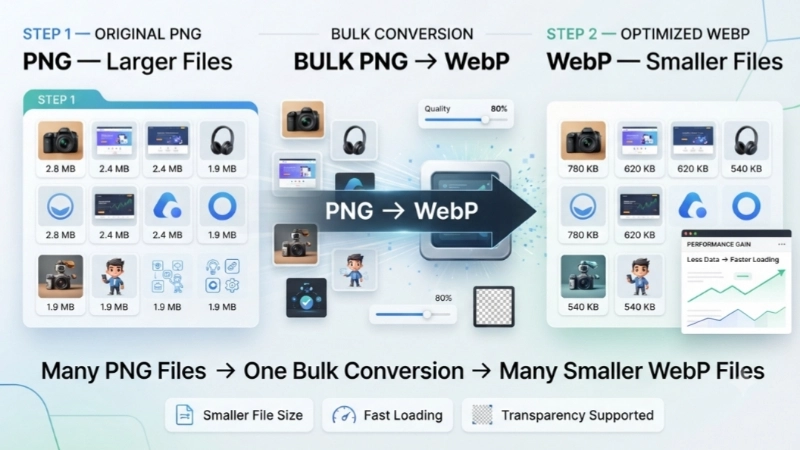
Bulk conversion means converting many files at once instead of one at a time.
- Single conversion: Open one PNG → Save as WebP → Repeat 50 times (takes forever)
- Bulk conversion: Select 50 PNGs → Click one button → All become WebP (takes 30 seconds)
A bulk PNG to WebP converter does exactly what it sounds like. You give it a folder of PNG images. It gives you back a folder of WebP images. Every file is converted. Every file is smaller. Every file keeps its quality.
Most bulk converters also let you:
- Choose the quality level (higher quality = larger file, lower quality = smaller file)
- Keep transparency (WebP supports alpha channels just like PNG)
- Preserve the original resolution
- Convert losslessly (no quality loss at all)
Why WebP Is the Future of Web Images
WebP is not just a trendy format. It is the format Google recommends for modern websites.
Here is why WebP matters:
| Benefit | What It Means for You |
|---|---|
| Smaller file sizes | Your website loads faster |
| Better SEO | Google ranks faster sites higher |
| Less bandwidth | You pay less for hosting |
| Happier visitors | People do not wait for images to load |
| Transparency support | Logos and graphics look perfect |
| Animation support | Replaces bulky GIFs |
Browser support: WebP works on 97% of browsers worldwide. That includes Chrome, Firefox, Safari, Edge, and all modern mobile browsers. Only very old browsers do not support it.
When you bulk convert PNG to WebP, you are future-proofing your website. You are making it faster, cheaper to run, and better for your visitors.
Method 1: Top Image Fixer (The Easiest Bulk PNG to WebP Converter)
Let me start with the tool I use whenever I need a bulk PNG to WebP converter.
Top Image Fixer has a free PNG to WebP Converter that handles multiple images at once. It is fast, it is free, and it works on any device.
Here is how to do bulk PNG to WebP conversion using Top Image Fixer:
Step 1: Open your browser on your phone or computer.
Step 2: Go to Top Image Fixer website.
Step 3: Find the PNG to WebP Converter tool.
Step 4: Click the Upload button. Select all the PNG images you want to convert.
Step 5: Choose your quality setting. For most images, 80-85% quality gives you a great balance of size and quality.
Step 6: Click Convert.
Step 7: Wait a few seconds. The tool converts all your images.
Step 8: Click Download All to save all your WebP images in one zip file.
Direct Tool Link: Click here to bulk convert PNG to WebP now using Top Image Fixer (Insert your actual tool link here)
This is the fastest way to bulk PNG to WebP convert. It takes less than 60 seconds for 50 images.
Method 2: Using Free Online Bulk PNG to WebP Converters
If you want other options, here are free online tools that also work well.
Option A: Pixlr PNG to WebP Converter
Pixlr offers a free bulk converter.
Step-by-step:
- Go to Pixlr’s PNG to WebP converter
- Upload multiple PNG files
- Click convert
- Download your WebP files
Pros: Free, easy to use, no account needed
Cons: May have limits on number of files
Option B: iFormat.io PNG to WebP Converter
iFormat.io supports batch uploads for bulk conversion.
Step-by-step:
- Go to iFormat.io
- Drag and drop your PNG files
- The tool converts them to WebP while preserving resolution and DPI
- Download your files
Pros: Preserves original resolution, supports batch uploads
Cons: May have file size limits
Option C: WebP Wizard (Privacy-Focused)
WebP Wizard converts images directly in your browser.
Step-by-step:
- Go to WebP Wizard
- Upload your PNG files
- All conversions happen locally on your device
- No files are uploaded to any server
Pros: Complete privacy, no uploads to servers
Cons: May be slower for very large batches
Method 3: Using Desktop Software for Bulk PNG to WebP
If you convert images often, you might want a dedicated program on your computer.
Option A: LocalPix (Free, Offline)
LocalPix is a free offline image converter for macOS and Windows.
Step-by-step:
- Download and install LocalPix
- Open the app
- Select your PNG files
- Choose WebP as the output format
- Click convert
Pros: Completely offline, no uploads, supports multiple formats
Cons: Requires installation
Option B: Python Script (For Developers)
If you are comfortable with the command line, there is a lightweight Python script for batch conversion.
Step-by-step:
- Install Python on your computer
- Download the bulk-image-to-webp script from GitHub
- Run the script on your folder of PNG images
- All images are converted to WebP
Pros: Highly customizable, can handle thousands of images
Cons: Requires technical knowledge
How to Choose the Right Quality Setting
When you bulk convert PNG to WebP, you need to choose a quality setting. Here is a simple guide.
| Quality Setting | File Size | Quality | Best For |
|---|---|---|---|
| 90-100% | Largest | Excellent | Photos you want to keep perfect |
| 80-85% | Medium | Great | Most website images (recommended) |
| 70-75% | Small | Good | Thumbnails, less important images |
| 50-60% | Very Small | Acceptable | Test images, drafts |
My recommendation: Start with 80% quality. It gives you a great balance. The file size is much smaller than PNG. The quality looks almost identical.
For lossless conversion: If you cannot afford any quality loss, use lossless WebP. The file will still be 26% smaller than PNG. But it will not be as small as lossy WebP.
Common Mistakes to Avoid
Here are the mistakes I see most often with bulk PNG to WebP conversion.
Mistake #1: Converting Everything to WebP
WebP is great for web use. But it is not great for everything. If you need to edit images later, keep your PNG originals. WebP is a delivery format, not an editing format.
The fix: Always keep your original PNG files. Convert copies to WebP for your website.
Mistake #2: Setting Quality Too Low
You want the smallest file possible. So you set quality to 40%. Your images look blocky and terrible.
The fix: Stay above 70% quality for most images. 80% is the sweet spot.
Mistake #3: Forgetting About Transparency
PNG supports transparency. WebP also supports transparency. But some converters strip it out.
The fix: Make sure your converter supports alpha transparency. Most good converters do.
Mistake #4: Not Checking the Results
You convert 100 images. You upload them to your website. You do not check them. Later, you find out they all look terrible.
The fix: Always check a few converted images before uploading them all. Make sure the quality is acceptable.
Real-Life Examples: Bulk PNG to WebP Saves the Day
Example 1: The E-commerce Store
A clothing store had 500 product images. All were PNG with transparency. Total size was 250 MB. The website took 6 seconds to load.
They used a bulk PNG to WebP converter at 80% quality. Total size became 180 MB. Load time dropped to 3.5 seconds. Sales increased by 18% in two months.
Example 2: The Blogger
A food blogger had 1,000 recipe photos. All were PNG. Total size was 400 MB. Her website was slow. Google ranked her lower.
She converted everything to WebP at 75% quality. Total size became 280 MB. Her website speed improved. Her Google ranking went up. Her traffic doubled.
Example 3: The Graphic Designer
A designer had 200 client logos in PNG format. Each was 300-500 KB. Total was 80 MB. Sending them to clients was slow.
She used bulk conversion to WebP. Each logo became 200-300 KB. Total became 50 MB. Emails sent faster. Clients were happy.
Frequently Asked Questions (FAQs)
Let me answer the questions people ask most often about bulk PNG to WebP converter tools.
Q1: What is a bulk PNG to WebP converter?
A tool that converts multiple PNG images to WebP format at once. Instead of converting each image one by one, you select all your images and convert them together.
Q2: Does WebP support transparency like PNG?
Yes. WebP fully supports alpha transparency. Your transparent logos and graphics will look exactly the same in WebP as they did in PNG.
Q3: How much smaller is WebP compared to PNG?
According to Google, lossless WebP images are 26% smaller than PNG. Lossy WebP can be even smaller — up to 30% smaller.
Q4: Is bulk PNG to WebP conversion free?
Yes. Tools like Top Image Fixer, Pixlr, and iFormat.io are completely free.
Q5: Will my images lose quality when converted to WebP?
Not if you use the right settings. At 80-85% quality, WebP looks almost identical to PNG. For zero quality loss, use lossless WebP.
Q6: What browsers support WebP?
WebP works on 97% of browsers. That includes Chrome, Firefox, Safari, Edge, Opera, and all modern mobile browsers.
Q7: Can I convert PNG to WebP on my phone?
Yes. Use the Top Image Fixer website in your phone’s browser. It works on iPhone and Android.
Q8: What quality setting should I use?
For most website images, use 80% quality. For images where quality is critical, use 90%. For thumbnails, 70% is fine.
Q9: Can I convert other formats to WebP too?
Yes. Most WebP converters also support JPG, JPEG, GIF, and other formats.
Q10: Is WebP better than PNG for websites?
Yes. WebP gives you smaller files with the same quality. Smaller files = faster websites = better SEO = happier visitors.
My Personal Workflow
Let me show you exactly what I do for bulk PNG to WebP conversion.
For website images:
- I collect all PNG images in one folder
- I open Top Image Fixer PNG to WebP Converter
- I upload all images
- I set quality to 80%
- I click convert and download the zip file
- I extract the WebP images and upload them to my website
For client projects:
- I keep the original PNG files in a folder called “Originals”
- I convert copies to WebP in a folder called “WebP”
- I deliver the WebP versions to clients for web use
- I keep the PNG versions for editing
Total time for 50 images: Less than 2 minutes.
Conclusion: Stop Converting One by One
You came here asking about bulk PNG to WebP converter tools. Now you have everything you need.
You know why WebP is better than PNG. You know how much smaller WebP files are. You know how to do bulk conversion on any device. And you know the easiest method: Top Image Fixer.
Here is the honest truth. Converting images one by one is for people who do not know better. Now you know better.
Your actionable plan for today:
- Find a folder with at least 10 PNG images.
- Go to Top Image Fixer PNG to WebP Converter.
- Upload all your PNGs.
- Choose 80% quality.
- Click convert.
- Download your WebP files.
- Notice how much smaller they are.
- Upload them to your website and see the speed difference.
Do this once, and you will never go back to PNG for web use. You will be the person your colleagues and friends ask for help.
Now go ahead. Convert those PNGs. Speed up your website. Save that storage space. You have the knowledge. You have the tools. Go get it done.
Internal Linking Suggestions for Your Website:
- Link from this article to: “Best Image Format for Website: Complete Guide”
- Link from this article to: “How to Bulk Compress Images for Faster Websites”
- Link from this article to: “JPG vs PNG vs WebP: Which One Should You Use?”
One last thing: Bookmark the Top Image Fixer PNG to WebP Converter right now. The next time you have 50 PNGs to convert, you will be ready. Happy converting!