
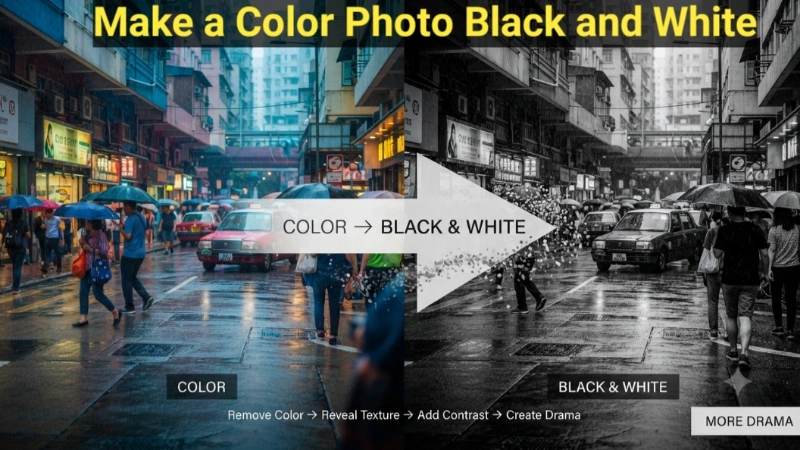
Have you ever taken a photo and thought, “This would look so much better without color”? Maybe it was a rainy street with moody reflections. Or a portrait where the person’s expression was powerful, but the bright background was distracting.
I remember the first time I tried to make a color photo black and white. I opened my photo editor, clicked around for 10 minutes, and somehow ended up with a weird sepia mess. I gave up and kept the color version. That photo never looked as dramatic as I wanted.
Now I know exactly how to make a color photo black and white quickly and properly. And I want to share that knowledge with you today.
Why Make a Color Photo Black and White?
Before we get into the “how,” let me explain why you might want to do this. Understanding the “why” helps you get better results.
Drama and mood: Color can be distracting. Remove it, and suddenly the light, shadows, and textures take over. A so-so color photo often becomes stunning in black and white.
Focus on the subject: Without color pulling your eyes in different directions, you look at the person’s expression, the texture of their skin, or the shape of the buildings.
Timeless feel: Black and white photos feel classic. They don’t look dated the way some color photos from the 80s or 90s do.
Hiding distractions: A busy background with clashing colors becomes unified in black and white. Those annoying bright red cars in the background? They just become part of the gray tones.
Professional look: Many website designs and portfolios use black and white images for a clean, sophisticated feel.
Method 1: How to Make a Color Photo Black and White Using a Free Online Tool
This is my absolute favorite method. It takes 5 seconds. No software. No accounts. Just upload and download.
I use Top Image Fixer’s Black White Image tool. It converts your photo instantly with one click.
Here is how to make a color photo black and white:
Step 1: Open your browser and go to Top Image Fixer. (I will share the link below)
Step 2: Find their “Black White Image” tool. It is completely free.
Step 3: Click the upload button. Select your color photo.
Step 4: Wait 2-3 seconds. The tool converts it to black and white automatically.
Step 5: Click download. Save your new black and white photo.
That is it. No sliders. No confusing settings. Just a perfect black and white conversion.
👉 Try it now: [Click here to make your photo black and white for free on Top Image Fixer]
Pro tip: Download as PNG if you want to keep the highest quality. Download as JPG for a smaller file size.
Method 2: Make a Color Picture Black and White on iPhone
Your iPhone already has everything you need. No extra apps required.
Using the Photos app filters (Easiest way):
- Open your photo in the Photos app.
- Tap Edit in the top right corner.
- Tap the filters icon (three overlapping circles) at the bottom.
- Swipe through the filters. Look for Mono, Silvertone, or Noir.
- Mono: Clean, pure black and white.
- Silvertone: Slightly warmer tones. Like old silver photos.
- Noir: Darker and more dramatic. High contrast.
- Tap the filter you like.
- Tap Done.
My recommendation: Try Noir first. It gives the most dramatic results and makes portraits look amazing .
Method 3: How to Turn Color Image to Black and White on Android
Android users have several good options.
Using Google Photos:
- Open Google Photos.
- Tap on the photo you want to convert.
- Tap the edit icon (the sliders or pencil).
- Tap the filters tab (looks like overlapping circles).
- Look for black and white filters like “Bloom” or “Lark” .
- Alternatively, tap the Adjust tab and drag Saturation all the way to the left (to zero).
- Tap Save.
Using the built-in Gallery app (Samsung, Pixel, etc.):
- Open your photo in the Gallery app.
- Tap Edit.
- Tap Filters.
- Look for “B&W,” “Grayscale,” or “Mono.”
- Tap it and save.
If your phone does not have good black and white options, use Top Image Fixer on your phone browser. It works exactly like an app.
Method 4: How to Make a Color Photo Black and White on a Computer
On Windows (Using Microsoft Photos):
- Right-click your photo. Select Open with > Photos.
- Click the Edit image icon (looks like a pencil or sliders).
- Click Filters on the right side menu.
- Scroll down. Look for “Black and white” or “Mono.”
- Click on it. Your photo turns black and white instantly.
- Click Save as copy to keep the original.
On Mac (Using Preview):
- Double-click your photo to open it in Preview.
- Click the Tools menu in the top bar.
- Click Adjust Color.
- Drag the Saturation slider all the way to the left (to zero).
- Close the window. Preview will ask “Save changes?” Click Save.
On Mac (Using Photos app):
- Open your photo in the Photos app.
- Click Edit in the top right corner.
- Click the Filters tab (three overlapping circles).
- Choose Mono, Silvertone, or Noir.
- Click Done.
Method 5: The Professional Way (More Control)
If you want more than a simple filter, try this method. It gives you professional results.
Using GIMP (Free, like Photoshop):
- Open your photo in GIMP.
- Go to Colors > Desaturate.
- You will see three options:
- Luminosity: The most realistic. Best for most photos.
- Lightness: Good for flat, even photos.
- Average: Rarely used. Makes photos darker.
- Choose Luminosity and click OK.
- Go to Colors > Brightness-Contrast.
- Increase Contrast by 10-20 points. This makes your black and white photo pop.
- Go to File > Export As > Choose JPEG > Export.
Pro tip: When you remove color, photos often look flat. Adding contrast after conversion makes a huge difference. This is the secret professional photographers use.
Professional Tips for Stunning Black and White Photos
I have converted thousands of photos to black and white. Let me share what I learned.
Tip 1: Add Contrast (Always)
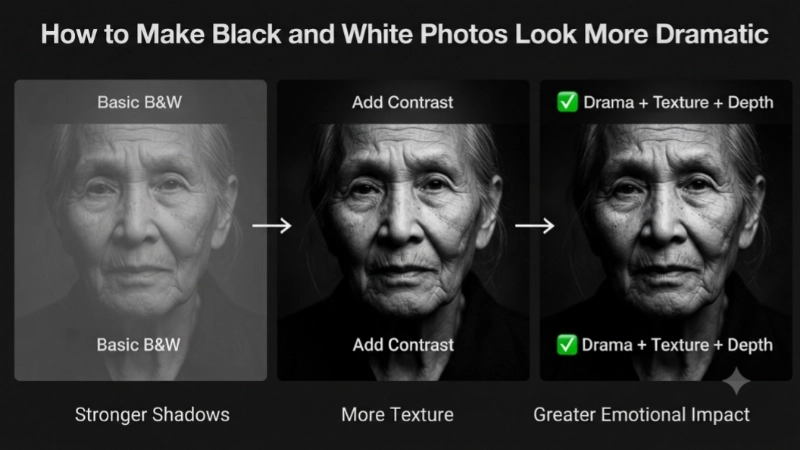
When you remove color, photos often look flat. The solution? Add contrast. Increase the difference between bright areas and dark areas .
- For portraits: +10 to +20 contrast
- For landscapes: +20 to +30 contrast
- For dramatic street photos: +30 to +50 contrast
Tip 2: Look for Texture Before You Convert
Black and white photography is texture photography. Before you convert, ask yourself: “Does this have texture?”
Good textures for black and white:
- Wrinkled hands or faces
- Rough brick or stone walls
- Wet streets with reflections
- Fur, hair, or fabric
- Clouds, waves, or tree bark
Tip 3: Watch Your Shadows
Deep, dark shadows look great in black and white. But completely black areas with no detail look bad. Make sure you can still see some texture in the dark areas.
Tip 4: Use the Right Tool
- For quick conversions: Use Top Image Fixer .
- For more control: Use Snapseed or Lightroom Mobile on your phone .
- For professional results: Use Adobe Lightroom or GIMP .
Tip 5: Save the Original
Always keep a copy of the original color photo. You might want it later.
Common Problems and How to Fix Them
| Problem | Why It Happens | The Fix |
|---|---|---|
| Photo looks flat and boring | Not enough contrast | Increase contrast by +20 to +30 |
| Faces look too dark or too light | Skin tones converted poorly | Adjust brightness before converting |
| Photo looks too harsh | Too much contrast or sharpening | Reduce contrast to +10 or +15 |
| Black areas have no detail | Shadows are “crushed” (too dark) | Increase shadow brightness before converting |
| Photo looks grainy | High ISO noise becomes more visible | Apply slight noise reduction before converting |
Image Prompts for This Article
Here are two prompts you can use to create custom images using any AI image generator (DALL-E, Midjourney, Adobe Firefly, or Canva AI).
Image 1 Prompt (For the top of the article):
“A split-screen illustration comparing a color photo and a black and white photo of the same scene. Left side: A busy colorful street with a red bus, blue sky, green trees, and people wearing bright clothes. Right side: The exact same street converted to black and white, looking dramatic and artistic with strong shadows and visible textures. In the middle, a simple arrow pointing from left to right. Soft, warm lighting on both sides. Modern illustration style, clean, educational.”
Image 2 Prompt (For the middle of the article):
“A close-up portrait of an elderly person’s face, converted to black and white. The lighting comes from the side, creating deep shadows on one half of the face and bright highlights on the other half. Every wrinkle and texture is visible. The background is completely dark. High contrast, dramatic, cinematic style. Photorealistic but clearly an illustration.”
Frequently Asked Questions (FAQs)
Q1: Can I make a color photo black and white for free?
Yes. Use Top Image Fixer’s Black White Image tool. It is completely free. No signup required. No watermarks. Just upload, convert, download.
Q2: Will converting to black and white reduce quality?
No. Converting to black and white does not reduce quality. It only removes color information. The sharpness, resolution, and details stay exactly the same.
Q3: What is the difference between desaturating and converting to black and white?
Desaturating drags saturation to zero. It treats all colors equally. Professional conversion adjusts how each color turns into a shade of gray. For most beginners, desaturating or using a filter is perfectly fine.
Q4: Can I convert a black and white photo back to color?
No. Once you convert to black and white, the color information is gone. You cannot get it back. Always keep a copy of the original.
Q5: What is the best free app to make photos black and white on my phone?
Snapseed (free, Google) is excellent. Use Tools > Black and White filter, or use Tools > Tune image and reduce Saturation to -100 .
Q6: Why do my black and white photos look different on different screens?
Different screens show contrast and brightness differently. An iPhone screen is very bright and contrasty. An old laptop screen might be dim and flat. This is normal.
Q7: How do I make my black and white photos look like old vintage photos?
To get a vintage look, add three things: slight sepia tone (a tiny hint of brown), lower contrast (not too harsh), and a bit of softness or grain.
Actionable Conclusion: Your 30-Second Action Plan
You now know exactly how to make a color photo black and white using multiple methods. You also know how to make a color picture black and white on your phone, computer, and using free online tools.
Here is what I want you to do right now:
Step 1: Find a color photo on your device. A portrait with dramatic lighting works best.
Step 2: Open a new browser tab and go to Top Image Fixer.
Step 3: Click on their free Black White Image tool.
Step 4: Upload your photo.
Step 5: Wait 2 seconds. Watch it turn black and white.
Step 6: Download your new black and white photo.
Step 7: Compare it to the original. Notice how the black and white version feels more dramatic.
👉 Make your photo black and white for free here: [Click to use Top Image Fixer’s Black White Image Tool]
That is it. You are now ready to create stunning black and white photos. No expensive software. No confusing tutorials. Just simple, beautiful results.
Remember this rule: Save the original. Add contrast after conversion. Use the right tool for your needs.
If this guide helped you, share it with a friend who loves photography. And keep experimenting!
Internal Linking Suggestions
If you own a website or blog, here are some smart internal links to add:
- From this article, link to:
yourwebsite.com/resize-photos-for-instagram(anchor text: “After making your photo black and white, resize it for Instagram using this guide” ) - From this article, link to:
yourwebsite.com/turn-image-into-jpeg(anchor text: “If your black and white photo is a PNG, convert it to JPEG here” ) - From your homepage, link to: This article using the anchor text: “Complete guide on how to make a color photo black and white”