
Let me guess what just happened.
You have a folder full of scanned documents. Or maybe you have 50 photos from a client project. Or you are trying to send a bunch of receipts to your accountant.
And you need to turn them all into one PDF file.
But the thought of opening each JPG one by one and saving it as a PDF makes you want to take a nap. Who has time for that?
I have been there too. It is boring. It is repetitive. And it feels like a waste of your precious time.
But here is the good news. You do not have to do it one by one. You can use a technique called batch JPG to PDF conversion. It takes all your images and turns them into a single PDF file in seconds.
In this guide, I will show you exactly how to do jpg to pdf batch conversion. I will explain what jpg to pdf bulk conversion means. And I will give you multiple methods that work on any device.
No complicated steps. No expensive software. Just real help from someone who has done this hundreds of times.
By the end of this article, you will be converting dozens of images to PDF in under a minute. Let me show you how.
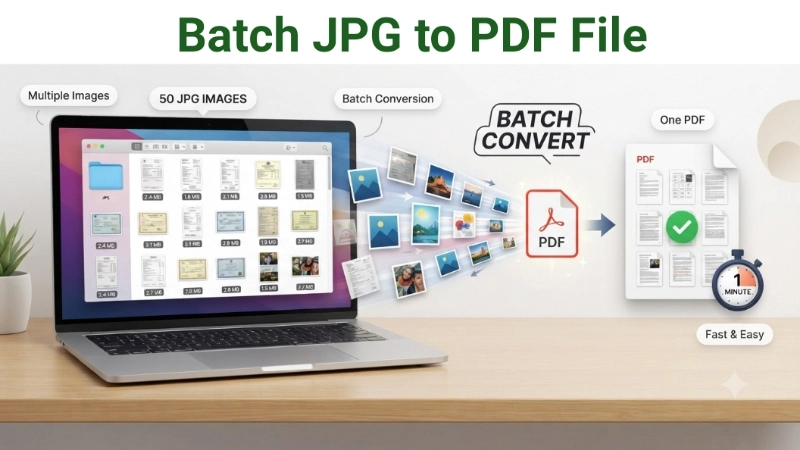
![Image Prompt: A person at a computer looking at a folder full of JPG images. A magic wand hovers over the folder. On the other side of the screen, a single PDF file appears with many pages. A clock shows “1 minute” to indicate speed. Modern, friendly illustration style. 16:9 aspect ratio.]
Why Would You Need Batch JPG to PDF Conversion?
Before I show you how, let me explain why you would want to do this.
Common reasons to batch convert JPG to PDF:
| Situation | Why It Helps |
|---|---|
| Sending multiple documents | One PDF is easier to email than 20 separate images |
| Creating a portfolio | Combine all your work samples into one professional document |
| Scanning receipts | Turn a pile of paper receipts into one digital file |
| Sharing event photos | Create a photo album that anyone can open |
| Submitting forms | Many government and job portals accept only PDF |
| Printing multiple pages | One PDF file prints more easily than 20 images |
When you learn jpg to pdf batch conversion, you stop wasting time. You stop sending messy attachments. You look more professional.
What Does Batch JPG to PDF Mean?
Let me keep this simple.
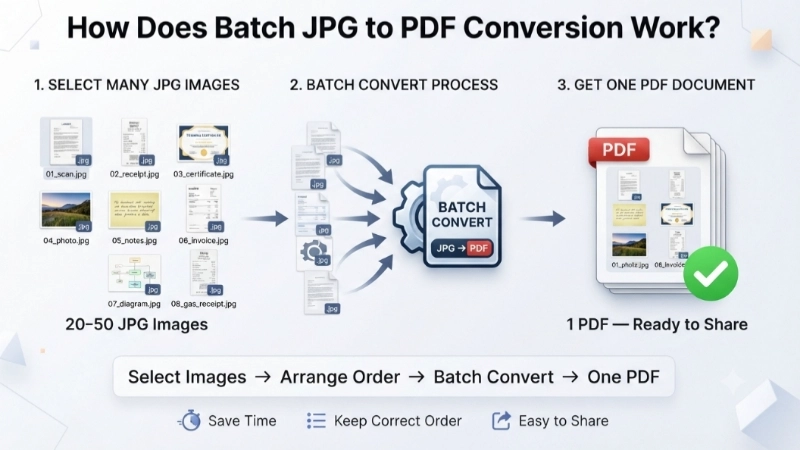
Batch conversion means doing many things at once instead of one at a time.
- Single conversion: Open one JPG → Save as PDF → Repeat 50 times (takes forever)
- Batch conversion: Select 50 JPGs → Click one button → One PDF appears (takes 30 seconds)
There are two types of batch JPG to PDF conversion:
| Type | What It Does | Best For |
|---|---|---|
| Combine into one PDF | All your JPGs become pages in a single PDF file | Reports, presentations, photo albums |
| Separate PDFs | Each JPG becomes its own individual PDF file | When you need separate documents for each image |
Most people need the first type. They want all their images in one PDF file. But both options are useful depending on your needs.
Method 1: Top Image Fixer (The Easiest Batch JPG to PDF Converter)
Let me start with the tool I use whenever I need to batch convert jpg to pdf.
Top Image Fixer has a free JPG to PDF Converter that handles multiple images at once. It is fast, it is free, and it works on any device.
Here is how to do bulk jpg to pdf conversion using Top Image Fixer:
Step 1: Open your browser on your phone or computer.
Step 2: Go to Top Image Fixer website.
Step 3: Find the JPG to PDF Converter tool.
Step 4: Click the Upload button. Select all the JPG images you want to convert.
Step 5: Arrange the images in the order you want them to appear in the PDF. Most tools let you drag and drop to reorder.
Step 6: Choose your PDF settings. You can usually select page size, orientation, and image quality.
Step 7: Click Convert or Create PDF.
Step 8: Wait a few seconds. The tool combines all your images into one PDF.
Step 9: Click Download and save your PDF.
Direct Tool Link: Click here to batch convert JPG to PDF now using Top Image Fixer (Insert your actual tool link here)
This is the fastest way to convert jpg to pdf in bulk. It takes less than 60 seconds for 50 images.
Method 2: Using Windows Built-in Tools (No Downloads)
If you use Windows, you already have everything you need to mass convert jpg to pdf. No extra software required.
The Print to PDF Method (Works on Windows 10 and 11)
Step-by-step:
- Open the folder containing your JPG images.
- Select all the images you want to convert (Ctrl + A selects everything).
- Right-click on any selected image and choose Print.
- In the print dialog, change the printer to Microsoft Print to PDF.
- Click Print or OK.
- Give your PDF a name and choose where to save it.
- Click Save.
Important: This method arranges images alphabetically. If you need a specific order, rename your files before printing. Use numbers like “01_image.jpg”, “02_image.jpg”, etc.
This method is completely free and works every time.
The Photos App Method
- Open the Photos app on Windows.
- Select all the images you want to convert.
- Click Create at the top.
- Choose Photo album or Video (some versions have a PDF option).
- Look for Export or Save as options.
- Choose PDF as the file type.
Method 3: Using Mac Built-in Tools (Preview)
Mac users, you have a fantastic tool called Preview. It handles batch jpg to pdf converter tasks beautifully.
Step-by-step:
- Open Preview (it comes with every Mac).
- Click File > Open and select your first JPG image.
- In the sidebar, you will see a thumbnail of your image.
- Drag and drop the rest of your JPG images into the sidebar. They will appear as thumbnails.
- Drag the thumbnails into the correct order.
- Select all the thumbnails (Cmd + A).
- Click File > Export Selected Images.
- Choose PDF as the format.
- Click Save.
Alternative method for combining to one PDF:
- Open Preview and select all your images in Finder.
- Right-click and choose Open with > Preview.
- In Preview, select all thumbnails (Cmd + A).
- Click File > Export as PDF.
- Save your file.
This method works great for 10 to 50 images.
Method 4: Using Adobe Acrobat (If You Have It)
If you have Adobe Acrobat, you have a powerful batch convert jpg to pdf tool.
Step-by-step:
- Open Adobe Acrobat.
- Click File > Create > Combine Files into a Single PDF.
- Click Add Files and select all your JPG images.
- Drag and drop to arrange them in the correct order.
- Click Combine.
- Save your new PDF.
Why use Acrobat:
- It gives you the most control over page size and quality
- It can handle hundreds of images
- It preserves image quality well
The downside: Acrobat is not free. Use Top Image Fixer for a free option.
Method 5: Using Free Mobile Apps (For Phone Users)
Maybe you are on the go and need to convert jpg to pdf batch from your phone. Here are good options.
For Android
JPG to PDF – PDF Maker is a free app that works offline.
Step-by-step:
- Download “JPG to PDF – PDF Maker” from Google Play.
- Tap the + icon and select multiple images from your gallery.
- Reorder images as needed.
- Choose PDF settings (page size, orientation, compression).
- Tap Convert.
- Save and share your PDF.
Key features: No internet needed, no watermarks, unlimited PDFs.
For iPhone
JPG to PDF is a well-rated app on the App Store.
Step-by-step:
- Download “JPG to PDF” from the App Store.
- Add multiple images or PDFs to the conversion list.
- Choose to create one PDF for each file or merge them into a single PDF.
- Adjust page settings and compression.
- Create and save your PDF.
Note: The free version has some limitations. Check in-app purchases for full access.
Pro Tips for Better Batch Conversion
Here are some tips to make your batch jpg to pdf conversions even better.
Tip 1: Rename Your Files for Correct Order
When you convert multiple JPGs to PDF, the order matters. Most tools arrange images alphabetically or by upload order.
How to control order:
- Rename files with numbers: “01_cover.jpg”, “02_page1.jpg”, “03_page2.jpg”
- Upload files in the correct order
- Use tools that let you drag and drop to reorder
Tip 2: Compress Before Converting
If your PDF is too large, compress your JPG images first. Smaller images = smaller PDF.
Use Top Image Fixer’s JPG Compress tool before converting to PDF. This gives you a smaller final file.
Tip 3: Choose the Right Page Size
| What You Are Converting | Recommended Page Size |
|---|---|
| A4 documents (scans, forms) | A4 |
| Photos (landscape) | Custom or A4 Landscape |
| Photos (portrait) | Custom or A4 Portrait |
| Receipts | A5 or Custom |
| Mixed images | Custom (fit to image) |
Tip 4: Check Your File Size After Conversion
A PDF that is too large can be hard to email. If your PDF is over 25 MB, compress it further.
Use Top Image Fixer’s PDF Compress tool to reduce the file size after conversion.
Common Mistakes to Avoid
Here are the mistakes I see most often with jpg to pdf bulk conversion.
Mistake #1: Wrong Order
You select all your images. The tool converts them alphabetically. But the order is wrong.
The fix: Rename your files before conversion. Use numbers to control the order.
Mistake #2: Forgetting to Select All Images
You convert only one image. Then you realize you missed the other 20.
The fix: Make sure you select ALL images before clicking convert.
Mistake #3: Low Quality Settings
Some tools compress images too much. Your PDF looks blurry.
The fix: Use a tool like Top Image Fixer that preserves quality. Or choose high-quality settings.
Mistake #4: Not Compressing the Final PDF
Your PDF is 50 MB. You cannot email it.
The fix: Use a PDF compressor after conversion. Top Image Fixer has a free PDF Compress tool.
Mistake #5: Saving Over the Original
You convert your JPGs to PDF. But you lose the original images.
The fix: Always keep your original JPG files. Save the PDF with a new name. The originals are still useful for other purposes.
Real-Life Examples: Batch JPG to PDF Saves the Day
Example 1: The Job Applicant
Priya needed to submit 15 scanned certificates for a job application. The portal only accepted PDF files. She used Top Image Fixer to convert all 15 JPGs into one PDF in under 2 minutes. Her application went through smoothly.
Example 2: The Real Estate Agent
Raj had 25 property photos to send to a client. Sending 25 separate images looked messy. He used batch conversion to create a single PDF photo album. The client was impressed and requested more properties.
Example 3: The Student
Aisha had 30 lecture slides saved as JPGs from her phone camera. She needed to combine them into one PDF to share with her study group. She used the Windows Print to PDF method. It took 30 seconds.
Frequently Asked Questions (FAQs)
Q1: What is batch JPG to PDF conversion?
Batch conversion means converting multiple JPG images into one PDF file at once. Instead of doing each image one by one, you select all your images and convert them together.
Q2: Can I convert JPG to PDF in bulk for free?
Yes. Top Image Fixer is completely free. Windows and Mac built-in tools are also free. Many mobile apps are free with no watermarks.
Q3: How do I combine multiple JPGs into one PDF?
Upload all your JPGs to a batch converter tool. The tool will combine them into a single PDF. Each image becomes one page in the PDF.
Q4: Will my images lose quality when converting to PDF?
It depends on the tool. Good tools like Top Image Fixer preserve image quality. Some tools re-compress images and lose quality. Check the resulting file size. If it is much smaller than the sum of the JPGs, quality might be affected.
Q5: What is the best free batch JPG to PDF converter?
For online: Top Image Fixer. For Windows: Print to PDF. For Mac: Preview. For mobile: JPG to PDF – PDF Maker (Android) or JPG to PDF (iOS).
Q6: Can I convert JPG to PDF on my phone?
Yes. Android users can use “JPG to PDF – PDF Maker” which works offline with no watermarks. iPhone users can use “JPG to PDF” from the App Store.
Q7: How do I arrange images in the correct order?
Rename your files with numbers (01, 02, 03). Use a tool that lets you drag and drop to reorder. Some tools arrange alphabetically by filename.
Q8: What page size should I choose?
For scanned documents: A4. For photos: Auto, Custom, or the image’s original size. Most converters let you choose page size settings.
Q9: Is online JPG to PDF conversion safe?
With trusted tools like Top Image Fixer, yes. Your files are processed and deleted. Always read the privacy policy before using any online tool.
Q10: Can I convert other image formats like PNG to PDF?
Yes. Most batch converters support JPG, PNG, WebP, and other common image formats.
My Personal Workflow
Let me show you exactly what I do for batch jpg to pdf conversion.
For work documents:
- I scan all pages as JPG files
- I rename them “01_scan.jpg”, “02_scan.jpg”, etc.
- I open Top Image Fixer JPG to PDF Converter
- I upload all files
- I choose A4 page size and high quality
- I click convert and download the PDF
For personal projects:
- I collect all photos in one folder
- I use Mac Preview to combine them
- I export as PDF and share
Total time for 20 images: Less than 2 minutes.
Conclusion: Stop Converting One by One
You came here asking about batch jpg to pdf conversion. Now you have everything you need.
You know why batch conversion saves you hours of work. You know how to do it on Windows, Mac, online, and on your phone. You know the easiest method: Top Image Fixer.
Here is the honest truth. Converting images one by one is for people who do not know better. Now you know better.
Your actionable plan for today:
- Find a folder with at least 10 JPG images.
- Go to Top Image Fixer JPG to PDF Converter.
- Upload all your images.
- Click convert.
- Download your single PDF file.
- Notice how easy that was.
Do this once, and you will never go back to converting images one by one. You will be the person your colleagues and friends ask for help.
Now go ahead. Convert those JPGs. Create that PDF. Save your time for things that matter. You have the knowledge. You have the tools. Go get it done.
Internal Linking Suggestions for Your Website:
- Link from this article to: “How to Compress PDF Files for Email”
- Link from this article to: “How to Bulk Compress Images for Website Speed”
- Link from this article to: “JPG vs PNG vs WebP: Which Format Should You Use?”
One last thing: Bookmark the Top Image Fixer JPG to PDF Converter right now. The next time you have 50 images to convert, you will be ready. Happy converting!