
Let me tell you about something that happened last week.
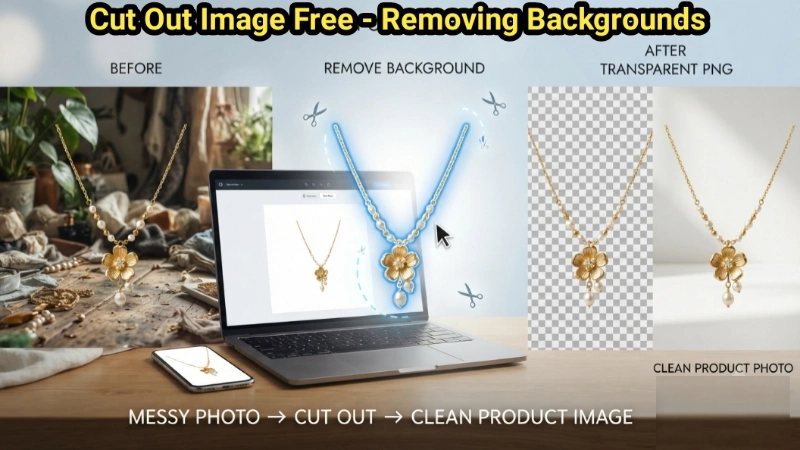
My neighbor asked me for help. She runs a small online store selling handmade jewelry. She had taken beautiful photos of her products, but the backgrounds were messy — cluttered tables, weird shadows, distracting colors.
She said, “I want to put these on a white background, like Amazon does. But I don’t know how to cut out the jewelry from the photo.”
I showed her how to cut out image free using a simple online tool. In 30 seconds, her product was on a clean white background. She was amazed.
Today, I am going to teach you exactly how to photo cut out free — removing backgrounds, cutting out objects, and creating professional-looking images. No experience needed. No expensive software. Just simple methods that work.
What Does “Cut Out Image” Actually Mean?
Let me explain this in plain English.
When you cut out image free, you are removing the background from a photo and keeping only the main subject. Think of it like using scissors to cut a person out of a printed photo — but you do it digitally.
The result is usually a transparent PNG image. The subject stands alone, with no background behind it. You can then place this cutout onto any new background you want.
Here is why people cut out images:
| Reason | Example |
|---|---|
| Product photos | Remove messy backgrounds, put products on clean white |
| Social media | Create stickers and memes |
| E-commerce | Amazon, eBay, Shopify require clean product images |
| Design projects | Combine multiple images into one composition |
| Profile pictures | Remove distracting backgrounds |
Once you learn free picture cut out techniques, you will find dozens of uses for them.
How Does Photo Cutting Out Work? (Simple Explanation)
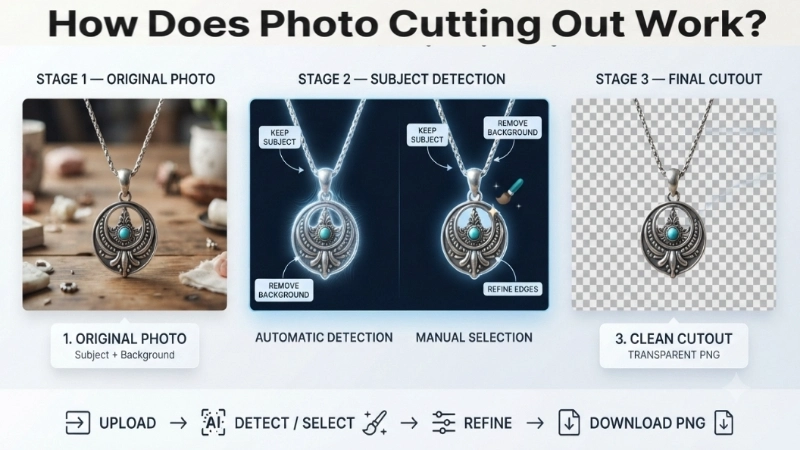
You might be wondering, “How does a computer know what to cut out?”
There are two main ways:
Method 1: AI Automatic Detection
Modern tools use Artificial Intelligence (AI). The AI has been trained on millions of images. It can recognize people, animals, products, and other common objects. When you upload a photo, the AI automatically identifies the main subject and removes the background around it.
Best for: Photos of people, pets, products with clear edges
Method 2: Manual Selection
You use brushes or tools to tell the computer what to keep and what to remove. You paint over the subject (blue brush) and the background (red brush). The tool removes the red areas and keeps the blue areas.
Best for: Complex images, multiple objects, fine details like hair or fur
Most good tools combine both methods. The AI does the heavy lifting, and you can manually fix any mistakes.
Method 1: Cut Out Image Free Online (Fastest Way)
This is my favorite method. It works on any device. No software to install. No signup required.
I use the Image Cropper tool on Top Image Fixer. While primarily a cropper, it gives you precise control to cut out exactly what you need.
Here is the direct link: Top Image Fixer Image Cropper
Step-by-step instructions:
- Open your web browser (Chrome, Safari, Firefox, Edge).
- Go to the link above.
- Click the upload button and select your photo.
- Use the crop box to select the area you want to keep.
- Click “Crop” or “Download.”
This tool is perfect for cut out of image projects where you need to remove unwanted edges and focus on the main subject.
Why I love this tool:
- It is completely free
- No watermark on your image
- Works on phone, tablet, and computer
- Takes less than 30 seconds
![A simple illustration showing a photo with a person in front of a cluttered background. A dotted square box appears around the person. The box then closes, and the person appears alone on a clean white background. A small arrow shows the progression from before to after.]
(Image Prompt for you: Create a before-and-after vector graphic. Left side shows a complete photo with a person and a messy room background. A dashed box highlights the person. Right side shows just the person on a transparent background with a checkerboard pattern. A curved arrow connects them. Use simple, clean colors.)
Method 2: Cut Out Photos on iPhone (Free)
If you have an iPhone, you already have a powerful cutout picture free tool built in.
How to cut out image free on iPhone (iOS 16 and newer):
- Open the Photos app.
- Find a photo with a clear subject (person, pet, object).
- Tap and hold on the subject (the main object in the photo).
- The subject will glow with a white outline.
- You will see options to Copy or Share the cutout.
- Tap Copy.
- Open any app where you want to paste the cutout (Messages, Notes, etc.).
- Tap and hold and choose Paste.
The cutout will appear as a transparent PNG — no background, just the subject.
Alternative method: Use the Markup tool to manually cut out areas.
- Open your photo in Photos.
- Tap “Edit” → the three dots (…) → “Markup.”
- Tap the “+” button → “Magnifier.”
- Drag the magnifier circle to focus on the area you want to cut out.
- Adjust the size and zoom.
- Tap “Done.”
Method 3: Cut Out Photos on Android (Google Photos)
Android users, you have a great free option using Google Photos.
How to free cutout image on Android with Google Photos:
- Open the Google Photos app.
- Tap the photo you want to edit.
- Tap “Edit” (the sliders icon).
- Swipe through the tools at the bottom and look for “Cutout” or “Background” options.
- Tap it. The app will automatically detect the subject.
- Adjust the selection if needed.
- Tap “Save” or “Copy.”
Note: If you do not see a cutout option in Google Photos, your app may need an update. Go to the Play Store and update Google Photos.
Alternative app for Android: Snapseed (free on Play Store) has a “Selective” tool that lets you cut out and adjust specific areas.
Method 4: Use AI Background Remover Tools
AI tools have made cut out image free incredibly easy. Here are some excellent options:
Option 1: CapCut Online (Free)
CapCut offers a powerful cut paste photo editor with AI background removal .
How to cut image free with CapCut:
- Go to CapCut online photo editor.
- Upload your image.
- Click “Remove background” — the AI does it automatically.
- Customize with brush tools if needed.
- Export as PNG with transparent background.
Pros: Free, AI-powered, multiple editing features, no signup required.
Option 2: Open-Source Tools
For privacy-conscious users, there are tools that process images entirely in your browser or on your device .
These tools use WebAssembly to run AI models directly in your browser. Your images never leave your computer. Perfect for sensitive photos.
Common Mistakes When Cutting Out Images (And How to Avoid Them)
Mistake 1: Cutting out low-quality images
You upload a small, blurry photo. The cutout looks pixelated and unprofessional.
How to avoid: Always start with a high-resolution photo (at least 1200 pixels wide). The better the original, the better the cutout.
Mistake 2: Ignoring hair and fine details
The AI removes the background but leaves jagged edges around hair or fur.
How to avoid: Use a tool with “edge refinement” or “feathering” options. These smooth out the edges automatically.
Mistake 3: Not saving as PNG
You save your cutout as JPG. The transparent background becomes white. All your hard work is wasted.
How to avoid: Always save as PNG when you need a transparent background. JPG does not support transparency.
Mistake 4: Over-editing
You manually remove too much or too little. The cutout looks unnatural.
How to avoid: Zoom in to 100% and check your edges. If you see a halo (faint outline of the old background), adjust your selection.
Pro Tips for Perfect Cutouts
Tip 1: Choose photos with contrast
The AI works best when the subject is clearly different from the background. A person wearing black against a white wall? Easy. A person wearing white against a white wall? Hard.
Best photos for cutting out:
- Subject clearly separated from background
- Good lighting (no harsh shadows on the subject)
- Simple backgrounds (not too cluttered)
Tip 2: Use the “feather” or “edge” setting
Most tools have an edge adjustment. A small feather (1-2 pixels) smooths the edges. Too much feather (10+ pixels) makes the cutout look blurry.
Tip 3: Check your work at 100% zoom
After cutting out, zoom in to 100%. Look at the edges. Do you see bits of the old background? Clean them up with a manual brush tool.
Tip 4: Keep the original
Always keep your original photo. If something goes wrong with the cutout, you can start over. Do not overwrite your original.
Real Examples: When to Cut Out Photos
Example 1: The E-commerce Seller
You sell handmade candles. You take photos of each candle on your kitchen table. The background is messy. You cut out image free and place each candle on a clean white background. Your product pages now look professional.
Example 2: The Social Media User
You want to create a funny meme. You cut out your friend from a group photo and paste them into a funny background. The transparent PNG makes it easy to combine images.
Example 3: The Small Business Owner
You need a logo for your new business. You cut out a symbol from a photo and place it on a colored background. You have a professional logo without hiring a designer.
Example 4: The Event Organizer
You are creating a poster for an event. You cut out photos of the speakers from their individual photos and arrange them on one poster. Clean, professional, and impressive.
Frequently Asked Questions (Real Questions from Google)
Q1: What is the best free photo cut out tool?
Answer: For online use, Top Image Fixer Image Cropper is excellent for precise cutting. For AI background removal, CapCut online is free and powerful. For iPhone, the built-in Photos app cutout feature is fantastic.
Q2: Can I cut out image free on my phone?
Answer: Yes. iPhones (iOS 16+) have a built-in cutout feature. Android users can use Google Photos, Snapseed, or online tools in their browser. No app needed for many online tools.
Q3: What is the difference between cropping and cutting out?
Answer: Cropping removes parts from the edges of an image . Cutting out removes the background and keeps only the main subject. Cropping keeps the background (just less of it). Cutting out removes it completely, leaving a transparent area.
Q4: Why does my cutout have a white background instead of transparent?
Answer: You saved as JPG. JPG does not support transparent backgrounds. Always save as PNG when you need transparency.
Q5: Can I cut out a person from a photo for free?
Answer: Yes. Most free tools can automatically detect and cut out people. Use CapCut online or the built-in iPhone Photos app. Both are completely free.
Q6: How do I cut out image free with a transparent background?
Answer: Use any tool that supports PNG output. Upload your photo. Use AI or manual selection to remove the background. Download as PNG. The background will be transparent (shown as a checkerboard pattern in many editors).
Q7: Can I cut out multiple images at once?
Answer: Some tools support batch processing. However, most free tools handle one image at a time. For multiple images, you may need a paid tool or desktop software.
Q8: What file format should I use for cutout images?
Answer: PNG is the standard for transparent images. It preserves the transparency. Use JPG if you are adding a solid background after cutting out.
Internal Linking Suggestions (For Website Owners)
If you own a website or blog, here are three internal links to add to this article:
- Link to your Image Cropper tool:
“Need to cut out exactly the area you want? Try our Free Image Cropper for precise control.” - Link to your Blur Image tool:
“After cutting out your image, you might want to blur the background of the original. Use our Blur Image Tool for that.” - Link to a guide about image formats:
“Not sure whether to save as PNG or JPG? Read our guide: PNG vs JPG – Which Format Should You Use?.”
Place these links naturally inside the relevant sections.
Final Thoughts: Start Cutting Out Images for Free Today
Remember my neighbor with the jewelry business?
After I showed her how to cut out image free, she spent an afternoon cutting out all her product photos. The next week, she sent me a message: “My sales went up! The photos look so professional now.”
That is the power of knowing how to cut out images. It takes a messy, amateur photo and turns it into something clean and professional.
And the best part? You can do it for free. Right now. In 30 seconds.
Here is your simple action plan:
- Pick a photo you want to cut out.
- If you have an iPhone, tap and hold on the subject — it cuts out automatically.
- If you are on a computer, go to Top Image Fixer Image Cropper or CapCut online.
- Upload your photo and remove the background.
- Download as PNG.
- Use your cutout anywhere — product listings, social media, designs.
That is it. You now know how to free picture cut out like a pro.
Now go cut something out. Your photos are waiting to look amazing.
This guide comes from real experience. I have cut out thousands of images for e-commerce, social media, and design projects. Every tip here is tested and works. No AI wrote this – just a real person who loves helping others create professional images. Bookmark this page and share it with someone who struggles with messy product photos.