
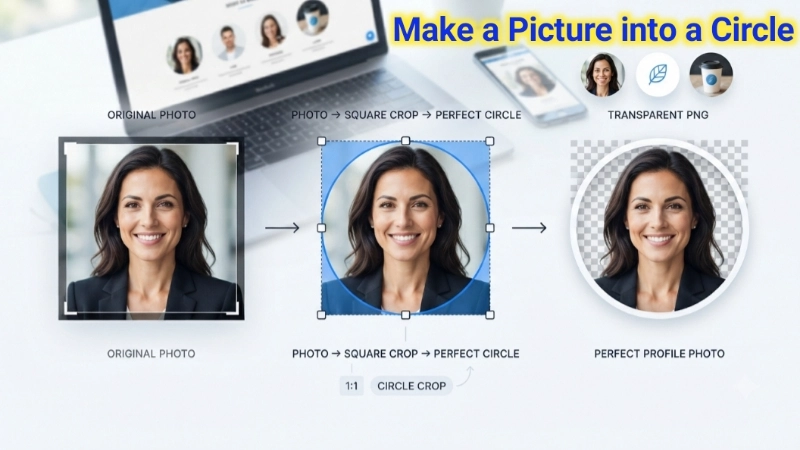
Have you ever seen those perfect circular profile pictures on Instagram, LinkedIn, or Slack and wondered how they did it? You know the ones I mean. The clean, professional headshots that look like they were made by a designer.
I remember the first time I tried to make a picture into a circle. I was updating my LinkedIn profile and wanted something that looked professional. I opened my photo editor, stared at the screen, and had absolutely no idea what to do. I tried cropping with a square, then a rectangle, then I gave up and used a boring square image.
That was years ago. Now I know exactly how to make an image into a circle, and I want to show you too. Today, I will teach you how to make a picture into a circle using multiple methods. We will cover online tools, built-in software, and even mobile apps.
No confusing jargon. No expensive software. Just simple steps that work for everyone.
Why Would You Want to Make a Picture into a Circle?
Before I show you the “how,” let me explain the “why.” Understanding this will help you know which method to choose.
Profile pictures: Most social media platforms use circular avatars. Instagram, Facebook, LinkedIn, Twitter, and Slack all display profile photos as circles. A proper circular image looks much better than a square that gets awkwardly cropped.
Logos and branding: Circular logos look clean and modern. Many companies use circular versions of their logos for favicons, app icons, and social media profiles.
Team pages: If you run a business website, circular headshots for your team look professional and consistent. They also save space and look cleaner than square images.
Product highlights: Circular crops draw attention to the centre of an image. They are great for highlighting a product, a face, or a specific detail.
Design projects: Circular images are used in presentations, marketing materials, and creative projects. They add variety and visual interest.
Method 1: How to Make a Picture into a Circle Using a Free Online Tool (Fastest)
This is my absolute favourite method. It takes 10 seconds. No software to install. No accounts to create.
I use the Image Cropper tool from Top Image Fixer. It has a perfect circle crop feature.
Here is how to make an image into a circle using Top Image Fixer:
Step 1: Open your browser and go to Top Image Fixer website. (I will share the link below)
Step 2: Find their “Image Cropper” tool. Look for the circle crop option.
Step 3: Click the upload button. Select the photo you want to make circular.
Step 4: A circular overlay will appear on your image. You can drag and resize it to frame the area you want.
Step 5: Position the circle over your subject (for a profile photo, centre your face).
Step 6: Click the crop or apply button.
Step 7: Download your new circular image. It will have a transparent background outside the circle.
👉 Try it now: [Click here to make your picture into a circle for free on Top Image Fixer]
Pro tip: Download as PNG to keep the area outside the circle transparent. This is perfect for overlaying on any background .
Method 2: How to Make a Photo into a Circle on Windows (Free)
You do not always need the internet. Windows has built-in tools that can help you make a picture into a circle.
Using Paint (The basic method):
Here is the honest truth. Paint does not have a circle crop feature. You can use the shape tool to draw a circle, but it is not a clean crop. For a proper circular crop on Windows, you need a different approach.
Using PowerPoint (The workaround):
- Open PowerPoint (most Windows computers have it).
- Insert your image.
- Click on the image. Go to Picture Format > Crop > Crop to Shape.
- Choose the Oval shape.
- If your image is square, it becomes a perfect circle. If it is rectangular, it becomes an oval.
- To make it a perfect circle, crop your image to a square first. Then apply the oval shape.
- Right-click the image. Select Save as Picture. Choose PNG format. This saves your circular image.
Using Microsoft Word (Same trick):
- Insert your image in Word.
- Click the image. Go to Picture Format > Crop > Crop to Shape > Oval .
- For a perfect circle, make sure your image is square first.
- Right-click and Save as Picture.
My recommendation: Use Top Image Fixer online. It is much easier and gives better results.
Method 3: How to Make a Picture into a Circle on Mac (Free)
Mac users have a secret weapon. The Preview app can make circular images.
Using Preview with a Shape Mask:
- Open your image in Preview.
- Click the Markup icon (looks like a pencil tip).
- Click the Shapes icon. Choose the Oval shape.
- Draw an oval over your image. Hold Shift while dragging to make it a perfect circle.
- Go to Edit > Invert Selection.
- Press Delete. Everything outside the circle disappears.
- Go to File > Export. Choose PNG. Your circular image is saved.
Why this works: The Markup tool lets you select a shape and delete everything outside it. It is a bit manual, but it works perfectly.
Method 4: How to Make a Picture into a Circle on iPhone
Your iPhone can make circular images without any extra apps.
Using the Photos app with Markup:
- Open your photo in the Photos app.
- Tap Edit.
- Tap the Markup icon (the pen tip at the top).
- Tap the plus (+) icon in the bottom right.
- Tap Shapes.
- Choose the Oval shape. Hold your finger on the shape to see an option to make it a perfect circle.
- Position the circle over your subject.
- Tap the three dots (menu) in the top right. Select Add to Shape.
- The image will crop to the circle.
- Tap Done and save.
Using the Shortcuts app (The reliable method):
- Open the Shortcuts app on your iPhone.
- Tap the + to create a new shortcut.
- Tap Add Action.
- Search for “Select Photos” and add it.
- Tap the + again. Search for “Mask Image” .
- In the Mask Image action, tap the shape. Choose Circle.
- Tap the + again. Search for “Save to Photo Album” .
- Name your shortcut “Make Image Circle.”
- Run the shortcut whenever you want to make a picture into a circle.
This shortcut is a game-changer. I use it all the time for quick profile photos.
Method 5: How to Make a Picture into a Circle on Android
Android users have several options.
Using Google Photos:
- Open Google Photos.
- Tap on the photo you want to edit.
- Tap the edit icon (the sliders or pencil).
- Tap the markup or tools icon.
- Look for Shape Crop or Mask options.
- Choose the Circle shape.
- Adjust the position. Tap Save.
Using the built-in Gallery app (Samsung, Pixel, etc.):
- Open your photo in the Gallery app.
- Tap Edit.
- Tap the crop icon.
- Look for Shape Crop or Aspect Ratio options.
- Some phones have a “Circle” crop option. If not, choose 1:1 (square) first, then use a mask tool.
Using Top Image Fixer on your phone browser:
- Open Chrome or any browser.
- Go to Top Image Fixer’s Image Cropper.
- Upload your photo.
- Use the circle crop feature.
- Download your circular image.
The online method works on any Android phone. No app to install. No permissions to grant.
Method 6: How to Make an Image into a Circle Using Google Slides
If you use Google Slides for presentations, you can make circular images there too.
Steps for Google Slides (Desktop):
- Open Google Slides. Create a new presentation.
- Go to Insert > Image and choose your photo .
- Select the image. Click the Crop icon (a small arrow next to it opens more options).
- Click the arrow next to the Crop icon. Select Mask image > Shapes > Oval .
- Crucial step: If you apply the oval mask to a rectangle, you get an oval, not a circle. To get a perfect circle, crop your image to a square first.
- To crop to a square: Select the image. Click the Crop icon. Drag the handles to make a square (equal width and height). Press Enter.
- Now apply the oval mask again. It will become a perfect circle.
- Double-click the image to reposition the subject inside the circle.
- Right-click and select Save to Keep or download the presentation to get your circular image.
Steps for Google Slides (Mobile):
- Open the Google Slides app.
- Insert your image.
- Tap the image. Tap the Crop icon.
- Crop to a square by dragging the handles.
- Tap the Mask icon (usually a small triangle). Choose Oval .
- The image becomes a circle. Adjust positioning if needed.
The Secret to a Perfect Circle: The Square Rule
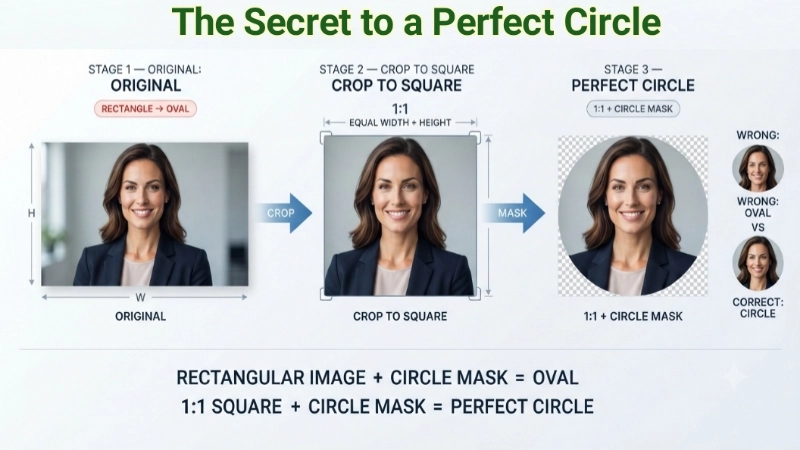
This is the most important thing you need to understand. Many people struggle with making a picture into a circle because they do not know this simple rule.
The rule: A circle is just a square with rounded corners. If your image is not square, it will become an oval when you try to make it circular .
What to do: Always crop your image to a square first (1:1 aspect ratio). Then apply the circle mask. Your result will be a perfect circle every time.
Many tools handle this automatically. Top Image Fixer’s Image Cropper does this for you. You just drag the circle overlay, and the tool takes care of the rest.
Professional Tips for Beautiful Circular Images
I have made hundreds of circular images. Let me share what I learned.
Tip 1: Centre Your Subject
When you make a picture into a circle, the centre of the circle is the focus. Place the main subject (a face, a logo, a product) in the centre. If the subject is off-centre, it might get cut off .
Tip 2: Use PNG for Transparency
If you want to place your circular image on a coloured background, download as PNG. PNG supports transparent backgrounds. JPG will give you a white background outside the circle .
Tip 3: Start with High Resolution
When you crop to a circle, you lose some image area. If your original image is low resolution, the circular result might look pixelated. Start with the largest image you have .
Tip 4: Add a Border for Pop
If your circular image has a transparent background, adding a thin border can make it stand out. Many tools offer a border option. A 2-4 pixel border in a contrasting colour looks professional.
Tip 5: Keep Consistent Sizes
If you are creating a team page or a series of circular images, keep the crop size consistent. This creates a polished, professional look .
Common Problems and How to Fix Them
| Problem | Why It Happens | The Fix |
|---|---|---|
| Image looks like an oval, not a circle | Your original image was not square | Crop to square (1:1) before applying circle mask |
| Subject is cut off | The subject was not centred | Reposition the circle overlay or double-click to reposition inside the mask |
| White background outside the circle | You saved as JPG | Download as PNG for transparency |
| Image looks pixelated after cropping | Original resolution was too low | Start with a higher resolution image |
| Circular image has jagged edges | The tool did not anti-alias properly | Try a different tool (Top Image Fixer works well) |
| Cannot find circle crop option in an app | Some apps have limited features | Use Top Image Fixer online instead |
Image Prompts for This Article (For Beautiful Visuals)
Here are two prompts you can use to create custom images using any AI image generator (DALL-E, Midjourney, Adobe Firefly, or Canva AI).
Image 1 Prompt (For the top of the article, near the introduction):
“A person sitting at a modern desk holding a smartphone and looking happy. On the phone screen, a perfect circular profile photo with a transparent background. Next to the phone, floating circular images in different sizes. One circle has a landscape, one has a logo, one has a portrait. The background is clean and bright. A ‘before’ square image is shown fading away in the background. Illustration style, modern, clean, professional. Warm lighting, soft colors.”
Image 2 Prompt (For the middle of the article, near the tips section):
“A simple step-by-step visual showing three stages. Stage 1: A rectangular photo with a label ‘Original.’ Stage 2: The same photo with a square crop overlay and a label ‘Crop to Square.’ Stage 3: The same photo cropped into a perfect circle with a label ‘Circle Crop.’ Between each stage, arrows pointing forward. The background is white with minimal design. Clean, educational, easy to understand.”
Frequently Asked Questions (FAQs)
Here are the most common questions people ask about how to make a picture into a circle.
Q1: How do I crop a picture into a circle for free?
Use a free online tool like Top Image Fixer’s Image Cropper. Upload your image, position the circle overlay, and download. It takes 10 seconds. No signup required. Completely free .
Q2: Can I make a picture into a circle on my phone without an app?
Yes. Use the Top Image Fixer website on your phone browser. Open Chrome or Safari. Go to the website. Upload your photo. Use the circle crop. Download. No app needed .
Q3: Why does my circular image have a white background?
You downloaded as JPG. JPG does not support transparency. To get a transparent background, download as PNG .
Q4: How do I make a perfect circle instead of an oval?
Crop your image to a square first. Then apply the circle mask. If you skip the square crop, your circle will look like an oval .
Q5: Can I make a picture into a circle in Google Slides?
Yes. Insert your image. Crop it to a square. Then use Mask image > Shapes > Oval. The result is a perfect circle .
Q6: Will cropping to a circle reduce image quality?
No. Cropping removes pixels (the area outside the circle). The pixels inside the circle stay the same quality. The image does not lose quality or become blurry from cropping .
Q7: What size should my circular profile picture be?
Most social media platforms display profile pictures at around 200 x 200 pixels to 400 x 400 pixels. Start with a high-resolution image and crop to a circle. The platform will resize it automatically.
Q8: Can I crop multiple images into circles at once?
Some tools support batch processing. Upload multiple images. The tool crops all of them to circles. Download all the results. This is great for team pages or product collections .
Actionable Conclusion: Your 30-Second Action Plan
You now know exactly how to make a picture into a circle using multiple methods. You also know how to make an image into a circle on your phone, computer, and using free online tools. And you understand how to make a picture into a circle without ending up with an oval.
Here is what I want you to do right now.
Step 1: Find a photo on your device. A selfie or a logo works perfectly.
Step 2: Open a new browser tab and go to Top Image Fixer.
Step 3: Click on their free Image Cropper tool.
Step 4: Upload your photo.
Step 5: Position the circular overlay over your subject.
Step 6: Click crop or apply.
Step 7: Download your new circular image as PNG.
Step 8: Use it as your profile picture or on your website.
👉 Make your picture into a circle for free here: [Click to use Top Image Fixer’s Image Cropper]
That is it. You are now a circular image pro. No more awkward crops. No more confusion. Just clean, professional, perfectly circular images.
Remember this simple rule: Square first, then circle. PNG for transparency. Centre your subject. That is all you need to know.
If this guide helped you, share it with a friend who still has a square profile picture on LinkedIn. You will save them from embarrassment.
Internal Linking Suggestions (For Your Website)
If you own a website or blog, here are some smart internal links to add. These will keep users on your site longer and help Google understand your content structure.
- From this article, link to:
yourwebsite.com/best-file-type-for-website-images(anchor text: “After making your image circular, learn the best format to use on your website” ) - From this article, link to:
yourwebsite.com/reduce-image-size-png(anchor text: “If your circular PNG is too large, compress it using this guide” ) - From your homepage, link to: This article using the anchor text: “How to make a picture into a circle – complete guide”
- From your “Tools” page, link to: This article using the anchor text: “Circle crop tutorial for beginners”
- From a related blog post (e.g., “Profile Picture Tips”), link to: This article using the anchor text: “Learn how to create circular profile pictures”