
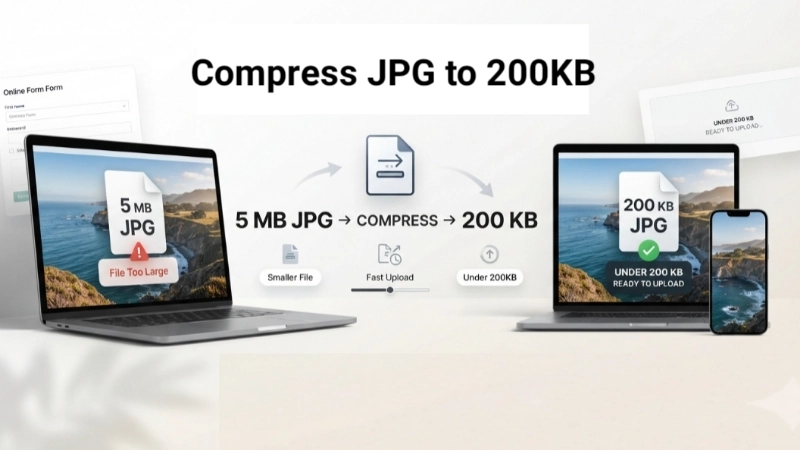
Let me tell you about the last time I tried to upload a photo to a government website.
I had the perfect photo. Good lighting. Neutral expression. Everything met the requirements. I clicked upload. And then I saw it: “File size exceeds the maximum limit of 200KB.”
I had no idea what to do. I did not know how to make my photo smaller. I stared at my screen, frustrated, wondering why this had to be so complicated.
If you are here because you need to compress jpg to 200kb for a form, a website, or an email attachment, I understand your pain. I have been there.
The good news? It is actually very easy. You do not need expensive software. You do not need to be a tech expert. You just need to know where to click.
Today, I will show you exactly how to compress a JPG to 200KB using free tools. And yes, I will show you how to use Top Image Fixer to get the job done in seconds.
Let me walk you through this like I am showing a friend.
Why Do You Need to Compress JPG to 200KB?
Before I teach you the “how,” let me explain the “why.” There are many reasons you might need to shrink a photo to 200KB.
Reason 1: Website upload limits
Many websites have a 200KB limit for profile photos, ID photos, or application images. If your photo is bigger, the site will reject it.
Reason 2: Email attachments
Large images take forever to send. Some email servers block attachments over a certain size. Keeping your photos under 200KB makes emailing them easy.
Reason 3: Faster website loading
If you run a website, large images slow it down. Compressed images load faster and keep visitors happy.
Reason 4: Save storage space
Smaller images take up less room on your phone, computer, or cloud storage. You can store more photos without running out of space.
Reason 5: Online forms and applications
Job applications, visa forms, and government portals often have strict file size limits. A 200KB image is usually accepted without issues .
So when you learn jpg compress to 200kb, you are not learning a random skill. You are learning how to avoid rejection, save time, and make your life easier.
The 10-Second Answer (For People Who Just Want It Done)
If you are in a hurry and just need to compress jpg to 200kb right now, here is the fastest way:
- Go to Top Image Fixer (free, no account, no nonsense)
- Find the JPG Compressor or Image Reducer tool
- Upload your photo
- Set the target size to 200KB (or let the tool do it automatically)
- Click compress
- Download your new 200KB image
That is it. Six steps. About twenty seconds. Your photo is now under 200KB.
Now, if you want to understand the different ways to compress images and how to keep quality high, keep reading.
What Does “Compress to 200KB” Actually Mean?
When someone says compress jpg to 200kb, they mean make the file size smaller. The image should be 200 kilobytes or less.
Here is what that looks like in real numbers:
| Original File Size | After Compression | Saving |
|---|---|---|
| 5 MB (5,000 KB) | 200 KB | 96% smaller |
| 2 MB (2,000 KB) | 200 KB | 90% smaller |
| 500 KB | 200 KB | 60% smaller |
Most phone photos are 2-5 MB. That is 2,000 to 5,000 KB. Compressing to 200KB is a huge reduction.
The trade-off: Compression removes some data to make the file smaller. At 200KB, the image will still be clear enough for most uses. But if you zoom in a lot, you might notice some quality loss.
Method 1: Top Image Fixer (The “I Just Want This to Work” Method)
Let me start with the tool I actually use. Not the fancy one. The one that works when I am in a hurry.
Top Image Fixer has free tools to compress JPG images. You can use the JPG Compressor or the Image Reducer tool.
Step 1: Open your browser. Go to Top Image Fixer.
Step 2: Find the JPG Compressor or Image Reducer tool. It is usually on the homepage.
Step 3: Click upload. Select the photo you want to compress.
Step 4: Choose your target size. If the tool has a preset for 200KB, select it. If not, adjust the quality slider until the file size reaches 200KB.
Step 5: Click compress.
Step 6: Download your new 200KB image.
That is it. Six steps. Twenty seconds. Your photo is now under 200KB.
Pro tip: If the tool gives you a quality slider, start with a high quality setting. Check the file size. If it is still over 200KB, lower the quality a little and try again.
Method 2: Compress JPG to 200KB Using Smallpdf
Smallpdf is another popular free tool. Here is how to use it .
Step 1: Go to Smallpdf’s Compress PDF tool. (Yes, it also works for JPG images.)
Step 2: Upload your JPG image. Drag and drop it into the upload area.
Step 3: Choose “Basic compression.” This gives you a smaller file with minimal visual change .
Step 4: Click “Export As” and select “Image (.jpg).” Then choose “Extract images only.”
Step 5: Download your compressed image.
Step 6: Check the file size. If it is still over 200KB, compress it again. Or use “Strong compression” if you have Pro access .
Important note: Smallpdf’s free plan only offers Basic compression. Strong compression is a Pro feature .
Method 3: Compress JPG to 200KB Using ezyZip
If privacy is important to you, ezyZip is a great option. It processes images directly in your browser. Your files never leave your device .
Step 1: Go to ezyZip’s JPG compressor.
Step 2: Click “Select JPEG to compress.”
Step 3: Choose your image.
Step 4: Adjust the max size to 200KB. You can also adjust the resolution if needed.
Step 5: Click the green “Compress” button.
Step 6: Preview the compressed image. If you are happy with it, click “Save” to download.
Pro tip: ezyZip works offline after the page loads. This means faster processing and better privacy .
Method 4: Compress JPG to 200KB Using a Browser Extension
If you compress images often, a browser extension can save time. The “Compress Image To KB” extension works in Chrome and other Chromium browsers .
Step 1: Install the extension from the Chrome Web Store.
Step 2: Click the extension icon in your browser toolbar.
Step 3: Drag and drop your image into the extension.
Step 4: Set the target size to 200KB. You can type it in or click the 200KB preset button .
Step 5: Preview the compressed image.
Step 6: Click “Download” to save the file.
Privacy bonus: This extension works 100% offline. Your images never leave your browser .
Image Prompt 1 (For inside the article)
“A simple visual showing a photo on a scale. Left side: A large suitcase labeled ‘5 MB’ with a red warning symbol. Right side: A small envelope labeled ‘200 KB’ with a green checkmark. An arrow points from left to right with text: ‘Compress JPG to 200KB.’ Clean, friendly, very beginner-friendly.”
Place this image after the “What Does Compress to 200KB Actually Mean?” section. It shows the transformation visually.
How to Compress JPG to 200KB Without Losing Too Much Quality
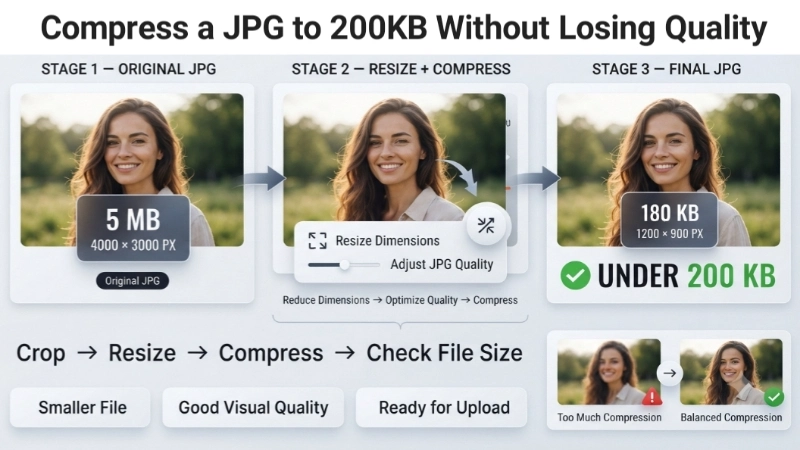
Let me be honest with you. When you compress an image to 200KB, you will lose some quality. But there are ways to minimize the loss.
Tip 1: Crop first
Before you compress, crop your image to remove unnecessary background. A smaller image compresses better .
Tip 2: Resize dimensions
If your image is very large (like 4000 x 3000 pixels), resize it to something smaller (like 1200 x 900 pixels) before compressing .
Tip 3: Use JPG format
JPG is the best format for compression. PNG files are much larger. If your image is PNG, convert it to JPG first.
Tip 4: Start with the highest quality original
If you start with a low-quality image, compressing it will make it look even worse. Always start with the best version.
Tip 5: Test different compression levels
If a tool offers different quality settings, try a few. Find the balance between file size and image quality that works for you.
Common Mistakes When Compressing Images
Let me save you from the mistakes I have made.
Mistake #1: Compressing a PNG instead of a JPG
PNG files are huge. If you compress a PNG to 200KB, it will look terrible. Convert to JPG first.
Mistake #2: Forgetting to save the original
Always keep the original, uncompressed version. You might need it later.
Mistake #3: Using too much compression
A 200KB image that looks like a blurry mess is useless. Find the right balance.
Mistake #4: Not checking the file size
After compression, always check the file size. Make sure it is actually under 200KB.
Mistake #5: Using a tool that adds watermarks
Some free tools add watermarks to your images. Avoid them. Use reputable tools like Top Image Fixer.
Image Prompt 2 (For near the common mistakes section)
“A simple illustration showing two photos side by side. Left photo: Good 200KB compression. Clear, readable, still looks nice. Green checkmark. Right photo: Bad compression. Blurry, pixelated, looks like a mess. Red X. Text below: ‘Good compression saves space. Bad compression ruins your photo.’ Clean and simple.”
Place this image near the “Common Mistakes” section. It shows what to aim for.
What If Your Image Won’t Compress to 200KB?
Sometimes, even with good tools, your image might stay over 200KB. Here is what to do.
Try this sequence :
- Crop the image. Remove any unnecessary background or empty space.
- Resize the dimensions. Reduce the width and height by about 20%.
- Compress again. Use the same tool to compress the resized image.
- If still over 200KB, repeat. Reduce dimensions more, then compress again.
Why this works: File size depends on both dimensions (pixels) and compression. If you reduce dimensions, the file becomes smaller even before compression .
When Should You NOT Compress to 200KB?
Compression is great. But there are times when you should not compress an image.
Do NOT compress if:
- You need the image for professional printing
- The image will be viewed on a large screen (like a 4K monitor)
- The image contains small text that must be readable
- You are submitting the image to a gallery or competition
When to consider a larger file size:
- Some websites accept larger files (like 500KB or 1MB)
- If quality matters more than file size
Internal Linking Suggestions
While reading this article, you can link to these other helpful pages on your website:
- Top Image Fixer – JPG Compressor Tool (main tool link)
- Top Image Fixer – Image Reducer Tool (for general compression)
- Top Image Fixer – Image Resizer Tool (for resizing dimensions)
Place these links naturally. For example:
“After you learn jpg compress to 200kb, you might want to resize your image first. Use our free Image Resizer for that.”
FAQs About Compress JPG to 200KB
1. How do I compress a JPG to 200KB for free?
Use Top Image Fixer’s JPG Compressor or Image Reducer tool. Upload, compress, download. Free, no account needed.
2. What is the best free tool to compress JPG to 200KB?
Top Image Fixer, Smallpdf, and ezyZip are all good options. Each has different features .
3. Will compressing to 200KB ruin my image quality?
It depends on the original image. For most photos, 200KB is clear enough for web use. But you may lose some detail if you zoom in.
4. How do I compress a JPG to 200KB without losing quality?
Use a tool that lets you control the quality. Start with a high-quality setting. If the file is still too large, reduce dimensions before compressing .
5. Can I compress a PNG to 200KB?
Yes, but PNG files are larger than JPGs. Compressing a PNG to 200KB may result in more quality loss. Convert to JPG first for better results.
6. Why do some websites have a 200KB limit?
200KB is a common limit for profile photos, ID photos, and application images. It balances image quality with fast loading and storage efficiency .
7. How do I check the file size of my image?
On Windows: Right-click the file and select Properties. On Mac: Right-click and select Get Info. You will see the file size in KB or MB.
8. What if my image won’t compress to 200KB?
Reduce the image dimensions first. Crop unnecessary areas. Then try compressing again .
9. Is 200KB a good size for images?
Yes. 200KB is ideal for web images, email attachments, and online forms. It balances quality and file size .
10. Can I batch compress multiple images to 200KB?
Yes. Some tools, like Top Image Fixer and Cloudinary, offer batch compression .
A Quick Story: How I Learned This the Hard Way
I was applying for a visa. The form required a photo under 200KB. My photo was 4 MB. I had no idea how to make it smaller.
I tried everything. I emailed the photo to myself. I used Paint. I asked my tech-savvy friend. Nothing worked.
Finally, I found a free online tool. It took ten seconds. My photo was 180KB. The visa form accepted it.
That is why I am writing this guide. I do not want you to waste time like I did.
Conclusion: Your 2-Minute Action Plan
You came here asking how to compress jpg to 200kb. Now you have the answer. Let me give you a simple action plan.
Minute 1: Find the photo you need to compress. Check its current file size.
Minute 2: Go to Top Image Fixer. Open the JPG Compressor or Image Reducer tool. Upload your photo. Compress it. Download the smaller version. Check that it is under 200KB.
Two minutes. That is all it takes.
Now do it for your other large images. Then share this guide with someone who keeps getting “file too large” errors.
Final Words From Me
Look, compressing images is not complicated. But when you are staring at a form that says “File size must be under 200KB,” it can feel impossible. I have been there.
Now you know exactly what to do. No expensive software. No confusing settings. Just a free tool and two minutes.
So go ahead. Compress that image. Submit that form. Send that email. Stop worrying about file sizes.
Ready to compress your first image? Visit Top Image Fixer now and use their free JPG Compressor or Image Reducer tool. It takes twenty seconds. And you will never get a “file too large” error again.
One Last Reminder
Bookmark this page. Bookmark Top Image Fixer. And next time someone asks you “how to compress jpg to 200kb,” send them here.
You have the knowledge. You have the tool. Now go compress those images.
Your 200KB photos are waiting. Go create them.