
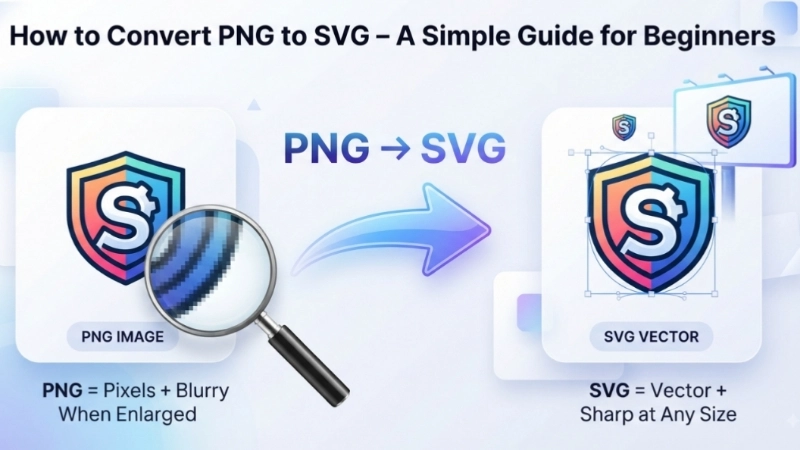
Have you ever tried to enlarge a logo or icon, only to see it become blurry and pixelated? I’ve been there, and it’s frustrating. The reason this happens is that your image is in PNG format, which is made of tiny squares called pixels. When you make it bigger, those squares become visible, and the image loses its sharp look.
The solution? Converting your PNG to SVG. When you learn how to convert PNG to SVG, you can make your images infinitely scalable without any quality loss. In this guide, I’ll walk you through everything you need to know—what these formats are, why SVG is better in many cases, and exactly how to make the switch.
What’s the Difference Between PNG and SVG?
Before we jump into the “how,” let’s understand the “why.” PNG and SVG are completely different types of image formats, and knowing the difference helps you decide when to convert.
PNG: The Pixel-Based Format
PNG stands for Portable Network Graphics . It’s a raster image format, which means it’s made up of a grid of tiny colored squares called pixels. Think of it like a mosaic—each piece is a pixel, and together they form the picture.
Here’s what makes PNG special:
- Lossless compression – It doesn’t lose quality when saved
- Supports transparency – Great for logos and graphics
- Widely supported – Works everywhere
But here’s the catch: PNG images have a fixed resolution. If you try to make them bigger, they become blurry and pixelated . That’s the main reason people want to convert PNG to SVG.
SVG: The Vector-Based Format
SVG stands for Scalable Vector Graphics . Instead of pixels, SVG images are made of mathematical paths, shapes, and lines that are written as code . When you zoom in or enlarge an SVG, it stays perfectly crisp because the shapes are recalculated at any size.
Here’s why SVG is so powerful:
- Infinite scalability – Looks perfect at any size
- Small file size – Often much smaller than PNGs
- Editable and animatable – You can change colors, add animations, and more
- SEO-friendly – Search engines can read SVG code
The downside? SVGs aren’t great for photographs or images with lots of colors and complex gradients .
Why Should You Convert PNG to SVG?
Learning how to convert a PNG to a SVG opens up many possibilities. Here are the most common reasons people make the switch:
For Websites and Apps
When you use SVG on your website, your images look sharp on any screen—from phones to 4K monitors. This is especially important for logos, icons, and buttons . Plus, SVG files are usually smaller than PNGs, so your site loads faster .
For Print Design
Need to put a logo on a billboard or a business card? With SVG, you can scale it to any size without losing quality. PNGs would become blurry at large sizes .
For Editing and Customization
SVG files are editable. You can change colors, combine elements, and even animate them using CSS or JavaScript . This is perfect for designers and developers who need flexibility.
For Better SEO
Because SVG is text-based code, search engines can index it . This means your images can help with your SEO efforts.
When NOT to Convert PNG to SVG
Before you rush to change PNG to SVG, it’s important to know when it’s NOT a good idea:
- Photographs – Photos have millions of colors and smooth gradients. SVG can’t handle this well and will look blocky and unnatural .
- Complex artwork – Images with lots of details, shading, and color transitions don’t convert well to SVG .
- Simple touch-ups – If you just need to resize an image once, you might not need SVG at all.
PNG vs SVG Quick Comparison Table
| Feature | PNG | SVG |
|---|---|---|
| Image Type | Raster (pixels) | Vector (paths and shapes) |
| Scalability | Loses quality when enlarged | Scales perfectly at any size |
| File Size | Usually larger | Usually smaller |
| Editable | Limited editing | Full editing (colors, shapes, text) |
| Animation | No | Yes |
| Best For | Photos, complex images | Logos, icons, illustrations |
| Transparency | Yes | Yes |
| Browser Support | All browsers | Modern browsers only |
[Image Prompt: A simple visual comparison image. Left side: A PNG image zoomed in showing pixelated, blurry edges. Right side: The same image as SVG zoomed in showing perfectly smooth, crisp edges. Add a magnifying glass effect to highlight the difference.]
How to Convert PNG to SVG – Methods for Everyone
Now let’s get to the practical stuff. There are several ways to convert PNG to SVG, and I’ll cover the most common ones.
Method 1: Using an Online Converter (Easiest)
If you want a quick, no-fuss solution, an online PNG to SVG converter is your best bet. You don’t need any software, and it works on any device with a browser.
Here’s how it works:
- Go to a converter tool – Many free tools are available online. For a reliable option, check out the PNG to SVG Converter on top image fixer. It’s free, private, and works right in your browser.
- Upload your PNG file – Click the upload button or drag and drop your image.
- Start the conversion – The tool processes your image and converts it to SVG.
- Download your SVG – Save the file to your device.
Why choose top image fixer? This tool processes your images entirely in your browser, meaning your files stay private and secure. No uploads to servers, no registration needed.
[Image Prompt: A step-by-step screenshot-style guide showing: Step 1 – The upload screen of a PNG to SVG converter, Step 2 – The conversion process with a loading bar, Step 3 – The download button for the new SVG file.]
Method 2: Using Design Software
If you want more control and high-quality results, you can use professional design software like:
- Adobe Illustrator – The industry standard for vector graphics. It has a built-in “Image Trace” tool that converts raster images to SVG .
- Inkscape – A free, open-source alternative that’s excellent for vectorization .
- CorelDRAW – Another professional tool with powerful vectorization features.
These tools give you the best results, especially for complex images, but they have a learning curve.
Method 3: Using a Chrome Extension
For quick conversions directly in your browser, you can use a browser extension like the Image Vectorizer add-on . It lets you drag and drop an image and convert it to SVG instantly.
Method 4: Using a Mobile App
There are also mobile apps for Android and iOS that can convert PNG to SVG . These are handy for designers on the go.
Method 5: Using Programming Libraries
For developers, there are libraries like:
- Python with OpenCV and Potrace – A free open-source solution
- Aspose.SVG for Python – A powerful library for automated conversions
- GroupDocs.Conversion for .NET – For .NET developers
- FloImg plugin – For JavaScript developers
These are great if you need to convert many images automatically.
Tips for Better PNG to SVG Conversion

If you want the best results when you convert PNG to SVG, keep these tips in mind:
Keep It Simple
SVG works best with simple, flat images. Logos, icons, line art, and diagrams convert beautifully. Photos and complex artwork don’t .
Use High-Contrast Images
Images with clear outlines and distinct colors work better. If your PNG has a lot of similar colors, the conversion might not look clean.
Clean Up the PNG First
Before converting, remove any unwanted elements, simplify the background, and make sure the image is as clean as possible.
Choose the Right Tool
For simple logos, an online converter works fine. For more complex images, use software like Adobe Illustrator or Inkscape for better control.
Common Uses for SVG Images
Once you know how to convert a PNG file to SVG, here are some popular ways to use your new vector images:
- Website logos – Look sharp on any screen
- Icons and buttons – Scale perfectly for responsive designs
- Infographics and diagrams – Stay crisp and readable
- Print materials – Business cards, brochures, banners
- Interactive graphics – Add animations and hover effects
Frequently Asked Questions
Q1: Will converting PNG to SVG make my image look exactly the same?
Not always. Because PNG is pixel-based and SVG is vector-based, the conversion involves a process called “vectorization” where the tool traces the shapes in your image. For simple images like logos, the result can be almost identical. For complex images, there might be some changes in appearance .
Q2: Can I convert a PNG with a transparent background to SVG?
Yes! SVG supports transparency just like PNG, so your transparent background will be preserved.
Q3: Is it safe to convert PNG to SVG online?
Yes, if you use a reputable tool. For example, the PNG to SVG Converter on top image fixer processes your images entirely in your browser, so they never leave your device.
Q4: Can I edit my SVG after converting from PNG?
Absolutely! That’s one of the biggest advantages of SVG. You can open it in vector editing software and change colors, shapes, add text, and more.
Q5: What’s the best tool for converting PNG to SVG?
For beginners, an online tool like top image fixer’s converter is the easiest. For professionals, Adobe Illustrator or Inkscape give you the most control.
Q6: Does SVG support animation?
Yes! SVG supports animation through CSS and JavaScript, making it great for interactive graphics .
Q7: Why is my SVG file bigger than my PNG?
Usually SVG files are smaller, but sometimes complex vectorization can produce larger files. If this happens, you can optimize your SVG by simplifying paths and removing unused elements.
Conclusion
Learning how to convert PNG to SVG is a valuable skill for anyone who works with digital images. Whether you’re a website owner, designer, marketer, or just someone who wants high-quality images, SVG gives you flexibility and quality that PNG can’t match.
Here’s my actionable advice:
- Use SVG for simple graphics – Logos, icons, illustrations. They’ll look great at any size.
- Stick with PNG for complex images – Photos and detailed artwork are better left as PNGs .
- Start with an online tool – It’s the quickest and easiest way to begin converting.
Ready to try it? Head over to the PNG to SVG Converter on top image fixer. It’s free, private, and works in seconds. Once you experience the magic of scalable vector graphics, you’ll wonder why you didn’t make the switch sooner.
Internal Linking Suggestion: After converting your PNG to SVG, you might want to compress your SVG for even faster loading or resize it for specific platforms.