
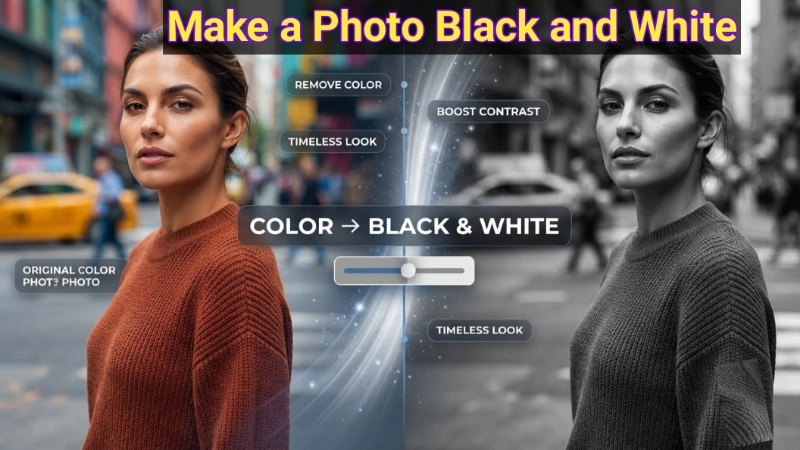
You know that feeling when you see a photo that just looks like art? The kind that feels timeless, dramatic, and full of emotion? Chances are, it’s a black and white photo.
Maybe you have a picture that feels a little busy, and you want to simplify it. Or maybe you just want to give your social media feed a classic, professional vibe. Whatever the reason, you’re here because you typed something like “how can i make a photo black and white” into Google.
The good news? Making a picture black and white is one of the easiest edits you can do. You don’t need expensive software. You don’t need a degree in photography. You just need to know where to click.
Today, I’m going to show you exactly how to turn a photo black and white using methods so simple, you’ll wonder why you didn’t do this years ago.
And yes, I’ll point you to a free tool on Top Image Fixer that does this in seconds.
Let me walk you through this like I’m showing a friend.
First, Why Make a Photo Black and White?
Before I teach you the “how,” let me tell you the “why.” It’s not just a trend. There are real reasons to make a photo black and white.
Reason 1: Less distraction, more emotion
Color is great. But sometimes it competes for attention. Strip away the color, and suddenly you notice the subject’s expression, the texture of their skin, or the drama of the light .
Reason 2: Hide mismatched colors
Ever take a photo where your bright red shirt clashes with a green background? Make it black and white. Problem solved.
Reason 3: Create a timeless feel
Black and white photos feel classic. They look like they belong in a gallery or a vintage magazine.
Reason 4: Fix poor lighting
If a photo is a bit washed out or the colors look weird, converting to black and white can actually make it look better. It emphasizes contrast and hides color imperfections.
Reason 5: It just looks cool
Let’s be honest. Sometimes you just want that artistic look.
The 10-Second Answer (For People Who Just Want It Done)
If you’re in a hurry, here is the fastest way to make a photo black and white:
- Go to Top Image Fixer (free, no account, no nonsense)
- Find the Black White Image tool
- Upload your photo
- Click “Convert”
- Download your new black and white photo
That is it. Five steps. About ten seconds.
Now, if you want to learn other methods (like using your phone, Photoshop, or other free tools), keep reading. I’ve got you covered.
Method 1: Top Image Fixer (The “I Just Want This to Work” Method)
Let me start with the tool I actually use when I’m in a rush.
Top Image Fixer has a free Black White Image tool. It’s online, it works on any device, and it takes 10 seconds.
Step 1: Open your browser. Go to Top Image Fixer.
Step 2: Find the Black White Image tool. It is usually on the homepage.
Step 3: Click upload. Select the photo you want to make black and white.
Step 4: The tool instantly converts your photo to black and white. No sliders. No confusing settings. Just done.
Step 5: Download your new black and white photo.
That’s it. Five steps. Ten seconds. Your photo is now black and white.
Method 2: How to Make a Photo Black and White on iPhone
Maybe you are on your phone right now. Here is how to make a photo black and white using only your iPhone.
Step 1: Open the Photos app. Find the photo you want to edit.
Step 2: Tap “Edit” in the top right corner.
Step 3: Tap the filters icon (it looks like three circles overlapping).
Step 4: Scroll through the filters. Look for “Noir,” “Mono,” or “Silvertone.” These are the black and white filters.
- Noir: The most dramatic black and white filter. Deep blacks and bright whites.
- Mono: A softer, more natural black and white.
- Silvertone: A warm, vintage-looking black and white.
Step 5: Tap the filter you like. You can adjust the intensity by sliding the bar below the filters.
Step 6: Tap “Done.”
That is it. Your photo is now black and white.
Pro tip: The iPhone filters are great for quick edits. But they don’t give you much control. For more control, use a tool like Top Image Fixer.
Method 3: How to Make a Photo Black and White on Android
Android users, you have a built-in option too.
Step 1: Open Google Photos. Find your photo.
Step 2: Tap “Edit” at the bottom.
Step 3: Tap “Adjust” (the sliders icon).
Step 4: Tap “Filters” (the circles icon).
Step 5: Look for black and white filters. They are usually near the end of the list. Try “B&W” (black and white) or “Monochrome.”
Step 6: Tap the filter. Tap “Save copy” or “Save.”
That is it. Your photo is now black and white.
Note: Different Android phones have different filters. Some have more options. Some have fewer. If you don’t find what you need, use Top Image Fixer in Chrome.
Method 4: How to Make a Photo Black and White in Photoshop
If you have Photoshop, you have powerful tools for black and white conversion. Here is the simplest method .
Method A: The Quick Way
- Open your photo in Photoshop.
- Go to Image > Adjustments > Desaturate.
- That’s it. Your photo is now black and white.
Method B: The Better Way (More Control)
- Open your photo in Photoshop.
- Go to Layer > New Adjustment Layer > Black & White.
- Click OK.
- A new adjustment layer appears. In the Properties panel, you will see sliders for different colors (Red, Yellow, Green, etc.).
- Drag these sliders to change how bright or dark different parts of your photo become in black and white.
- For example, drag the Red slider right to make skin tones brighter. Drag the Blue slider left to make the sky darker.
- You can also click “Auto” for a good starting point .
Pro tip: Use the “On-image adjustment” tool (the hand icon) to click and drag directly on your photo. Drag up to brighten the corresponding color tones, drag down to darken them . This gives you precise control.
Method 5: How to Make a Photo Black and White in Lightroom
Lightroom (both desktop and mobile) is another excellent tool.
On Lightroom Desktop:
- Open your photo in the Develop module.
- In the Basic panel, click “Black & White” instead of “Color.”
- Your photo instantly turns black and white.
- Use the Black & White Mix panel to fine-tune how each original color converts to gray . Move the sliders left to darken, right to lighten.
On Lightroom Mobile:
- Open your photo.
- Tap “Edit.”
- Scroll to “Black & White.” Tap it.
- Your photo becomes black and white. You can adjust the strength.
Image Prompt 1 (For inside the article)
“A simple visual showing a split screen. Left side shows a colorful photo of a person in a busy, cluttered room. Right side shows the exact same photo, but now it is black and white. The clutter seems to fade into the background. The person’s face and expression are now the focus. Text below: ‘Color is nice. Black and white is powerful.’ Clean, friendly, very beginner-friendly.”
Place this image after the “First, Why Make a Photo Black and White?” section. It shows the transformation visually.
How to Make a Photo Black and White on Your Phone (App Comparison)
If you want more control than the built-in filters, there are great free apps for both iPhone and Android.
| App | Best For | Platform | Key Feature |
|---|---|---|---|
| Snapseed | Quick, powerful edits | iOS / Android | Selective adjustments |
| PicsArt | Creative control | iOS / Android | Filters and effects |
| Photoshop Express | Refined edits | iOS / Android | Color grading |
| Simple Black & White | One simple function | iOS | Fast, no-nonsense conversion |
How to use Snapseed:
- Download Snapseed (free).
- Open your photo.
- Tap “Tools” > “Black & White.”
- Adjust the sliders for brightness, contrast, and grain.
- Tap “Export.”
What If You Want to Colorize a Black and White Photo?
Some people search “how to make a photo black and white,” and some search the opposite. If you ever need to colorize a black and white photo, AI-powered tools like Remini and Colourise (Photomyne) are excellent options . They automatically add color to old black and white photos.
But that’s a topic for another guide.
Common Mistakes When Making Photos Black and White
Let me save you from the mistakes I have made.
Mistake #1: Just desaturating the image
Desaturation (removing color) is the simplest way. But it often looks flat. You get a lifeless gray photo. It’s better to use tools that let you adjust contrast and brightness.
Mistake #2: Overdoing the contrast
High contrast can be dramatic. Too much contrast looks harsh and unnatural. Start subtle.
Mistake #3: Forgetting to save the original
Always keep the original color photo. You might want it later.
Mistake #4: Not adjusting the tones
Different colors convert to different shades of gray. If you don’t adjust them, some areas might look too dark or too bright. Use the sliders (in Photoshop or Lightroom) to fine-tune.
What Makes a Good Black and White Photo?
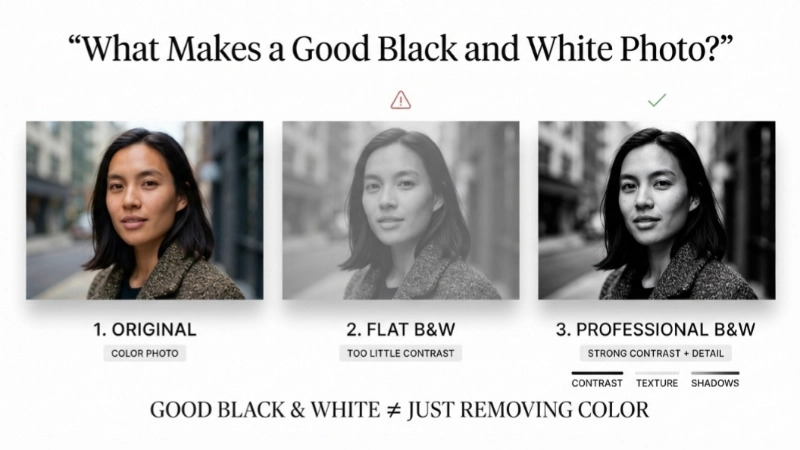
Image Prompt 2 (For near the common mistakes section)
“A simple illustration showing three versions of a photo. Version 1: Original color photo. Version 2: Bad black and white (flat, lifeless, no contrast). Version 3: Good black and white (dramatic, contrasty, the subject pops). Green checkmark under version 3. Text below: ‘Good black and white is not just removing color.’ Clean and simple.”
Place this image near the “Common Mistakes” section. It shows what to aim for.
Tips for Making Great Black and White Photos
Now you know how to make a photo black and white. Let me give you some tips for making it look great.
Tip 1: Look for contrast
Black and white photos look best when there are strong differences between light and dark areas. A photo with a bright sky and a dark forest will look amazing.
Tip 2: Focus on texture
In color, texture is often overlooked. In black and white, texture becomes a star. Think of a rough stone wall, a wrinkled face, or a woven basket.
Tip 3: Use shadows
Dark, moody shadows can make a black and white photo feel dramatic and cinematic.
Tip 4: Don’t forget the sky
A bright blue sky might look dull in black and white. You can adjust the blue slider in Photoshop to make the sky darker and more dramatic.
Tip 5: Practice
The more you experiment, the better you will get. Try converting different types of photos and see what works.
Internal Linking Suggestions
While reading this article, you can link to these other helpful pages on your website:
- Top Image Fixer – Black White Image Tool (main tool link)
- Top Image Fixer – Image Cropper Tool (for cropping your black and white photo)
- Top Image Fixer – Image Resizer Tool (for resizing your photo)
Place these links naturally. For example:
“After you make your photo black and white, you might want to resize it. Use our free Image Resizer for that.”
FAQs About How Can I Make a Photo Black and White
1. How can I make a photo black and white for free?
Use Top Image Fixer’s Black White Image tool. Upload your photo, click convert, download. Free, no account needed.
2. How do I make a photo black and white on my iPhone?
Open the photo in Photos, tap Edit, then Filters, and choose Noir, Mono, or Silvertone.
3. How do I make a photo black and white without Photoshop?
Use free online tools like Top Image Fixer, or free apps like Snapseed and PicsArt.
4. What is the difference between “Black & White” and “Desaturate”?
“Desaturate” simply removes color, which can look flat. “Black & White” adjustment tools let you control how different colors convert to gray, giving you a richer result.
5. Can I colorize a black and white photo?
Yes. AI-powered apps like Remini and Colourise can add color to black and white photos automatically .
6. How do I make a picture black and white in Lightroom?
In the Develop module, click “Black & White” in the Basic panel. Then use the Black & White Mix panel to fine-tune.
7. Should I always save the original color photo?
Yes. Always keep the original. You might want the color version later.
8. What makes a good black and white photo?
Strong contrast, interesting textures, and dramatic shadows. Focus on these elements.
9. How do I make a photo black and white on Android?
Open the photo in Google Photos, tap Edit, Filters, and choose a black and white filter like B&W or Monochrome.
10. What is the best black and white filter on iPhone?
It depends on your taste. “Noir” is dramatic. “Mono” is softer. “Silvertone” has a vintage feel.
A Quick Story: How I Started Loving Black and White
I used to think black and white photos were for old people and art snobs. Then I took a photo of my grandfather. He was sitting in his favorite chair, the light coming through the window. In color, the photo was fine. But something felt off.
I converted it to black and white. Suddenly, the photo was not just “fine.” It was powerful. The lines on his face were deeper. The light felt warmer. The photo felt like a memory, not just a picture.
That is when I understood. Black and white is not about losing color. It is about gaining emotion.
Now you know how to do it too.
Conclusion: Your 2-Minute Action Plan
You came here asking “how can i make a photo black and white.” Now you have the answer. Let me give you a simple action plan.
Minute 1: Find a photo you want to convert. Maybe it’s a busy photo that needs simplifying. Maybe it’s a portrait you want to make more dramatic.
Minute 2: Go to Top Image Fixer. Open the Black White Image tool. Upload your photo. Download your new black and white photo.
Two minutes. That is all it takes.
Now try it with different photos. Experiment. See what you like.
Final Words From Me
Look, making a photo black and white is one of those things that sounds complicated until you actually do it. Then you wonder why you didn’t do it sooner.
Now you know exactly how. No expensive software. No confusing settings. Just a free tool and two minutes.
So go ahead. Make that photo black and white. See how it changes the feeling. Share it with someone. Watch them say, “Wow, that looks professional.”
Ready to make your first black and white photo? Visit Top Image Fixer now and use their free Black White Image tool. It takes ten seconds. And your photos will look timeless.