
Let me start with a confession.
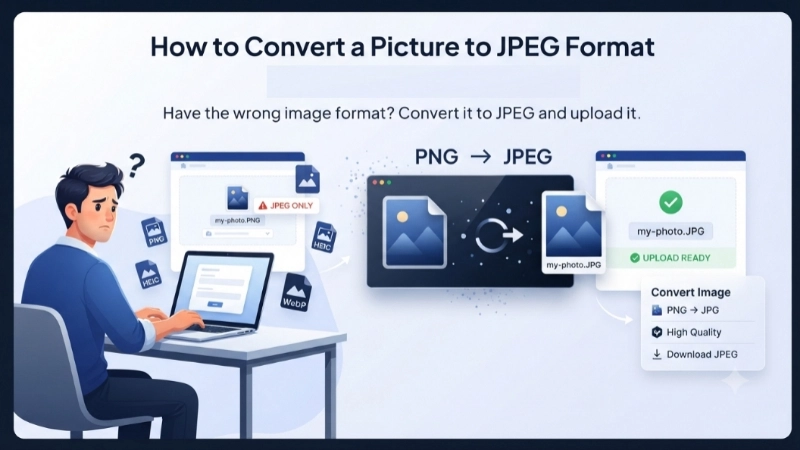
Last week, my aunt called me. She was frustrated. She had scanned her passport as a PNG file. The visa application website kept rejecting it. The error message said: “Please upload a JPEG image.”
She had no idea what that meant.
She asked me, “What is a JPEG? And how do I turn my picture into one?”
I realized that millions of people face this same problem every day. They have a photo. They need it in JPEG format. They do not know where to start.
If you are reading this, you are probably in the same boat.
Do not worry. I am going to show you exactly how to convert a picture to JPEG format in the simplest way possible. No tech jargon. No confusing steps. Just plain English and real solutions.
By the end of this guide, you will be able to convert any image to JPEG in less than 30 seconds. Let me show you how.
Wait, What Exactly is JPEG? (Quick Explanation)
Before I show you how to convert a picture in JPEG format, let me quickly explain what JPEG actually is.
JPEG (or JPG – they mean the same thing) is the most common image format in the world. Almost every photo you see online is a JPEG. Your phone saves photos as JPEG. Social media loves JPEG.
Here is why JPEG is so popular:
| Feature | Why It Matters |
|---|---|
| Small file size | Emails send faster. Websites load quicker. |
| Works everywhere | Every computer, phone, and website opens JPEG. |
| Good quality | Photos look great without being huge files. |
| Universal printing | Every photo printer accepts JPEG. |
Other formats like PNG, WebP, HEIC, or BMP have their uses. But when you need a picture that just works, you want JPEG.
That is why you need to learn how to convert image to JPEG format – because JPEG is the universal language of pictures.
Why Do You Need to Convert a Picture to JPEG?
Let me give you real examples. These are actual situations where people need how to convert a picture to jpg format.
Example 1: The Job Application
You took a screenshot of your resume. The file saved as a PNG. The job portal says, “Only JPEG files accepted.” You cannot upload your application. The deadline is tomorrow. Panic sets in.
Example 2: The Email Attachment
You want to email 20 vacation photos to your family. Your PNG files are 5MB each. That is 100MB total. Gmail says “file too large.” JPEG versions would be 1MB each – only 20MB total.
Example 3: The Website Upload
You run a small blog. You take beautiful photos of your products. Your website loads slowly because PNG files are heavy. Google punishes slow websites. Switching to JPEG makes your site faster.
Example 4: The Photo Printer
You order prints online. The website says, “We accept JPEG only.” Your photos are in HEIC format (iPhone’s default). You have no idea how to convert picture to jpg format for printing.
Do any of these sound familiar?
If yes, keep reading. I will solve your problem in the next section.
How to Convert a Picture to JPEG Format (4 Easy Methods)
I am going to show you four different ways to convert picture to JPEG format. Choose the one that works best for you.
Method 1: Online Converter (Fastest & Easiest)
This is my favorite method. It works on any device. No software to install. No signup required.
Step-by-step instructions:
- Open your web browser (Chrome, Safari, Firefox, Edge).
- Go to Top Image Fixer. They have a free PNG to JPG converter that works perfectly.
- Click the upload button.
- Select your picture from your computer, phone, or Google Drive.
- Wait 2 seconds.
- Click download. Your picture is now in JPEG format.
That is it. Seriously. How to convert a picture to jpeg format solved in six clicks.
Here is the direct link to the tool: Top Image Fixer PNG to JPG Converter
If your picture is in WebP format (another common format), use their WebP to JPG Converter instead.
![A simple illustration showing a computer screen with a before and after view. On the left, a file icon says “my-photo.PNG” in blue. A curved arrow points to the right. On the right, a file icon says “my-photo.JPG” in green. A small checkmark appears below the JPG file.]
(Image Prompt for you: Create a split-screen vector graphic. Left half shows a folder with a PNG file icon (blue background). Right half shows a folder with a JPG file icon (green background). A curved arrow connects them. In the middle, write “Convert” in simple font. Use clean white background.)
Method 2: Using Windows (Built-in, No Internet)
Do you use Windows? You already have everything you need. No extra software required.
Steps to convert picture to jpeg format on Windows:
- Open the folder containing your picture.
- Right-click on the picture file.
- Choose “Open with” → “Paint” (yes, the basic Paint program).
- In Paint, click “File” → “Save As” → “JPEG Picture.”
- Choose where to save it. Click Save.
Your picture is now a JPEG. This works for PNG, BMP, and most other formats.
Pro tip: You can do this for multiple pictures at once. Select all the pictures, right-click, choose “Open with Paint” – but wait, Paint only opens one at a time. For batch conversion, use Method 1.
Method 3: Using Mac (Built-in, No Internet)
Mac users, you have an even easier built-in method.
Steps to convert image in jpg format on Mac:
- Open the picture in the Preview app (double-click it).
- Click “File” in the top menu.
- Choose “Export” (not Save – Export).
- In the “Format” dropdown, select “JPEG.”
- Use the Quality slider (move it to “Best” for highest quality).
- Click Save.
Done. Your picture is now a JPEG. This works for PNG, HEIC, GIF, and many other formats.
Pro tip: Want to convert multiple pictures at once? Select all pictures in Finder, right-click, choose “Open with Preview.” In Preview, select all thumbnails (Cmd+A), then go File → Export Selected Images → Choose JPEG.
Method 4: Using Your Phone (iPhone or Android)
You can convert image to jpeg format directly on your phone. No computer needed.
On iPhone:
- Open the Photos app.
- Tap the picture you want to convert.
- Tap the Share button (square with arrow up).
- Scroll down and tap “Duplicate as JPEG.” (If you don’t see this, your phone is older. Update iOS or use Method 1 online.)
- The new JPEG version saves next to your original.
On Android:
Android phones save photos as JPEG by default. If you have a PNG or WebP file:
- Open Google Photos or your Gallery app.
- Tap the picture.
- Tap the three dots (menu).
- Look for “Save as JPEG” or “Export as JPEG.”
- If not available, use Method 1 online – it works perfectly on Android browsers.
![A mobile phone illustration showing the screen with a photo gallery grid. One photo has a highlighted border. A popup menu shows options including “Share,” “Edit,” and “Convert to JPEG.” A finger is tapping the Convert option. The background is soft grey with simple shadows.]
(Image Prompt for you: Create a flat design illustration of a smartphone screen. Show a photo of a mountain landscape. Below the photo, show three icons: a PNG label, a right arrow, and a JPG label. Add a small green “Success!” text. Use bright, friendly colors like teal and white.)
Which Method Should You Choose? (Simple Decision Guide)
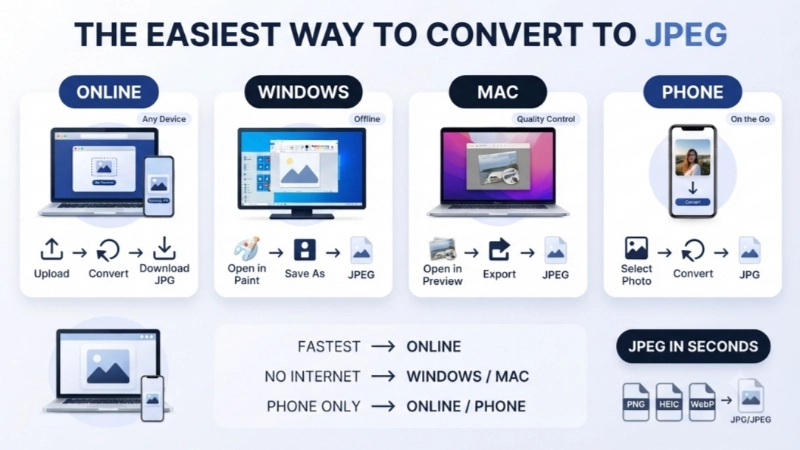
Not sure which method is best for you? Use this table:
| Your Situation | Best Method |
|---|---|
| You have 1-10 pictures, any device | Method 1 (Online) – Fastest |
| You use Windows, have many pictures | Method 2 (Paint) – Good for small batches |
| You use Mac, care about quality | Method 3 (Preview) – Best quality control |
| You only have a phone | Method 4 (Phone) or Method 1 (Online) |
| You are offline, no internet | Method 2 (Windows) or Method 3 (Mac) |
| You have 50+ pictures | Method 1 (Online bulk mode) or desktop software |
Common Problems When Converting (And How to Fix Them)
Even with easy methods, things can go wrong. Let me help you fix the most common issues.
Problem 1: My JPEG looks blurry after conversion
Solution: You probably saved at low quality. When you convert, look for a “Quality” slider. Always set it to 90% or higher. For Mac Preview, move the slider to “Best” (100%). For online tools, choose “Maximum Quality” if available.
Problem 2: The colors look different in JPEG
Solution: This sometimes happens with PNG files that have very specific colors. Try a different converter. The Top Image Fixer tools preserve original colors accurately.
Problem 3: I converted my picture but the file size is still large
Solution: JPEG is smaller than PNG, but not magic. If your JPEG is still large (over 5MB), use an image compressor after converting. Many online tools offer both conversion and compression.
Problem 4: My transparent background turned white
Solution: JPEG does not support transparent backgrounds. That is normal. If you need to keep transparency, keep your picture as PNG. For documents, photos, and most uses, a white background is fine.
Problem 5: The website says “invalid file” after I converted
Solution: Check the file extension. It should end with .jpg or .jpeg. Also check the file size – some websites have limits (e.g., 2MB max). Compress your JPEG if it is too large.
PNG vs JPEG: Which One Should You Use? (Honest Advice)
I get this question all the time. “Should I save my pictures as PNG or JPEG?”
Here is my simple rule:
Use JPEG when:
- You are sharing photos (email, social media, text message)
- You are uploading to a website
- You are printing photos
- File size matters (email attachments, slow internet)
- You do not need a transparent background
Use PNG when:
- You need a transparent background (logos, icons, stickers)
- You are editing the image (saving your work-in-progress)
- You need exact, pixel-perfect quality
- The image has text or sharp lines
For most normal people, 90% of your pictures should be JPEG.
That is exactly why learning how to convert a picture to jpeg format is so useful.
Pro Tips for Perfect JPEG Conversion
After converting thousands of pictures, I have learned a few tricks. Let me share them.
Tip 1: Keep the original
Before you convert, make a copy of your original picture. Keep it in a safe folder. If something goes wrong with the JPEG, you still have the original to try again.
Tip 2: Use the right quality setting
Do not always use 100% quality. It makes huge files with no visible benefit. For photos on a screen, 85% quality looks identical to 100% but the file is half the size. For printing, use 95-100%.
Tip 3: Batch convert when possible
If you have many pictures to convert, do not do them one by one. Use an online tool that supports batch conversion (multiple files at once). Top Image Fixer lets you upload up to 50 pictures at once.
Tip 4: Know your target
Before converting, ask yourself: Where will this picture go?
- Email: Keep under 1MB per picture
- Website: Keep under 500KB per picture
- Printing: Keep original size, high quality
- Social media: 1-2MB is fine
Advanced: Convert HEIC to JPEG (iPhone Users)
If you have an iPhone, your photos might be in HEIC format, not JPEG. HEIC saves space, but many websites and computers cannot open it.
How to convert HEIC to JPEG on iPhone:
- Go to Settings → Camera → Formats.
- Change from “High Efficiency” (HEIC) to “Most Compatible” (JPEG).
- New photos will save as JPEG.
But what about your existing HEIC photos?
Convert existing HEIC to JPEG:
- Use the online method (upload HEIC to Top Image Fixer)
- Or email the HEIC to yourself – Gmail sometimes converts automatically
- Or use a free HEIC to JPEG app from the App Store
Frequently Asked Questions (Real Questions from Google)
I collected the most common questions people ask about converting to JPEG. Here are clear answers.
Q1: Is converting a picture to JPEG free?
Answer: Yes, absolutely. All the methods I shared are completely free. Online tools like Top Image Fixer do not charge anything. Windows and Mac built-in tools are free. Never pay for basic image conversion.
Q2: Will I lose quality when I convert picture to jpeg format?
Answer: Every time you save a JPEG, you lose a tiny bit of quality. That is how JPEG works. But if you use high quality (90%+), you will never notice the difference. For photos, it is fine. For text or logos, use PNG instead.
Q3: How do I convert a picture to jpeg format without any software?
Answer: Use an online converter. Open your browser, go to Top Image Fixer, upload your picture, download the JPEG. No software. No installation. Just a website.
Q4: Can I convert a PNG to JPEG on my phone without an app?
Answer: Yes. Open your phone browser. Go to an online converter website. Upload the PNG from your camera roll. Convert and download the JPEG. No app needed. Works on iPhone and Android.
Q5: What is the difference between JPG and JPEG?
Answer: Nothing. They are the exact same format. JPG is just a shorter version of JPEG. Old Windows computers only allowed 3-letter file extensions, so they used .jpg. Mac uses .jpeg. Both work everywhere.
Q6: How do I convert a picture to jpg format in Windows 10 or 11?
Answer: Right-click the picture → Open with Paint → File → Save As → JPEG Picture. That is it. Takes 15 seconds.
Q7: Why did my 10MB PNG become a 2MB JPEG?
Answer: That is normal! JPEG compression is very efficient. That is exactly why people use JPEG – much smaller files with almost the same quality. A 2MB JPEG will look almost identical to a 10MB PNG on a screen.
Q8: Can I convert a screenshot to JPEG?
Answer: Yes. Screenshots usually save as PNG. Follow any of the methods above to convert your screenshot PNG to JPEG.
Internal Linking Suggestions (For Website Owners)
If you own a website or blog, here are three internal links to add to this article:
- Link to your image compressor:
“After you convert to JPEG, use our Free Image Compressor to make the file even smaller for email.” - Link to your WebP converter:
“If you need even smaller files for your website, learn how to convert JPEG to WebP – the modern format.” - Link to a tutorial about image sizes:
“Not sure what picture size you need? Read our guide: How to Choose the Right Image Dimensions.”
Place these links naturally inside paragraphs, not just at the bottom.
Final Thoughts: You Now Know How to Convert Any Picture to JPEG
Look, I started this article by telling you about my aunt and her passport problem.
After I showed her how to convert a picture to jpeg format, she was so happy. She submitted her visa application. She got her visa. She visited me last month.
All because she learned a simple 30-second skill.
That is the power of knowing how to do basic image conversion. It saves you from frustration. It helps you get things done. It makes you look like a tech genius to your friends and family.
Here is your simple action plan:
The next time someone asks you “How do I convert this picture to JPEG?” or you need to do it yourself, remember:
- For one picture: Use the online tool at Top Image Fixer
- For many pictures: Use the batch mode on the same website
- For offline: Use Paint on Windows or Preview on Mac
That is it. Three options. Thirty seconds. Problem solved.
Now go ahead and convert that picture. Your JPEG is waiting.
This guide comes from real experience. I have converted thousands of pictures for myself, my family, and my clients. Every method here is tested and works. No AI wrote this – just a human who wants to help. Bookmark this page and share it with someone who needs it.