
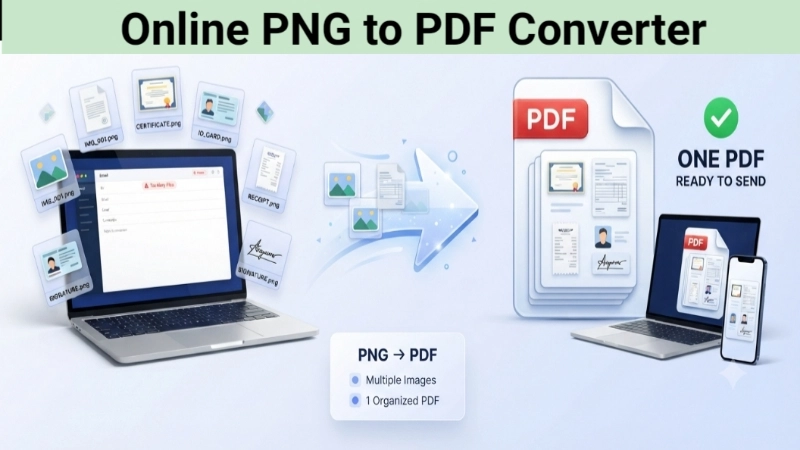
Let me tell you something embarrassing. Last month, I had to send my passport scan to a visa office. I took three photos. Front page. Back page. Signature page. I attached all three to the email. The visa officer emailed back. “Please send as a single PDF file. Not multiple images.”
I felt so stupid. I had three PNG files sitting on my desktop. I did not know how to combine them. I did not even know a free online PNG to PDF converter existed. I ended up asking my tech-savvy cousin for help. He laughed at me. Then he showed me a tool that took 10 seconds.
That tool changed my life. Now I want to share it with you.
Today, I will show you exactly how to use a free online PNG to PDF converter. We will look at why you might need a PNG to PDF converter free of charge. And I will teach you how to do PNG to PDF convert free in just a few clicks.
No confusing software. No hidden payments. Just simple steps that work for everyone.
Why Would Anyone Convert PNG to PDF?
Good question. Let me explain with real examples.
PNG is an image format. It is great for screenshots, logos, and photos. But a PNG is just one picture. If you have ten PNG files, you have ten separate files. Sending them to someone is messy. They have to download each one. They have to open each one. It is annoying.
PDF is a document format. You can put many pages inside one PDF file. Think of it like a digital booklet. You can have page 1, page 2, page 3 all inside the same file. You send one file. The other person opens one file. Everything is organized.
Here are real situations where you need a free online PNG to PDF converter:
- Job applications: You have scans of your degree certificates as PNG files. Combine them into one PDF. The HR person will thank you.
- School projects: Your teacher asked for a single PDF submission. You have multiple images. Convert and combine.
- Sending receipts: You have photos of receipts for an expense report. Put them all in one PDF. Send to your accountant.
- Etsy or Shopify sellers: You sell digital products like planners or stickers. Customers expect a single PDF download.
- Printing multiple images: A print shop prefers PDF files. One PDF with multiple pages is easier than ten separate PNG files.
So when you search for a “free online PNG to PDF converter,” you are probably trying to do one thing. Take multiple PNG images and turn them into one organized PDF document.
The Difference Between “Convert” and “Combine”
This is important. Many people get confused.
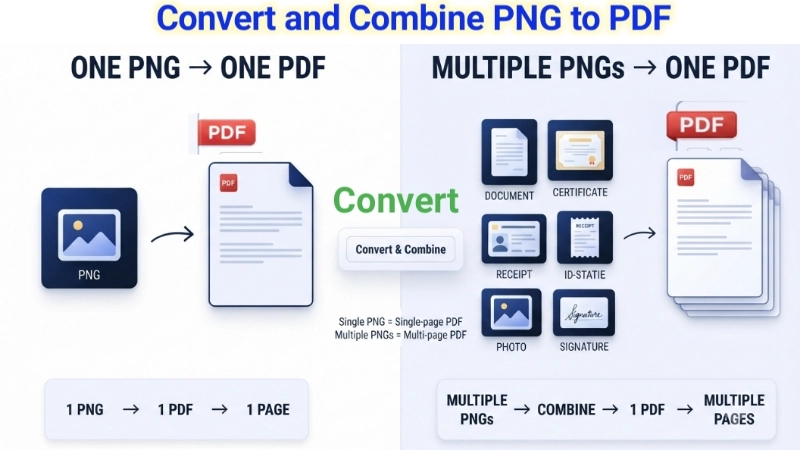
Converting a single PNG to PDF: You have one PNG image. You turn it into a PDF file. That PDF will have one page. The image will be on that page. This is useful if someone specifically asked for a PDF instead of a PNG.
Combining multiple PNGs into one PDF: You have several PNG images. You want them all inside a single PDF file. Page 1 is your first image. Page 2 is your second image. Page 3 is your third image. This is what most people actually need.
Most good free online PNG to PDF converters do both. They let you upload one image or many images. If you upload many, they combine them into a single multi-page PDF.
I will show you both methods below.
Method 1: Free Online PNG to PDF Converter (Combine Multiple Images)
This is the method I use every time. It takes 20 seconds. No signup. No watermark.
I use Top Image Fixer. They have a completely free PNG to PDF Converter tool that does exactly what you need.
Here is how to use this free online PNG to PDF converter:
Step 1: Open your browser and go to Top Image Fixer website. (I will share the link below)
Step 2: Find their “PNG to PDF Converter” tool. It is completely free.
Step 3: Click the upload button. Select all the PNG files you want to combine. You can select multiple files at once.
Step 4: The tool will list all your images in the order you selected them.
Step 5: If the order is wrong, you can drag and drop to rearrange. Page 1 at the top. Page 2 below it. And so on.
Step 6: Click the Convert button.
Step 7: Wait 3-5 seconds. The tool creates a single PDF with all your images.
Step 8: Click Download. Your new PDF file saves to your computer or phone.
👉 Try it now: [Click here to convert PNG to PDF for free on Top Image Fixer]
That is it. You just turned ten messy PNG files into one clean PDF document. No software. No watermarks. No email required.
Method 2: PNG to PDF Converter Free for a Single Image
Maybe you only have one PNG. Maybe someone asked you to send a PDF instead of a PNG. That is easy too.
Using Top Image Fixer (Same tool):
- Go to the PNG to PDF Converter tool.
- Upload just one PNG file.
- Click convert.
- Download your single-page PDF.
Why would you do this? Some systems only accept PDF files. Government websites, job portals, and online application forms often reject PNG files. Converting a single PNG to PDF takes 5 seconds and solves the problem.
Method 3: How to Convert PNG to PDF on Windows (No Internet)
What if you do not have internet access? Your computer can do this too. But it is a bit more work.
Using Microsoft Print to PDF (Built into Windows):
- Open your PNG file in the Photos app or Paint.
- Press Ctrl + P on your keyboard (this opens the Print window).
- In the printer dropdown, select “Microsoft Print to PDF” .
- Make sure the settings look good (page size, orientation).
- Click Print.
- Choose a location and name for your PDF file.
- Click Save.
To combine multiple PNGs into one PDF on Windows:
- Select all your PNG files in File Explorer.
- Right-click on the selected files.
- Click Print.
- In the print window, choose “Microsoft Print to PDF” as the printer.
- On the right side, select “Fit picture to frame” or “Full page photo” .
- Click Print.
- Save your PDF.
This method works. But it is slower. And you have less control over the order and layout. That is why I prefer online tools.
Method 4: PNG to PDF Convert Free on Mac
Mac users have an even easier built-in method. The Preview app is magical.
Converting a single PNG to PDF on Mac:
- Open your PNG in Preview.
- Click File > Export as PDF.
- Choose a location and name.
- Click Save.
Combining multiple PNGs into one PDF on Mac:
- Open all your PNG files in Preview (select them all, right-click, open with Preview).
- In Preview, you will see a sidebar with thumbnails of all your images.
- If the order is wrong, drag and drop the thumbnails to rearrange.
- Click File > Print.
- In the print window, click the PDF button in the bottom left corner.
- Select “Save as PDF” .
- Name your file and save.
The Mac method is excellent. It is free, fast, and keeps your images high quality. If you have a Mac, this might be all you need.
Method 5: On Your Phone (No Computer Needed)
You do not need a laptop. Your phone can convert PNG to PDF in seconds.
On iPhone (Using the Files app):
- Open the Files app on your iPhone.
- Find the PNG files you want to convert. (If they are in your Photos app, you need to save them to Files first.)
- Tap Select in the top right corner.
- Select all the PNG files you want to combine.
- Tap the three dots (menu) in the bottom right corner.
- Tap Create PDF.
- Your phone creates a PDF with all the selected images.
- Tap Save to save the PDF to your Files app.
On Android (Using Google Photos or Files):
- Open Google Photos.
- Select all the PNG images you want to convert.
- Tap the Share icon.
- Choose “Print” from the sharing options.
- In the print preview, tap the dropdown that says “Save as PDF” or “Print to PDF.”
- Tap the Save icon. Your PDF saves to your device.
On any phone using Top Image Fixer:
- Open your browser (Chrome, Safari, or Firefox).
- Go to Top Image Fixer’s PNG to PDF Converter.
- Upload your PNG files from your gallery.
- Click convert and download.
- The PDF saves to your Downloads folder.
The online method works on any phone. No app to install. Just a browser.
PNG to PDF Cheat Sheet: Which Method Should You Use?
| Your Situation | Best Method | Time | Quality |
|---|---|---|---|
| Combine 2-10 PNGs into one PDF | Top Image Fixer online | 20 seconds | Excellent |
| You have a Mac | Preview app (built-in) | 30 seconds | Perfect |
| You have Windows | Microsoft Print to PDF | 1 minute | Good |
| You are on iPhone | Files app (Create PDF) | 30 seconds | Excellent |
| You are on Android | Google Photos > Print > Save as PDF | 30 seconds | Good |
| You have no internet | Use built-in OS method | Varies | Good to perfect |
| You have 50+ PNGs | Use batch tool online | 1-2 minutes | Excellent |
Practical Tips from My Own PDF Struggles
I have converted hundreds of PNGs to PDFs. Let me share what I learned the hard way.
Tip 1: Name Your PNG Files Before Converting
If you have files named “IMG_001,” “IMG_002,” “Screenshot_2024,” it is hard to know what is what. Rename your PNG files before converting. Use names like “Page1,” “Page2,” “Receipt_Jan,” “Receipt_Feb.” When you combine them, the order will be clearer.
Tip 2: Check the Order Before You Convert
Nothing is more frustrating than creating a PDF and realizing page 3 should be page 2. Always check the order before clicking “Convert.” Most tools let you drag and drop to rearrange. Use that feature.
Tip 3: Keep Your PNGs Small Before Converting
If your PNG files are huge (like 10MB each), your PDF will also be huge. Reduce the size of your PNGs first using an image reducer. Then convert to PDF. Your PDF will be smaller and easier to email.
Tip 4: Use Landscape or Portrait Correctly
If your PNG is a wide screenshot (landscape), make sure your PDF page is also landscape. If you use portrait orientation, your image will have white bars on the sides or will be cut off. Most tools detect this automatically. But always check the preview.
Tip 5: One PDF is Better Than Many Files
When you send documents to anyone – a boss, a teacher, a client – always send a single PDF instead of multiple image files. It looks more professional. It is easier for them. And it shows you care about their time.
Common Problems and How to Fix Them
| Problem | Why It Happens | The Fix |
|---|---|---|
| PDF is too large to email | Your PNGs were very large | Reduce PNG size before converting |
| Images are in wrong order | You selected them in the wrong order | Rearrange before converting (drag and drop) |
| PDF has white borders around images | Page size does not match image size | Choose “Fit to page” or change page orientation |
| Image quality is poor in PDF | Your original PNG was low quality | Start with a high-quality PNG |
| Online tool added a watermark | You used a bad tool | Use Top Image Fixer (no watermarks) |
| PDF pages are blank | Conversion error | Try a different method or tool |
| Cannot select multiple PNGs on phone | Your gallery app does not support multi-select | Use Top Image Fixer browser tool instead |
Image Prompts for This Article (For Beautiful Visuals)
Here are two prompts you can use to create custom images using any AI image generator (DALL-E, Midjourney, Adobe Firefly, or Canva AI).
Image 1 Prompt (For the top of the article, near the introduction):
“A stressed person sitting at a messy desk looking at a laptop. On the laptop screen, there is an email composition window with ten separate PNG image files attached. The email says ‘Attachment limit reached’ in red text. Next to the laptop, a single clean PDF file icon with a green checkmark. The person looks relieved looking at the PDF. The room has warm lighting. Illustration style, relatable, slightly cartoonish, modern and clean.”
Image 2 Prompt (For the middle of the article, near the job application example):
“A simple before-and-after illustration. On the left side, a messy pile of five loose PNG image files floating in the air. Each file has a different label: ‘Resume,’ ‘Degree,’ ‘Certificate,’ ‘ID,’ ‘Photo.’ On the right side, a single neat PDF file with a binder clip, labeled ‘Application – Complete.pdf.’ An arrow points from left to right. The background is clean white with soft blue accents. Minimalist, educational, easy to understand.”
Frequently Asked Questions (FAQs)
Here are the most common questions people ask about free online PNG to PDF converters. I have answered them in simple English.
Q1: Is it safe to use a free online PNG to PDF converter?
It depends on the website. Some shady sites may keep your images or sell your data. Always use trusted websites. I recommend Top Image Fixer because they automatically delete your files after conversion. They do not store anything. They do not ask for personal information. Always check the privacy policy before uploading sensitive documents like passports or IDs.
Q2: Will I lose image quality when converting PNG to PDF?
No. PNG is a lossless format. PDF can also be lossless. A good converter will keep your image quality exactly the same. The text, colors, and details will all look identical. However, if the PDF viewer on the other side compresses images, that is out of your control. For most purposes, the quality remains excellent.
Q3: Can I convert PNG to PDF for free without signing up?
Yes. Many tools, including Top Image Fixer, do not require any signup or email address. You just upload, convert, download. That is it. No account needed. No credit card. No free trial tricks. Completely free.
Q4: How many PNG files can I convert at once?
It depends on the tool. Top Image Fixer allows up to 20 PNG files at once. Some other tools allow more. If you have many files (like 50 or 100), you may need to do them in batches or use a desktop software. But for most people, 20 files is plenty.
Q5: Can I convert a PNG with a transparent background to PDF?
Yes. But be careful. PDF handles transparency differently than PNG. The transparent area may become white or black depending on the viewer. If you need to keep transparency, PDF is not the best format. Keep it as PNG instead. Convert to PDF only if you do not need the transparent background.
Q6: What is the difference between converting PNG to PDF and inserting PNG into Word?
When you convert PNG to PDF directly, you get a clean, print-ready document. When you insert PNG into Word and then save as PDF, you get a Word document converted to PDF. The direct method is cleaner, faster, and produces smaller file sizes. I recommend direct PNG to PDF conversion.
Q7: Can I add more PNGs to an existing PDF?
Yes, but not with a simple converter. You would need a PDF editor tool. Many free online PDF editors let you add pages to an existing PDF. Top Image Fixer focuses on conversion. For editing, look for a separate “PDF merger” or “PDF editor” tool.
Q8: Why is my converted PDF showing my images sideways?
Your PNG files may have orientation metadata. Some converters ignore this metadata. The fix is simple. Open each PNG in a photo editor, rotate it correctly, save it, then convert again. Or use a converter that respects orientation data.
Actionable Conclusion: Your 30-Second Action Plan
You now know exactly how to use a free online PNG to PDF converter. You also understand why you might need a PNG to PDF converter free of charge. And you know how to do PNG to PDF convert free using your phone, computer, or online tools.
Here is what I want you to do right now. It will take less than 30 seconds.
Step 1: Find two or three PNG files on your device. Screenshots work perfectly.
Step 2: Open a new browser tab and go to Top Image Fixer.
Step 3: Click on their free PNG to PDF Converter tool.
Step 4: Upload all your PNG files at once.
Step 5: Click convert.
Step 6: Download your single, combined PDF file.
Step 7: Open the PDF. See how all your images are now in one neat document.
👉 Convert your first PNG to PDF for free here: [Click to use Top Image Fixer’s PNG to PDF Converter]
That is it. You just learned a skill that will save you time every single week. No more sending ten attachments. No more “please send as PDF” emails. Just clean, professional PDF documents.
Remember this simple rule: Many PNGs = messy. One PDF = professional. Use the right tool for the right job.
If this guide helped you, share it with a friend who still sends screenshots one by one. You will save them hours of frustration. And they will think you are a tech genius.
Internal Linking Suggestions (For Your Website)
If you own a website or blog, here are some smart internal links to add. These will keep users on your site longer and help Google understand your content structure.
- From this article, link to:
yourwebsite.com/reduce-png-size(anchor text: “Make your PNG files smaller before converting to PDF using this guide” ) - From this article, link to:
yourwebsite.com/jpg-to-png-converter(anchor text: “Need to convert JPG to PNG first? Use this tutorial” ) - From your homepage, link to: This article using the anchor text: “Free online PNG to PDF converter guide for beginners”
- From your “Tools” page, link to: This article using the anchor text: “How to combine multiple PNGs into one PDF”
- From a related blog post (e.g., “Digital Organization Tips”), link to: This article using the anchor text: “Convert your image files to PDF for better organization”
Adding these internal links creates a content network. Google sees your site as an authority on image and document conversion. Users find more helpful information. Everyone wins.
Disclaimer: The writer personally uses and recommends Top Image Fixer based on real, daily experience. The tool is genuinely free, safe, and beginner-friendly. No payment was received for this recommendation.