
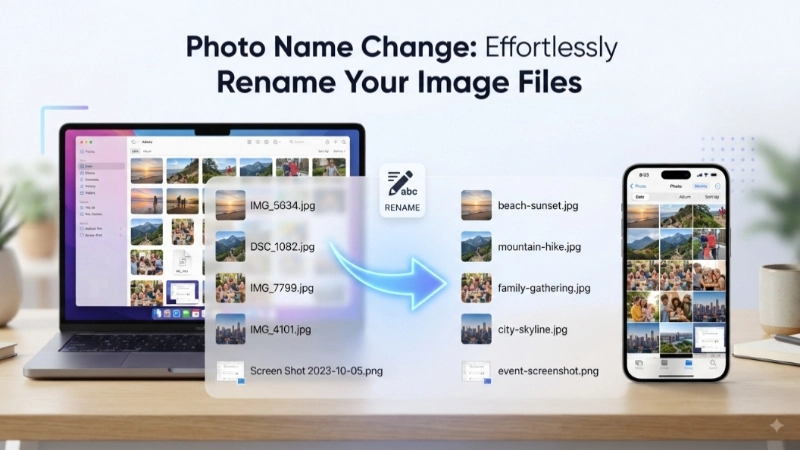
Let me guess – you’ve got hundreds of photos on your phone or computer, and they all have names like “IMG_20240725_143052.jpg” or “DSC_0012.jpg.” Finding the right photo feels like searching for a needle in a haystack, doesn’t it?
I’ve been there too. It’s frustrating when you need a specific photo but have to scroll through endless random numbers to find it.
That’s exactly why learning how to do a photo name change properly is so important. It’s not just about being organized – it’s about saving time, boosting your website’s SEO, and looking more professional.
In this guide, I’ll walk you through everything you need to know about photo name change online methods, how to add name on photo for branding, and the best tools to get the job done quickly.
What Does “Photo Name Change” Actually Mean?
Before we dive into the how-to, let’s clear up what we’re talking about. A photo name change can mean two different things:
1. Changing the File Name
This is when you rename the actual file on your computer or phone. For example, changing “IMG_001.jpg” to “family-vacation-2025.jpg.”
2. Adding a Name on the Photo
This is different. Here, you’re adding visible text directly onto the image itself. This could be a watermark, a label for identification, or just putting names on family photos so everyone knows who’s who .
Both are valuable skills to have, and I’ll cover both in this guide.
Why You Should Care About Photo Name Change
You might be wondering, “Does it really matter what I name my photos?” The short answer is yes – and here’s why:
Better Organization
When you have thousands of photos, a clear naming system makes a huge difference. Instead of guessing what’s in a file, you can find it instantly.
Improved SEO
If you have a website, this is crucial. Search engines read image file names to understand what your pictures are about. A photo name change online before uploading can help your site rank higher in search results. Using keyword-rich file names tells Google exactly what your image contains .
Professionalism
Sending a client a file named “Screenshot_2022-03-15_at_12.43.06.png” doesn’t look great. A clean, descriptive file name shows you pay attention to details.
How to Change Photo Name on Your Device
Let’s start with the basics. Here’s how to do a simple photo name change on different devices.
On Windows PC
- Right-click on the image file
- Select “Rename” from the menu
- Type your new name and press Enter
On Mac
- Click the image file once to select it
- Press the “Return” key
- Type your new name and press Return again
On Android Phone
- Open your Gallery or Files app
- Find and press and hold the photo
- Look for a “More” option (usually three dots) and choose “Rename”
- Type the new name and save it
On iPhone (iOS)
Apple makes this a bit trickier. While the Photos app doesn’t let you rename files directly, you can use the Files app instead:
- Open the Files app and find your photo
- Press and hold on it, then select “Rename”
- Type your new name and tap “Done”
The Easiest Way: Photo Name Change Online Tools

Want to do a photo name change online without messing with your device’s file system? Online tools are your best friend. They’re fast, require no downloads, and work on any device.
Here’s why online tools are so popular :
- No software installation needed
- Works on any device with a browser
- Usually free
- Keeps your original photo quality
- Takes just seconds
My Top Recommendation: Image Renamer on Top Image Fixer
I highly recommend using the Image Renamer tool on Top Image Fixer. You can find it at topimagefixer.com/image-renamer.
Here’s how it works:
- Upload Your Image: Just click the upload button and select your photo
- Type Your New Name: Enter a clean, descriptive name
- Download: Save your renamed image instantly
The tool preserves your original file format and quality – it only changes the text of the file name .
Batch Photo Name Change: Rename Many Files at Once
Now, what if you have hundreds of photos to rename? Doing a photo name change one by one is a nightmare. This is where batch renaming comes in.
Online Batch Renaming
Many online tools now support bulk renaming. You can upload multiple photos, set up a naming pattern, and download all your renamed files in one zip folder.
The Top Image Fixer Image Renamer also supports batch processing. You can upload several images and apply the same naming rules to all of them at once.
Using Desktop Apps for Batch Renaming
For Mac Users:
There’s a great app called Name Mangler that can rename thousands of files in seconds. You can add sequential numbers, prefixes, suffixes, and more .
For example, you can rename a folder of photos from “DSCF0184.jpg” to “2022 Hawaii Vacation 001.jpg” automatically .
For Windows Users:
Microsoft offers PowerToys with a feature called PowerRename. It lets you :
- Find and replace text in file names
- Use regular expressions
- Add sequential numbering
Using File Managers:
Some file managers also support batch renaming. For example, Solid Explorer on Android offers batch rename features, and you can also use apps like PhotoRenamer .
How to Add Name on Photo (Text Overlay)
Remember, a photo name change can also mean adding visible text on the image itself. This is different from renaming the file.
Why Add Name on Photo?
- Watermarking: Protect your work from being stolen
- Identification: Put names on family photos
- Branding: Add your logo or website name
- Information: Add dates, locations, or descriptions
Using Mobile Apps
If you want to add name to picture on your phone, there are great apps available:
Easy Watermark (iOS): This app is perfect for adding your name or logo to photos. You can batch watermark unlimited photos in one click, add text or logos as watermarks, and change fonts, colors, sizes, and styles .
Other Watermark Apps: Many apps let you create watermarks using any logo, text, or sticker. You can change opacity, rotate, zoom, and reposition the watermark until you’re satisfied .
Using Built-in Software
You don’t need fancy software to add name on photo. Even basic programs can do it:
MS Paint (Windows): Just open your picture in Paint, select the “A” tool, and type your name anywhere on the image. Then save it .
This is a simple but effective way to label photos, especially for personal use like identifying people in family pictures.
AI-Powered Photo Name Change: The Future of Organization
Here’s where things get really exciting. There are now tools that use AI to automatically rename your photos based on what’s actually in the image.
AI Renaming Tools
For WordPress users, there’s a plugin called neo Rename that uses AI from OpenAI ChatGPT, Google Gemini, or Anthropic Claude. The AI considers both the image content and the website context when generating names .
For example, if you have a photo of a dog in a park, the AI might rename it to “golden-retriever-playing-in-park.jpg” automatically. This is a massive time-saver and also great for SEO.
The benefits of AI-powered renaming include :
- Descriptive, relevant file names
- Improved SEO ranking
- Batch processing
- Automatic alt text generation
AI Image Recognition in Photos App
Apple’s Photos app now includes features to recognize and name people in your photos. You can name people in your photo library, and the app will find other photos with the same person .
Best Practices for Photo Name Change
To get the most out of your photo name change efforts, follow these tips:
Use Descriptive Names
Instead of “IMG_001.jpg,” use something like “beach-sunset-2025.jpg.” You’ll thank yourself later when you can find photos instantly.
Use Hyphens Instead of Spaces
Search engines prefer hyphens. So use “my-best-photo.jpg” instead of “my best photo.jpg.”
Keep It Lowercase
Using lowercase letters avoids confusion on different systems.
Avoid Special Characters
Don’t use symbols like @, #, $, or & in file names. They can cause errors on some websites.
Add Dates or Numbers
For large collections, add a date (like “2025-07-01”) or sequential numbers to keep everything in order.
Frequently Asked Questions (FAQ)
Q1: Will changing a photo name reduce its quality?
Not at all! A photo name change only changes the file name, not the pixels. Your image quality stays exactly the same .
Q2: Can I rename multiple photos at once?
Yes! You can use batch renaming tools online or on your computer. The Top Image Fixer Image Renamer also supports batch renaming .
Q3: Is it safe to use an online photo renamer?
Most reputable online tools process your files directly in your browser. They don’t upload your photos to any server, keeping them private .
Q4: How do I add a name to a photo on my phone?
You can use apps like Easy Watermark (iOS). They let you add text or logos to photos, change fonts, colors, and sizes .
Q5: What’s the difference between renaming a photo and adding a name on a photo?
Renaming changes the file name on your device. Adding a name on a photo puts visible text on the image itself, like a watermark or label .
Q6: Can AI rename my photos automatically?
Yes! Tools like neo Rename use AI to analyze image content and generate descriptive file names automatically .
Conclusion: Take Control of Your Photo Organization
I hope this guide has shown you how simple and beneficial a photo name change can be. Whether you’re organizing personal memories, preparing images for a website, or protecting your creative work, proper photo naming makes a huge difference.
Here’s my recommendation: try the free Image Renamer on Top Image Fixer. It’s quick, private, and gets the job done in seconds. You’ll wonder why you didn’t start renaming your photos properly sooner.
And don’t forget – if you want to add name on photo for branding or watermarking, there are great apps like Easy Watermark that make it super simple.
Now I want to hear from you. Have you tried renaming your photos before? What’s your biggest challenge with photo organization? Let me know in the comments below!