
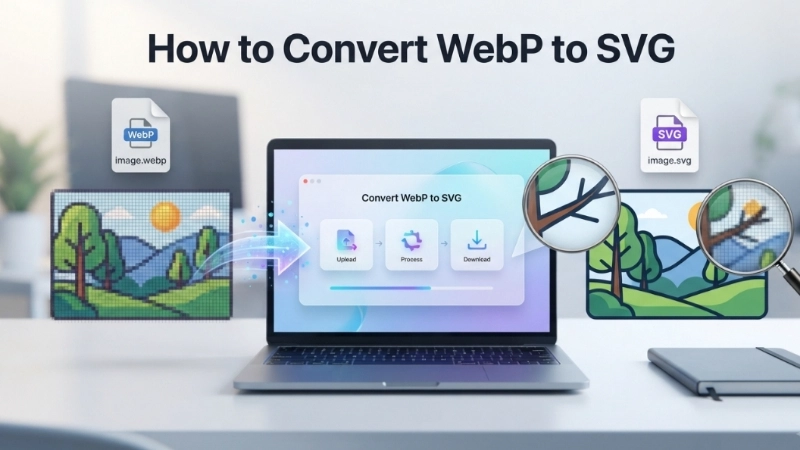
We all know that feeling when you’ve got the perfect image for your website, but it’s in the wrong format. It’s frustrating, right? I’ve been there too. Today, I’m going to help you solve a very common problem: how to convert WebP to SVG quickly, easily, and without losing your sanity.
So, whether you’re a blogger, a small business owner, or a designer, this guide will walk you through everything you need to know about converting WebP to SVG. I’ll also show you how to use a fantastic free tool to do the heavy lifting for you.
Let’s dive in. 👇
WebP vs SVG: The Quick Breakdown
Before we get into the steps, let’s first understand why you might want to convert WebP to SVG in the first place. The short answer is: they are designed for very different purposes.
- WebP is a raster image format developed by Google. It is brilliant for photographs and complex images because it offers high quality with a very small file size, which helps your website load faster. However, since WebP is made of pixels, if you zoom in or enlarge it, it becomes blurry and pixelated.
- SVG (Scalable Vector Graphics) is a vector image format based on XML. Unlike raster images, SVG uses mathematical paths to describe shapes, lines, and colors. This means you can scale an SVG image to any size, from a small icon to a giant billboard, and it will always remain sharp and crisp.
Think of it this way: WebP is great for photos and detailed graphics, while SVG is the perfect choice for simple graphics, logos, icons, and illustrations that need to be responsive.

When Should You Convert WebP to SVG?
- For Scalability: If you have a company logo or icon saved in WebP format and need to use it on different screen sizes, converting it to SVG will ensure it never loses quality.
- For Design Purposes: SVGs are editable. You can change colors, adjust shapes, and add text inside them using software like Adobe Illustrator or Inkscape.
- For Search Engine Optimization (SEO): SVG files can be indexed by search engines, and you can add alt text and descriptions to them, which can help with your SEO efforts.
How to Convert WebP to SVG: A Step-by-Step Guide
Now, let’s get down to business. Here is a simple, step-by-step method you can follow. I’ll show you the easiest way to convert WebP to SVG, especially if you are not a tech expert.
The key is to use an online WebP to SVG converter. It’s fast, doesn’t require any software installation, and works directly from your browser. For this demonstration, I’ll show you the process using a free and efficient tool, and I’ll even tell you where you can find one of the best converters out there.
Step 1: Find a Reliable WebP to SVG Converter
To convert WebP to SVG online, you need to pick a trustworthy converter. There are many options available, but the quality of the final SVG can vary a lot. A bad converter can produce an SVG with messy code, a huge file size, or distorted colors.
I highly recommend a free conversion tool on Top Image Fixer. It offers a straightforward WebP to SVG Converter that’s perfect for beginners. It’s free, secure, and gets the job done in seconds.
Direct link to the tool: If you’re reading this, just click on the link to go directly to the WebP to SVG Converter on my website.
Step 2: Upload Your WebP File
Once you’re on the tool’s page, the interface is very simple. All you have to do is click the upload button and choose the WebP image you want to convert from your computer. You can also drag and drop the file, which is very convenient.
Step 3: Convert and Download
After uploading your file, the process is almost automatic. The converter will work its magic, and in just a moment, you’ll see a button to download your new SVG file. That’s it! You’ve successfully converted WebP to SVG.
The Best Tools to Convert WebP to SVG
While you can definitely use the excellent tool on Top Image Fixer, it’s worth knowing what else is out there. Depending on your skill level and the complexity of your image, the right tool can make all the difference. Here’s a quick breakdown of what’s available.
Online Converters (Fast and Easy)
Online WebP to SVG converter tools are the best option for most people. They are accessible from any device, they are free, and they don’t require you to create an account. I’ve already mentioned the Top Image Fixer WebP to SVG Converter, which is my top pick for a clean, professional experience.
Here are a couple of other popular options you might encounter:
- Convertio: A very popular web app that converts files to many different formats, including WebP to SVG.
- GroupDocs Apps: They offer a WEBP to SVG converter that is also fast and works directly in your browser.
- Aspose Apps: Another reliable option, known for high-quality conversion apps.
Desktop Software (More Control)
If you are a designer or need more control over the conversion, desktop software is the way to go. These tools allow you to manually trace the image and adjust the settings for the best possible output.
- Adobe Illustrator: The industry standard. It has a powerful “Image Trace” feature that lets you convert your WebP to a clean, editable vector.
- Inkscape: A completely free and open-source alternative to Illustrator. It has a “Trace Bitmap” function, which is very effective for converting simple graphics to SVG.
- Photopea: This is a free, online image editor that works much like Photoshop. You can open a WebP file and then use the “Vectorize Bitmap” tool to create an SVG.
Advanced Option: How to Convert WebP to SVG Using Python
For tech-savvy users or those who need to automate the process, you can use programming languages like Python. This is a great method if you have to convert dozens of images. Here’s a very simple example that shows you the logic:
# This is a simplified example to show how you can convert WebP to SVG using Python
# from aspose.imaging import Image
# from aspose.imaging.imageoptions import SvgOptions

# def convert_webp_to_svg(input_path, output_path):
#     # Load the WebP image
#     with Image.load(input_path) as image:
#         # Set SVG export options
#         export_options = SvgOptions()
#         # Save the image as SVG
#         image.save(output_path, export_options)
#
# # Call the function
# convert_webp_to_svg("my_image.webp", "my_image.svg")
This method uses powerful imaging libraries like Aspose.Imaging, and while it offers amazing flexibility, it requires coding knowledge.
Common Problems (And How to Fix Them)
Let’s be real for a moment. The process of converting WebP to SVG is not always perfect. Here are some common problems you might run into and how to fix them.
1. “My SVG looks like a mess of weird shapes!”
The Problem: The auto-tracing engine of your WebP to SVG converter is trying to interpret a very complex image. This usually happens when you try to convert a photograph or an image with lots of gradients and colors.
The Fix: Remember, SVG is best for simple graphics. Before you convert, try to simplify your image. You can use a photo editor to reduce the number of colors or flatten the design. If the WebP contains a complex background, remove it before converting.
2. “My SVG file is way too big!”
The Problem: Your WebP to SVG converter has created an SVG with thousands of tiny paths and nodes. This results in a large file that can slow down your website.
The Fix: This is a very common issue. You should “optimize” your SVG file. There are free tools like SVGOMG (an online tool by the creators of SVGO) that can remove unnecessary code and make your file size much smaller.
3. “The colors in my SVG are wrong!”
The Problem: The converter is having a hard time mapping the color transitions in your WebP into clean vector shapes.
The Fix: This happens when there are subtle gradients. Try using a tool like Adobe Illustrator or Inkscape to manually tweak the colors. In the “Trace Bitmap” settings in Inkscape, you can adjust the number of colors to get a better result. Sometimes, it’s just easier to recreate a simple icon from scratch.
Optimizing Your SVG After Conversion
You’ve successfully converted WebP to SVG. Congratulations! But before you hit the “publish” button, let’s do some quick housekeeping.
It is highly recommended to optimize your SVG file, especially if you are using it for your website. A clean and tidy SVG will load faster, improving your site’s speed and user experience.
Minify Your SVG
Use a tool like SVGOMG. You just paste your SVG code in, and it strips out all the unnecessary junk like metadata, comments, and redundant code. A smaller file size means a faster website and better SEO.
Frequently Asked Questions (FAQ)
Q1. Can I convert a photo from WebP to SVG?
Yes, technically you can. However, it’s not recommended. Photos have thousands of colors and lots of detail. If you convert a photo to SVG, the file size will be huge, and the quality won’t be good. SVG is best for logos, icons, and simple graphics.
Q2. What is the easiest way to convert WebP to SVG?
The easiest way is to use a free online WebP to SVG converter, like the one available on Top Image Fixer. You upload the file, click a button, and download the SVG.
Q3. Does converting WebP to SVG make it lose quality?
If you convert a simple, clean graphic, the quality will be excellent. In fact, SVG will look better than WebP at larger sizes because it is vector-based and doesn’t lose quality when scaled. However, if you convert a photo, the resulting SVG will lose visual fidelity.
Q4. Is there a free WebP to SVG converter without limits?
Yes, many tools are completely free. The Top Image Fixer WebP to SVG Converter is free and available to all visitors. Some other tools also offer free conversion but may have limits on file size or the number of conversions per day.
Q5. Can I use SVG for my website’s logo instead of WebP?
Absolutely! In fact, using SVG for your logo is one of the best practices for modern web design. It will look sharp on all screen sizes, including high-DPI (Retina) displays.
Conclusion: A WebP to SVG Converter is All You Need
Converting your images to the correct format is a powerful way to improve your website’s performance and look. While WebP is a fantastic format for photos, SVG is the undisputed king for scalable graphics like logos and icons.
If you are not a designer with premium software, an online WebP to SVG converter is the most practical solution. I recommend using the free tool on Top Image Fixer because it is simple, quick, and reliable. It handles the conversion process smoothly, and the resulting SVG will be perfect for your design projects.
Now, I want to hear from you! Have you converted WebP to SVG before? Which tool do you use? Let me know in the comments below, and don’t forget to check out the free converter. Go ahead and give it a try!