
Picture this: you just took a stunning photo or created a beautiful graphic. Now comes the tricky part—saving it. You see two options: JPG and PNG. Which one should you pick? If you’ve ever found yourself staring at these file formats wondering what to do, trust me, you’re not alone. Most people just click randomly and hope for the best.
But here’s the thing—choosing the wrong format can make your photos look blurry, your website load slowly, or your logo appear with an ugly white box around it. Not ideal, right?
The good news? Understanding JPG vs PNG is actually pretty simple once you know the basics. And by the end of this guide, you’ll never have to guess again. Whether you’re posting on social media, designing a website, or just saving family photos, I’ll show you exactly which format works best.
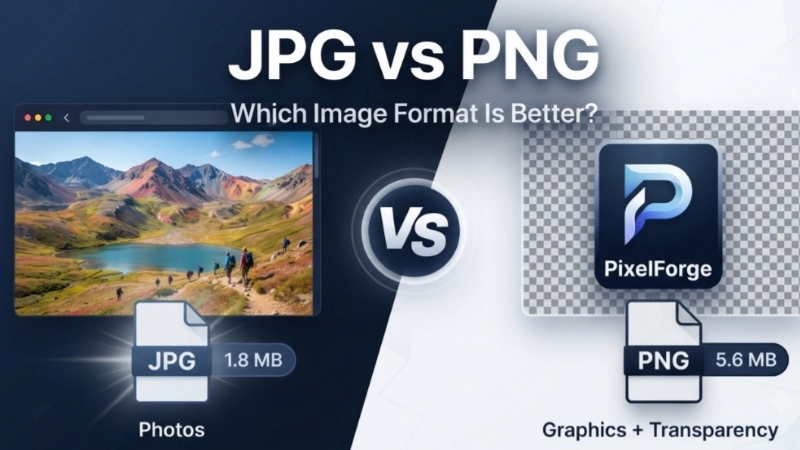
Quick answer: Use JPG for photos and PNG for graphics with transparent backgrounds. But keep reading—there’s more to it than that!
What Exactly Is a JPG File?
JPG (also written as JPEG) stands for Joint Photographic Experts Group—the team that created this format back in 1992 . It quickly became the internet’s favorite image format, and for good reason.
Think of JPG like this: imagine you’re packing a suitcase for a trip. You want to fit everything in, so you roll your clothes tightly and leave out the bulky extras. That’s what JPG does with images .
How JPG Compression Works
JPG uses something called lossy compression. That fancy term simply means it throws away some image data to make the file smaller . The algorithm looks at your photo and says, “You know what? The human eye won’t notice these tiny details.” So it removes them.
The result? A much smaller file that still looks pretty good to most people .
When to Use JPG
JPG is your go-to format when you need smaller file sizes. Here are the situations where JPG shines:
| Use JPG For | Why It Works |
|---|---|
| Photographs | Handles complex colors and smooth gradients beautifully |
| Social Media Posts | Smaller files upload faster and look great on screens |
| Website Images | Faster loading = better user experience and SEO |
| Email Attachments | Smaller file size means your email actually sends |
| Storing Lots of Photos | Saves storage space without noticeable quality loss |
The Catch with JPG
Here’s where JPG can trip you up:
- No transparency support—JPG always has a solid background (usually white)
- Quality degrades with every save—each time you edit and save a JPG, it loses more data
- Not great for text or sharp lines—can look blurry or blocky
Let me share a personal example: I once edited a JPG photo about ten times, saving it after each edit. By the end, it looked pixelated and sad. Learn from my mistake—avoid re-saving JPGs repeatedly!
What Exactly Is a PNG File?
PNG stands for Portable Network Graphics. It was created in 1994 as a free replacement for GIF . If JPG is about saving space, PNG is about keeping perfection.
Think of PNG like this: instead of rolling your clothes to save space, you carefully fold everything and keep every single item. The suitcase is heavier, but everything stays exactly as it should be .
How PNG Compression Works
PNG uses lossless compression. This means it keeps every single pixel of information when saving . Nothing gets thrown away. When you open a PNG, it’s identical to the original.
When to Use PNG
PNG is your best friend when quality and transparency matter. Here’s when to choose PNG:
| Use PNG For | Why It Works |
|---|---|
| Logos and Icons | Transparent backgrounds let them sit anywhere |
| Screenshots | Preserves text sharpness and screen details perfectly |
| Graphics with Text | Keeps letters crisp and readable |
| Images You’ll Edit Later | No quality loss no matter how many times you save |
| Web Graphics | Clean edges and vibrant colors |
The Catch with PNG
PNG has one major downside:
- Much larger file sizes—often 5-10 times bigger than JPG
- Not ideal for photographs—creates unnecessarily huge files
- Slower to load on websites—can hurt page speed and SEO
JPG vs PNG: The Key Differences at a Glance
Here’s a quick comparison to help you see the big picture:
| Feature | JPG | PNG |
|---|---|---|
| Compression | Lossy (loses quality) | Lossless (keeps quality) |
| File Size | Small | Large |
| Transparency | ❌ No | ✅ Yes |
| Best For | Photos, web images | Logos, graphics, screenshots |
| Quality Over Time | Degrades with each save | Stays perfect forever |
| Text Sharpness | Can look blurry | Stays crisp and clear |
When to Choose JPG (Real-Life Examples)
1. You’re Uploading to Social Media
Instagram, Facebook, and Twitter all work best with JPG. The platforms compress images anyway, and JPG’s smaller size means faster uploads without noticeable quality loss . Nobody is zooming in to check pixels on a vacation photo.
2. You’re Building a Website
JPG images load faster, which means happier visitors and better Google rankings . If your website has lots of photos (think: portfolio, blog, or e-commerce), JPG is your friend. A good balance is saving at 75-85% quality—you get great looks with smaller files .
3. You’re Sending Photos via Email
Email providers often limit attachment sizes. JPG’s smaller size means you can send more photos without hitting those limits.
4. You Want to Save Storage Space
If you’re storing thousands of family photos, JPG will save you gigabytes of space compared to PNG .
When to Choose PNG (Real-Life Examples)
1. You’re Creating a Logo
Logos need transparent backgrounds to look professional. Imagine your logo on a website with a white box around it—yikes! PNG saves the day by letting the background disappear .
2. You’re Taking Screenshots
Whether it’s for a presentation or to show a bug to tech support, PNG preserves screen details perfectly. Text stays readable, and colors stay true .
3. You’re Designing Infographics
Infographics often have text, sharp lines, and lots of colors. PNG keeps everything crisp and professional .
4. You Need to Edit the Image Later
If you’re working on a graphic and might need to tweak it multiple times, save as PNG. You won’t lose quality with each edit .
The Simple Rule
Here’s the golden rule that professional designers use:
Use JPG for photos and realistic images. Use PNG for graphics, logos, and anything with text or transparent backgrounds.

It’s really that simple. When in doubt, ask yourself: “Is this a photo or a graphic?”
What About Converting Between Formats?
Sometimes you might have a JPG but need a PNG, or vice versa. Maybe you found a perfect logo but it’s in JPG format with a white background. Or you want to save a photo for your website but it’s a huge PNG file.
If you ever need to convert JPG to PNG (or the other way around), there are simple tools that do this in seconds. No editing skills needed—just upload and download. Many free online converters can handle this for you instantly.
Bonus Tips for Perfect Images
Here are some extra tips to make your images look their best:
1. Use the Right Resolution
For web images, 72 DPI (dots per inch) is standard. For printing, you need 300 DPI or higher .
2. Balance Quality and Size
When saving JPGs, try quality settings around 75-85%. The file will be much smaller than 100% quality but still looks great .
3. Consider Newer Formats
WebP is a newer format that offers good compression with transparency support. SVG is ideal for logos that need to scale infinitely. But for daily use, JPG and PNG remain the most compatible choices .
Quick Decision Guide
Still not sure? Here’s a super simple guide:
Pick JPG if:
- ✅ It’s a photo or realistic image
- ✅ You need smaller file size
- ✅ You don’t need transparency
- ✅ You’re sharing on social media or email
Pick PNG if:
- ✅ It’s a logo, icon, or graphic
- ✅ You need transparent background
- ✅ You have text in the image
- ✅ You’ll edit the image multiple times
FAQs
1. Which is better quality, JPG or PNG?
PNG has better quality because it uses lossless compression and doesn’t lose any data . However, at normal viewing sizes, most people can’t tell the difference between a good-quality JPG and a PNG .
2. Can I convert JPG to PNG without losing quality?
Yes, you can convert JPG to PNG easily. But here’s the catch—the quality loss from JPG compression is already there. Converting to PNG won’t bring back the lost data, but it will prevent further loss .
3. Why do websites use JPG instead of PNG?
Websites use JPG for photos because they load faster. Page speed matters for both user experience and Google rankings. PNG files are bigger and can slow down a website .
4. Does PNG support animation?
No, standard PNG doesn’t support animation . If you need animated images, look at GIF or APNG formats instead.
5. Which format is better for printing?
For casual home printing, both work fine. For professional printing, PNG retains more detail. However, professional printers often prefer TIFF or PDF because they support CMYK color .
6. Why does my PNG have a white background when I open it?
If your PNG has a white background, the image probably doesn’t actually have transparency. Many tools save images as PNG without removing the background. You need software that supports transparent backgrounds to create true PNGs .
7. Can I use PNG for photos?
You can, but it’s not recommended. PNG photos are huge files with little benefit over JPG for most uses. Unless you need perfect quality for editing, JPG is the better choice .
Conclusion
The choice between JPG and PNG doesn’t have to be complicated. Just remember the golden rule: JPG for photos, PNG for graphics.
JPG gives you small files that load quickly—perfect for photos and web images. PNG gives you perfect quality and transparency—ideal for logos, graphics, and screenshots.
Both formats have their place in your daily life. And if you ever need to convert between them, there are easy tools that do the job in seconds—no editing skills required.
Now go ahead and save your images with confidence. You’ve got this! 🎨📷
Image Prompt 1:
A split-screen visual comparison. The left side shows a beautiful landscape photo saved as JPG with a small file size label and “fast loading” icon. The right side shows a professional logo saved as PNG with a transparent background and “crisp edges” label. Both images are displayed on a modern laptop screen.
Image Prompt 2:
A simple infographic-style illustration showing the decision-making process. A flowchart starts with “Is it a photo or graphic?” Branching to “JPG” for photos (with small file icon) and “PNG” for graphics (with transparency icon). Clean, minimalist design with soft colors and easy-to-read text.
Internal Linking Suggestions:
- Link to your “JPG to PNG Converter” tool page
- Link to “/background-remover” for users wanting to create transparent PNGs
- Link to “/blog/photo-compression-tips” for related reading