
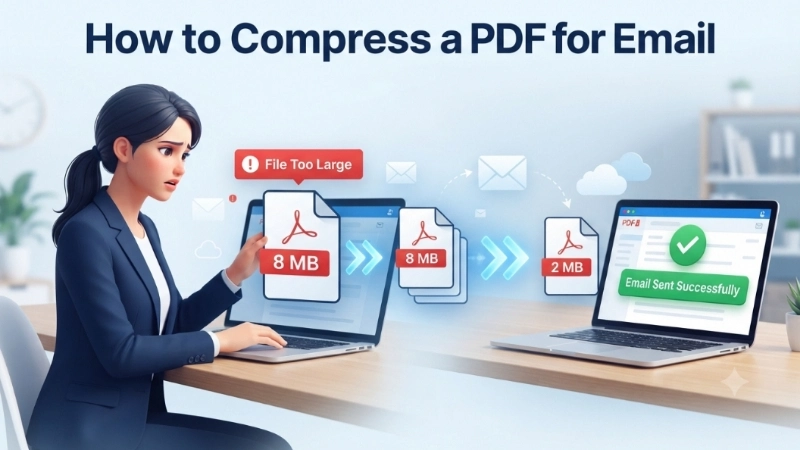
Let me paint a picture you might recognize.
You have an important document to send. A contract for a new client. Your resume for a dream job. A proposal for a big project. You attach it to your email. You hit send.
And then it happens.
That dreaded error message: “Attachment size exceeds the limit.”
Your heart sinks. You try again. Same result. Now you are stuck. The deadline is approaching. And you have no idea how to make this PDF smaller.
I have been there too. It is frustrating. It makes you feel helpless. Especially when you are not a tech person.
But here is the good news. Fixing this is actually very simple. You just need to know how to compress a PDF for email.
In this guide, I will show you exactly how to compress PDF for email using free tools that anyone can use. I will explain what a PDF compressor for email does. And I will share practical tips to get your file under the size limit every single time.
No confusing jargon. No expensive software. Just real help from someone who has fixed this problem hundreds of times.
So take a deep breath. You are about to learn a skill that will save you countless headaches.
![Image Prompt: A person at a computer looking frustrated with a red error message “File Too Large – Exceeds 20MB Limit” on the screen. Next to them, the same person looks relieved with a green “Email Sent Successfully” message. A magical compression tool icon hovers between them. Relatable illustration style. 16:9 aspect ratio.]
Why Do Emails Reject Large PDF Files?
Before I show you how to compress a PDF for email, let me explain why this happens.
Email providers set limits on attachments. They do this to:
- Save storage space on their servers
- Prevent their systems from slowing down
- Stop people from sending massive files that clog networks
Here are the attachment limits for common email services:
| Email Provider | Maximum Attachment Size |
|---|---|
| Gmail | 25 MB |
| Outlook / Microsoft | 20 MB |
| Yahoo Mail | 25 MB |
| Apple Mail (iCloud) | 20 MB |
| ProtonMail | 25 MB |
| GMX Mail | 50 MB |
Your PDF might be too large because it contains high-resolution images, embedded fonts, scanned pages, or simply has many pages.
When you learn how to compress a PDF for email, you avoid these limits. Your email goes through. The recipient gets your document. Everyone is happy.
What Does Compressing a PDF Actually Do?
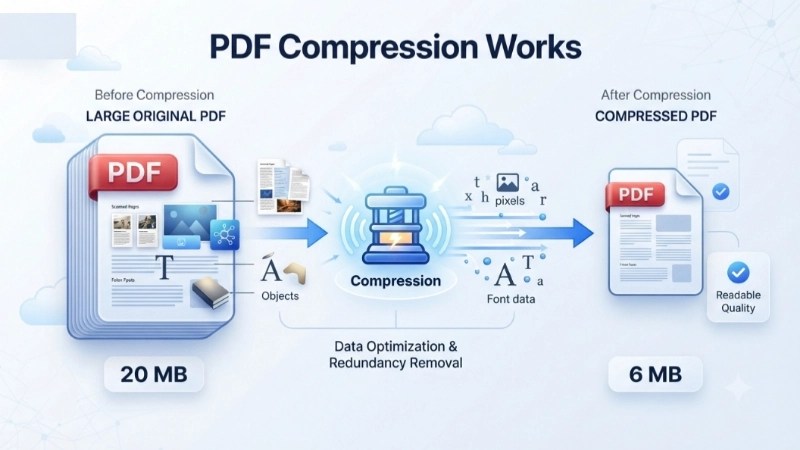
Think of compressing a PDF like packing a suitcase.
You can throw clothes in loosely. The suitcase is bulky and hard to close. Or you can fold everything neatly, roll your t-shirts, and fill every gap. The same clothes fit in a much smaller space.
PDF compression works the same way. The tool removes redundant data, optimizes images, and organizes the file more efficiently.
There are two main types of compression:
| Type | What It Does | Best For |
|---|---|---|
| Regular / Basic | Reduces file size while keeping text crisp and images readable | Business documents, reports, presentations |
| Strong / High | Reduces more aggressively to stay under tight email limits | Scanned documents, image-heavy PDFs |
Important: You are not changing the content. The text stays the same. The layout stays the same. You are just making the file smaller so it can travel through email.
Method 1: Top Image Fixer (The Easiest PDF Compressor for Email)
Let me start with the tool I use whenever I need to compress PDF for email.
Top Image Fixer has a free PDF Compress tool. It works in seconds. No sign-up. No watermarks. No complicated settings.
Here is how to compress a PDF for email using Top Image Fixer:
Step 1: Open your browser on your phone or computer.
Step 2: Go to Top Image Fixer website.
Step 3: Find the PDF Compress tool.
Step 4: Click the Upload button. Select your large PDF file.
Step 5: Choose your compression level. Use Basic for most documents. Use Strong if your file is very large.
Step 6: Click Compress.
Step 7: Wait a few seconds while the tool processes your file.
Step 8: Click Download and save your new, smaller PDF.
Direct Tool Link: Click here to compress your PDF for email now using Top Image Fixer (Insert your actual tool link here)
This is the fastest way to compress PDF for email. It takes less than 30 seconds.
Method 2: Using Free Online PDF Compressors
If you want other options, here are free online tools that also work well.
Option A: Smallpdf
Smallpdf is a popular choice. It is free for basic compression.
Step-by-step:
- Go to Smallpdf.com
- Click the Compress PDF tool
- Drag your PDF into the box
- The tool automatically reduces the file size
- Download your compressed file
Good for: Everyday documents, business files, reports
Option B: PDF Candy
PDF Candy offers two compression levels: Recommended and Maximum.
Step-by-step:
- Go to PDF Candy website
- Click the Compress PDF tool
- Upload your file
- Choose Recommended or Maximum compression
- Click Compress
- Download your file
Good for: Freelance writers, marketing specialists, event coordinators
Option C: Soda PDF
Soda PDF gives you Regular compression (40% reduction) or High compression (85% reduction).
Step-by-step:
- Go to Soda PDF website
- Click the online PDF compressor
- Upload your document
- Select Regular or High compression
- Download your file
Good for: Professionals sending image-heavy documents
Method 3: Using Adobe Acrobat (If You Already Have It)
If you have Adobe Acrobat installed, you already have a powerful PDF compressor for email.
Desktop version:
- Open your PDF in Adobe Acrobat
- Click File > Save As Other > Reduce File Size
- Select your optimization level
- Click Save
Online version:
- Sign in to acrobat.adobe.com
- Select Convert > Compress a PDF
- Upload your files
- Choose a compression level
- Click Compress
Good for: Graphic designers, architects, researchers who already use Adobe
Method 4: Creating a ZIP File (Alternative Solution)
Sometimes, compressing a PDF is not enough. Maybe your file is still too large. Or you have multiple PDFs to send.
In these cases, you can use a ZIP file. Zipping bundles your files together and reduces the overall size.
On Windows:
- Select the files you want to send
- Right-click and choose Send to > Compressed (zipped) folder
On Mac:
- Select the files in Finder
- Right-click (or Control-click) and select Compress
On iPhone:
- Open the Files app
- Long-press on the PDF
- Tap Compress
On Android:
- Open your File Manager app
- Select the PDF files
- Look for a Zip or Compress option
Best practice: Compress your PDF first using Top Image Fixer. Then zip it. This gives you the smallest possible file.
How to Choose the Right Compression Level
Not all compression is the same. Here is how to pick the right option when you compress PDF for email.
| Compression Level | When to Use | What Happens |
|---|---|---|
| Basic / Regular | Business documents, reports, text-heavy PDFs | Reduces size while keeping text crisp and images readable |
| Recommended | Most everyday email attachments | Perfect balance between size and quality |
| Strong / High | Scanned documents, image-heavy PDFs, very large files | More aggressive reduction, may soften images slightly |
| Maximum | When you need the absolute smallest file possible | Highest compression, may affect quality more |
My recommendation: Start with Basic or Recommended compression. If your file is still over the limit, try Strong or Maximum.
Common Mistakes People Make
I have helped many people learn how to compress a PDF for email. Here are the mistakes I see most often.
Mistake #1: Not Checking the File Size First
You assume your PDF is small enough. You attach it. You get an error. You waste time.
The fix: Before you even start, right-click your PDF and check the file size. On Windows, click Properties. On Mac, click Get Info. If it is under 10 MB, you are probably fine. If it is over 20 MB, you need to compress.
Mistake #2: Compressing an Already Compressed File
Every time you compress a PDF, you lose a tiny bit of quality. Compressing it again makes it worse.
The fix: Always start from the original PDF. Do not compress an already compressed file.
Mistake #3: Saving Over the Original
You compress the file. You save it with the same name. You lose the original high-quality version.
The fix: Always save your compressed PDF with a new name. Call it “document_email.pdf” or “document_small.pdf”. Keep the original safe.
Mistake #4: Sending the Wrong File
You compressed the PDF. But then you accidentally attached the original large version to your email.
The fix: Rename your compressed file clearly. Put a “_small” or “_compressed” at the end of the filename. You will know which one to attach.
Real-Life Examples: When PDF Compression Saves the Day
Let me share three real situations where knowing how to compress a PDF for email made a huge difference.
Example 1: The Job Applicant
Sarah was applying for a marketing job. Her portfolio PDF was 28 MB. Gmail said no. She used Top Image Fixer PDF Compress tool. The file became 8 MB. The email went through. She got an interview the next week.
Example 2: The Contract Worker
David needed to send a signed contract to a client. The scanned PDF was 22 MB. Outlook rejected it. He compressed it to 6 MB using basic compression. The client received it within seconds. The deal closed.
Example 3: The Real Estate Agent
Maria had to email property brochures to 10 potential buyers. Each brochure was 15 MB. Total attachments would be 150 MB. Impossible. She compressed each PDF to 4 MB. Total became 40 MB. She split them into two emails. Everyone got their brochures.
Frequently Asked Questions (FAQs)
Let me answer the questions people ask most often about how to compress a PDF for email.
Q1: What is the easiest way to compress a PDF for email?
Use Top Image Fixer PDF Compress tool. Upload your PDF. Click compress. Download the smaller file. Takes less than 30 seconds.
Q2: How small should my PDF be for email?
Stay under your email provider’s limit. For Gmail, stay under 25 MB. For Outlook, stay under 20 MB. I recommend aiming for under 10 MB to be safe.
Q3: How do I check my PDF’s file size?
On Windows: Right-click the file > Properties. On Mac: Right-click the file > Get Info. On Phone: Look for Details or Info in your file manager.
Q4: Will compression affect the quality of my PDF?
Basic compression keeps text crisp and images readable. Strong compression may soften images slightly but is fine for most documents. For scanned PDFs, some quality loss is normal.
Q5: Can I compress multiple PDFs at once?
Yes. Some tools offer batch compression. You can upload several PDFs and compress them all at once. This saves time if you have many documents.
Q6: Is it safe to use online PDF compressors?
With trusted tools like Top Image Fixer, yes. They do not store your files. The compression happens in your browser. Always read the privacy policy before using any online tool.
Q7: What if my PDF is still too large after compression?
Try these options:
- Use Strong or Maximum compression
- Compress the PDF, then zip it
- Split the PDF into two smaller files
- Use cloud storage (Google Drive, Dropbox) and share a link instead
Q8: Can I compress a PDF on my phone?
Yes. Use the Top Image Fixer website in your phone’s browser. It works on iPhone and Android. No app needed. No sign-up required.
Q9: What is the difference between compressing and zipping a PDF?
Compressing reduces the file size of a single PDF. Zipping bundles multiple files into one archive, which also reduces size. For best results, compress your PDF first, then zip it.
Q10: How do I know if my PDF is compressed enough?
After compressing, check the file size. It should be under your email provider’s limit. I recommend aiming for under 10 MB to be safe.
My Personal Workflow for Sending PDFs by Email
Let me show you exactly what I do when I need to compress PDF for email.
Step 1: I check the original file size. Right-click > Properties (Windows) or Get Info (Mac).
Step 2: If it is over 15 MB, I know I need to compress.
Step 3: I open Top Image Fixer PDF Compress tool.
Step 4: I upload my PDF and choose Basic compression.
Step 5: I download the compressed version.
Step 6: I check the new file size. If it is under 10 MB, I am done.
Step 7: If it is still too large, I use Strong compression or zip the file.
Step 8: I attach the compressed PDF to my email and send it.
Total time: Less than 2 minutes.
Conclusion: Stop Struggling, Start Sending
You came here asking how to compress a PDF for email. Now you have everything you need.
You know why emails reject large PDFs. You know the difference between Basic and Strong compression. You know multiple methods to compress PDFs for free. And you know the easiest method of all: Top Image Fixer PDF Compress tool.
Here is the honest truth. Sending large PDFs by email does not have to be a nightmare. You have the tools. You have the knowledge. You just need to use them.
Your actionable plan for today:
- Find a PDF that is too large to email.
- Go to Top Image Fixer PDF Compress tool.
- Upload your PDF.
- Choose Basic compression.
- Download your compressed PDF.
- Attach it to an email and send it.
- Notice how easy that was.
Do this once, and you will never fear the “file too large” error again. You will be the person your colleagues and friends ask for help.
Now go ahead. Compress that PDF. Send that email. Submit that application. You have the knowledge. You have the tools. Go get it done.
Internal Linking Suggestions for Your Website:
- Link from this article to: “How to Compress Images for Website Speed”
- Link from this article to: “Best Image Formats for Web: Complete Guide”
- Link from this article to: “How to Bulk Compress Files for Sharing”
One last thing: Bookmark the Top Image Fixer PDF Compress tool right now. The next time you see “File exceeds attachment limit,” you will be ready. Happy compressing!