
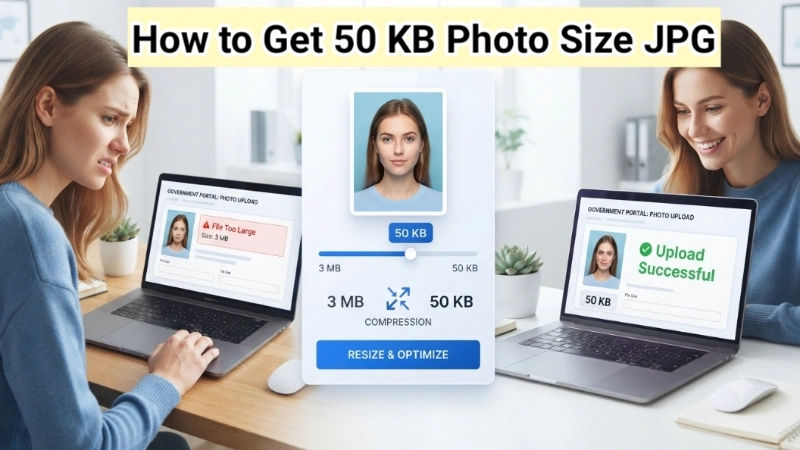
Let me guess what just happened.
You tried to upload a photo to a government website. Or maybe a job application portal. Or an online exam registration form.
And then you saw it. That dreaded message: “File size must be less than 50 KB.”
You looked at your photo. It was 3 MB. That is 3,000 KB. You need 50 KB. That is 60 times smaller.
Panic sets in. You have no idea how to make a photo that small. You think you need to be a computer genius.
I have been there too. It feels impossible. How can a photo even look good at 50 KB?
But here is the good news. It is not impossible. In fact, it is quite easy once you know how.
In this guide, I will show you exactly how to get a 50 kb photo size jpg. I will explain what a 50 kb jpg converter does. And I will teach you how to use free tools to get the perfect 50kb photo size jpg every single time.
No confusing jargon. No expensive software. Just simple steps that anyone can follow.
By the end of this article, you will be able to take any photo and make it exactly 50 KB. Let me show you how.
![Image Prompt: A person looking stressed at a computer screen showing an error message “File size exceeds 50 KB limit”. A large red circle highlights the error. On the right side, the same person looking happy with a green success message “Upload Successful – 48 KB”. Before and after comparison. Relatable illustration. 16:9 aspect ratio.]
Why Do You Need a 50 KB Photo Size JPG?
First, let me explain why so many websites demand a 50 kb photo size jpg.
Government agencies, universities, and job portals have to store millions of photos. If every photo was 3 MB, they would need massive servers. That costs millions of dollars.
So they set a small file size limit. 50 KB is common because:
- It is small enough to store millions of photos
- It loads instantly on any device
- It is still large enough to see a face clearly
Common places that need 50 KB photos:
| Where | What For |
|---|---|
| Government ID applications | Passport, driver’s license, voter ID |
| Job applications | Resume photo, employee ID |
| University admissions | Student ID card, exam registration |
| Online exam forms | Entrance test photo |
| Banking applications | KYC documents, account opening |
| Visa applications | Travel documents |
When you see this requirement, do not panic. You just need to learn how to compress your photo to exactly 50 KB.
What Does 50 KB Actually Mean?
Let me explain file sizes in simple terms.
- 1 KB (Kilobyte) = Very small. A short text message.
- 50 KB = A tiny photo. Good for ID cards and thumbnails.
- 500 KB = A small photo. Good for websites and emails.
- 5 MB (5,000 KB) = A large photo from your phone camera.
A typical smartphone photo is 3-5 MB. That is 3,000 to 5,000 KB.
You need to get down to 50 KB. That means making your photo 60 to 100 times smaller.
How is that possible? Two ways:
- Resize the photo to smaller dimensions (like 200×200 pixels instead of 4000×3000)
- Compress the photo by reducing quality (from 100% to 40-50%)
Usually, you need to do BOTH to reach 50kb photo size jpg.
Method 1: Top Image Fixer (The Easiest 50 KB JPG Converter)
Let me start with the tool I use every time I need a 50 kb jpg converter.
Top Image Fixer has a Resizer Image tool that lets you set an exact target file size. You tell it “50 KB” and it does the rest.
Here is how to get 50 kb photo size jpg using Top Image Fixer:
Step 1: Open your browser on your phone or computer.
Step 2: Go to Top Image Fixer website.
Step 3: Find the Resizer Image tool.
Step 4: Click Upload and select your photo.
Step 5: Look for an option that says Target File Size or Set Desired Size.
Step 6: Type 50 in the KB box.
Step 7: Click Compress or Resize.
Step 8: Wait a few seconds. The tool automatically adjusts dimensions and quality to hit exactly 50 KB.
Step 9: Click Download and save your perfectly sized photo.
Direct Tool Link: Click here to convert your photo to 50 KB now using Top Image Fixer (Insert your actual tool link here)
This is the smartest way to get a 50kb photo size jpg. You do not need to guess. The tool does all the math for you.
Why I love this method:
- It hits the exact file size every time
- No trial and error needed
- Works on any device
- Completely free
- No sign-up required
Method 2: Using Paint on Windows (Free and Built-in)
Do not have internet? Or just want to use what is already on your computer? Windows Paint works great for this.
Here is how to get jpg 50kb convert using Paint:
Step 1: Right-click your photo and select Open with > Paint.
Step 2: Click Resize at the top.
Step 3: Select Pixels (not Percentage).
Step 4: Change the width to 200 or 250 pixels. The height changes automatically.
Step 5: Click OK.
Step 6: Click File > Save As > JPEG picture.
Step 7: Give it a new name and save.
Check the file size: Right-click the new file and select Properties. Look at the size.
If it is still above 50 KB: Repeat the process with a smaller width (try 150 pixels).
If it is below 50 KB: You are done! If it is too small (like 20 KB), start over with a slightly larger width.
This method takes some trial and error. But it works.
Method 3: Using Preview on Mac (Free and Built-in)
Mac users, you have a great tool called Preview.
Here is how to convert image to jpg 50 kb on Mac:
Step 1: Double-click your photo to open it in Preview.
Step 2: Click Tools > Adjust Size.
Step 3: Change the width to 200 or 250 pixels.
Step 4: Make sure “Scale proportionally” is checked.
Step 5: Click OK.
Step 6: Click File > Export.
Step 7: Change the Quality slider to move it down.
Step 8: Watch the estimated file size at the bottom.
Step 9: Adjust the Quality slider until the estimated size is around 50 KB.
Step 10: Click Save.
The Quality slider is the key. Lower quality = smaller file. For 50 KB, you will likely need Quality between 40% and 60%.
Method 4: Using Online Tools (No Download Required)
If you do not want to use Top Image Fixer (though I highly recommend it), here are other online options.
Option A: ResizeImage.net
- Go to ResizeImage.net
- Upload your photo
- Set width to 200 pixels
- Set quality to 50%
- Click Resize
- Download and check file size
Option B: ILoveIMG.com
- Go to ILoveIMG.com
- Upload your photo
- Click Compress Image
- Move the quality slider down
- Click Compress
- Download and check size
Important warning: Many free online tools add watermarks or store your photos. I trust Top Image Fixer because it does not store anything and adds no watermarks.
![Image Prompt: A step-by-step visual guide showing a photo being uploaded to a compression tool. The tool interface shows “Target Size: 50 KB” and a progress bar moving from 0% to 100%. A green download button appears. Clean, user-friendly interface illustration. 16:9 ratio.]
The Secret to Hitting Exactly 50 KB Every Time
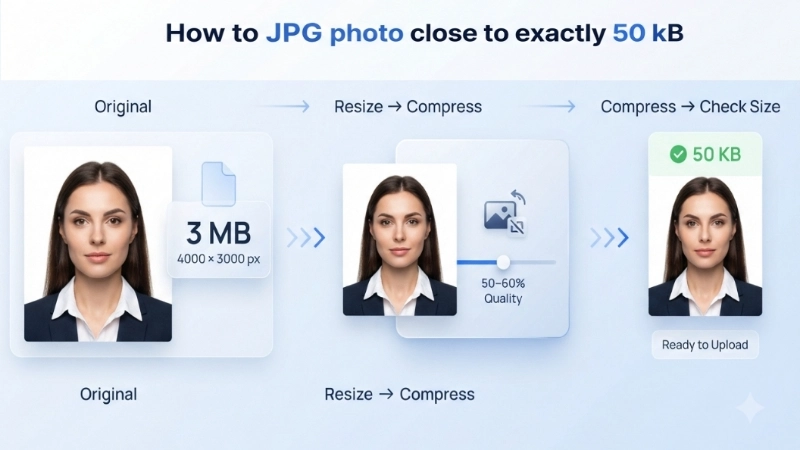
Here is the truth. Getting a 50 kb photo size jpg is not magic. It is math.
The file size depends on three things:
| Factor | Effect on File Size | Effect on Quality |
|---|---|---|
| Dimensions (width x height) | Smaller dimensions = much smaller file | Less detail, but fine for ID photos |
| Quality setting | Lower quality = smaller file | Can look blocky if too low |
| Image content | Busy photos (many details) = larger file | Nothing you can control |
The secret formula for 50 KB:
- Resize first to 200 x 200 pixels (or 250 x 250)
- Set quality to 50-60%
- Check file size
- Adjust if needed (smaller dimensions or lower quality)
Pro tip: Start with dimensions of 200×200 pixels at 60% quality. This usually lands between 40-60 KB. Then adjust from there.
What If Your Photo Looks Blurry at 50 KB?
Sometimes when you convert image to jpg 50 kb, the result looks terrible. Blocky. Blurry. Like a bad copy of a bad copy.
Here is why that happens and how to fix it.
Problem 1: You started with a very small photo
If your original photo is already small (like 500×500 pixels), compressing to 50 KB will crush it. You need to start with a larger, high-quality original.
The fix: Always start with the largest, highest quality original you have. A 4000×3000 pixel photo compresses much better to 50 KB than a 800×600 pixel photo.
Problem 2: The photo has too much detail
A photo of a busy street with many cars, people, and signs has more information than a photo of a plain white wall. More information = larger file = more compression needed = more blur.
The fix: Choose a simpler photo if possible. For ID photos, use a plain background.
Problem 3: You used the wrong dimensions
If you made the dimensions too small (like 100×100 pixels), the photo will look tiny AND blurry.
The fix: Keep dimensions at 200×200 pixels minimum. 250×250 is even better.
The acceptable quality for ID photos: Most government websites only need to recognize your face. A slightly soft photo at 50 KB is perfectly fine. Do not stress about perfection.
Common Mistakes People Make
I have helped many people achieve 50kb photo size jpg. Here are the mistakes I see most often.
Mistake #1: Trying to Keep the Original Dimensions
You cannot keep a 4000×3000 pixel photo at 50 KB. It is mathematically impossible. The file would be so compressed that it would look like a pile of square blocks.
The fix: Resize your photo to 200-300 pixels wide FIRST. Then compress.
Mistake #2: Saving as PNG Instead of JPG
PNG files are much larger than JPG files. A PNG at 50 KB looks terrible. A JPG at 50 KB looks fine for ID purposes.
The fix: Always save as JPG or JPEG. Not PNG.
Mistake #3: Uploading the Wrong File
You compressed the photo. You saved it. But then you accidentally uploaded the original large photo to the website.
The fix: Rename your compressed photo. Call it “passport_photo_50kb.jpg” so you know which one to upload.
Mistake #4: Giving Up Too Soon
Your first attempt gave you 80 KB. So you gave up and went to a photo studio. They charged you $15 for the same result you could have gotten.
The fix: Adjust and try again. Lower the quality by 10%. Or reduce dimensions by 20 pixels. You will get there.
Real-Life Examples: 50 KB Photo Success Stories
Let me share three stories of people who needed a 50 kb jpg converter and got it done.
Example 1: The College Student
Raj needed to upload a photo for his university exam registration. The form required a 50 kb photo size jpg. His phone photo was 4.2 MB.
He used Top Image Fixer. He uploaded his photo. He set target size to 50 KB. The tool did everything. He downloaded a 48 KB photo. The form accepted it. He registered for his exam in 5 minutes.
Example 2: The Job Seeker
Maria was applying for a government job. The online portal required a photo under 50 KB. She did not know how to make it that small.
She followed this guide. She resized her photo to 200×200 pixels in Paint. She saved as JPEG at 50% quality. The file became 46 KB. She uploaded it. Her application went through.
Example 3: The Passport Renewal
Mr. Chen needed to renew his passport online. The website demanded a 50kb photo size jpg. His original photo was 2.8 MB.
He used the Preview app on his Mac. He exported at 40% quality. The file came out at 52 KB. Close enough. The website accepted it. He saved a trip to the photo store.
Frequently Asked Questions (FAQs)
Let me answer the questions people ask most often about 50 kb photo size jpg.
Q1: What dimensions should I use for a 50 KB JPG?
For most photos, 200 x 200 pixels to 250 x 250 pixels works well. For ID photos, try 200×200 first. Adjust from there.
Q2: How do I convert image to jpg 50 kb on my phone?
Use the Top Image Fixer website in your phone’s browser. Upload your photo. Set target size to 50 KB. Download. Takes 30 seconds.
Q3: Will a 50 KB photo be accepted for passport?
It depends on the passport office. Some accept 50 KB. Others accept up to 500 KB. Check your specific requirements. For online applications, 50 KB is often fine.
Q4: My photo is 60 KB. Can I upload it?
It depends on the website. Some are strict and will reject anything over 50 KB. Others have a little flexibility. To be safe, aim for exactly 50 KB or slightly under.
Q5: How to make a photo 50 KB without losing too much quality?
Resize first to 200-250 pixels wide. Then set quality to 60-70%. This gives you the best quality at 50 KB. Do not skip the resize step.
Q6: Is there a free 50 kb jpg converter?
Yes. Top Image Fixer is completely free. No sign-up. No watermarks. No hidden fees.
Q7: Why does my 50 KB photo look pixelated?
You compressed too much. Start over with a larger original photo. Resize to 250×250 pixels instead of 150×150. Use 60% quality instead of 40%.
Q8: Can I convert a PNG to 50 KB JPG?
Yes. Open your PNG in any image editor. Save it as JPG. Then follow the compression steps above. JPG files are much smaller than PNG files.
Q9: How do I check the file size of my photo?
On Windows: Right-click the file > Properties. On Mac: Right-click the file > Get Info. On Phone: Open the file in gallery > Details or Info.
Q10: What if the website says “50 KB” but my photo at 49 KB still gets rejected?
Some websites have strict validation. Make sure you saved as JPG (not JPG with a different extension). Also, check that the dimensions match their requirements. Sometimes they want 200×200 AND 50 KB.
My Personal Workflow for 50 KB Photos
Let me show you exactly how I get a 50 kb photo size jpg every single time.
Step 1: I take a photo with good lighting against a plain background.
Step 2: I open Top Image Fixer on my computer.
Step 3: I upload the photo.
Step 4: I set the target file size to 50 KB.
Step 5: I click compress. The tool does its magic.
Step 6: I download the result.
Step 7: I check the file size (usually 48-52 KB).
Step 8: I upload it to the website. It works.
Total time: Less than 60 seconds.
I have done this for passport photos, visa applications, job portals, and exam registrations. It has never failed me.
Conclusion: Stop Stressing, Start Compressing
You came here asking about 50 kb photo size jpg. Now you know exactly how to do it.
You understand why websites need small photos. You know the secret formula of resize first, then compress. You have multiple methods for Windows, Mac, and online tools. And you know the easiest method of all: Top Image Fixer.
Here is the honest truth. Getting a 50 KB photo is not hard. It just takes the right tool and a little patience.
Your actionable plan for today:
- Find the photo you need to make 50 KB.
- Go to Top Image Fixer Resizer Image tool.
- Upload your photo.
- Set target size to 50 KB.
- Click compress.
- Download your perfectly sized photo.
- Upload it to that website that was giving you trouble.
Do this once, and you will never fear a file size limit again. You will be the person your friends ask for help.
Now go ahead. Compress that photo. Submit that application. Get that ID. You have the knowledge. You have the tools. Go get it done.
Internal Linking Suggestions for Your Website:
- Link from this article to: “How to Compress Images to Any File Size (Complete Guide)”
- Link from this article to: “Best Image Dimensions for ID Photos and Government Forms”
- Link from this article to: “How to Resize Photos Without Losing Quality”
One last thing: Bookmark the Top Image Fixer Resizer Image tool right now. The next time you see “File size must be under 50 KB,” you will be ready. Happy compressing!