
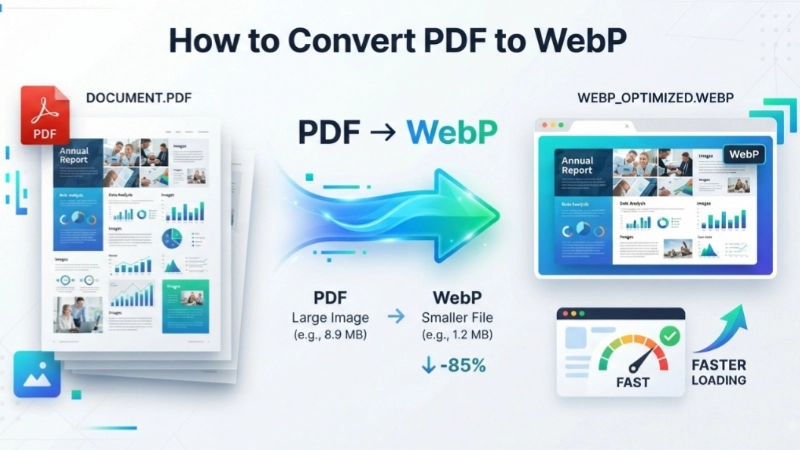
Have you ever noticed how some websites load instantly while others take forever? A big reason is image size. If you have a PDF with pictures and you want to put those images on a website, you need the right format.
You might wonder how to convert PDF to WebP. This is a great question. The WebP format is a modern image format created by Google. It makes images smaller without losing quality. That means your website loads faster and makes visitors happy. This guide will show you everything about how to convert PDF to WebP easily and for free. I’ll cover the “why,” the “how,” and give you the best tools to do it.
What is a WebP File? (And Why Does It Matter?)
Let’s start with the basics. A WebP file is a modern image format developed by Google to make the web faster. It provides excellent compression for images on the web. This means you get smaller file sizes while still keeping high quality.
Think of it this way: WebP is like a newer, smarter version of a JPG or PNG. It does the same job but takes up less space on your hard drive and loads quicker on a webpage. WebP supports lossy and lossless compression, as well as transparency (like PNG) and animation (like GIF) .
According to Google, WebP images are typically 25-34% smaller than comparable JPG images and 26% smaller than PNGs, all while keeping the same visual quality . This is a huge advantage for websites.
Why should you convert PDF to WebP?

You might have a PDF file containing several images, like a product brochure or a photo collection. If you want to use those images on your website, you need to change their format.
Here is where the PDF to WebP converter comes in. By converting, you get:
- Faster Loading Times: Smaller files mean pages load quicker. This keeps visitors on your site longer.
- Better SEO: Google considers page speed a ranking factor. Faster sites rank higher in search results .
- Bandwidth Savings: You use less of your website’s data, which can save you money on hosting fees .
- Better User Experience: People are less likely to leave a page that loads fast.
So, learning how to convert PDF to WebP is a smart move if you care about your website’s performance.
Can You Convert a PDF to WebP Directly?
Yes, you can. However, it’s important to understand what happens during this conversion. A PDF is a document format that can contain text, vector graphics, and images. A WebP file is an image. To convert a PDF to WebP, the tool essentially takes a “screenshot” of each page and saves it as an image.
This means that each page in your PDF becomes one WebP image. If your PDF has 10 pages, you will get 10 separate WebP files. This is perfect for creating thumbnails, previews, or using individual pages as images. If you need to edit the text later, it is better to keep a copy of the original PDF because text becomes part of the image after conversion and is not easily editable .
How to Convert PDF to WebP Online: The Easiest Method
The absolute easiest way to convert PDF to WebP is using an online tool. You don’t need to download software or create an account. Everything happens in your browser. You can convert PDF to WebP free with these tools.
Let’s look at the simple steps to use a PDF to WebP converter.
How to Convert PDF to WebP Free (Step-by-Step Guide)
- Choose a Tool: For a simple and effective conversion, I highly recommend Top Image Fixer’s PDF to WebP Converter. It is completely free, works on all devices, and your files are safe.
- Upload Your PDF: Click the upload button or drag and drop your PDF file onto the page. You can usually upload multiple files at once .
- Wait for the Conversion: The tool automatically converts your file. This only takes a few seconds.
- Download the WebP Files: Once the conversion is complete, you can download the new WebP images. Most tools package them into a ZIP file for easy downloading .
That is all there is to it. It is the fastest way to convert PDF to WebP if you want to do a one-off conversion or are in a hurry.
Desktop Software and Advanced Methods
Online tools are great for most people. But maybe you need to convert many files quickly, or you want more control. Desktop software might be the better option.
Using Adobe Acrobat (Desktop)
If you have Adobe Acrobat Pro DC installed, you can convert PDF to WebP format directly. This is a paid option, but it provides high-quality results and advanced settings.
- Open your PDF in Adobe Acrobat.
- Click “Convert” in the top menu.
- Select “Image Format” and then choose “WebP” from the dropdown list.
- Click “Convert” and save your new file.
Adobe Acrobat gives you professional results. However, if you are looking for a PDF to WebP converter free of charge, an online tool is a better choice.
Method for Developers (Using Code)
If you are a developer, you might want to build the conversion into your own app. For example, you can use programming tools to convert PDF to WebP with Java or use a powerful cloud API to automate the process . This is beyond the basics, but it’s useful to know that such options exist.
| Feature | Online Converters | Desktop Software |
|---|---|---|
| Cost | Usually free | Often paid (e.g., Adobe Acrobat) |
| Ease of Use | Very simple, “upload and convert” | More complex with advanced settings |
| Speed | Depends on internet | Very fast for large batch files |
| Privacy | Files are on a server (usually deleted) | Files stay on your computer |
| Batch Convert | Yes, usually up to 20 files at once | Yes, often unlimited |
Tips for High-Quality Conversion
To make sure you get the best results, keep these tips in mind.
- Get the Size Right: Bitmapped images like WebP do not scale up well. If you make the image too small, you won’t be able to zoom in without it looking blurry. Think about how you want to use the final image .
- Check the Settings: If your tool offers a quality setting, choose a high number (like 85-100%) for the best quality.
- Choose the Right Tool: Use a trusted tool. Top Image Fixer offers a secure and free PDF to WebP converter that doesn’t add watermarks or log your files.
Using WebP can make a huge difference. Just like you use the right tool for a job, using WebP is the right choice for images on the web. Converting your PDFs to this format is a simple way to optimize your images. When you use an online PDF to WebP converter, you’re taking the first step toward a faster, more efficient website.
Frequently Asked Questions (FAQs)
1. Is it free to convert PDF to WebP?
Yes, many online tools are completely free. You can convert PDF to WebP free without signing up or entering payment information .
2. How does a PDF to WebP converter work?
It converts each page of your PDF into a separate WebP image. The text and graphics on the page become part of an image file .
3. Is WebP better than JPG or PNG?
Yes, for web use. WebP files are significantly smaller than JPG and PNG files while maintaining equal visual quality. This leads to faster page loads .
4. Can I convert a multi-page PDF to WebP?
Yes. Most tools will convert every page of your PDF into an individual WebP image. This makes it easy to use the images one by one .
5. Which browser supports the WebP format?
All modern browsers like Google Chrome, Safari, Firefox, Edge, and Opera natively support WebP files . You don’t need any special plugins.
6. Is it safe to use an online PDF to WebP converter?
It is safe if you use a trusted website. Reputable tools delete your files from their servers after a few hours. For sensitive documents, consider using a desktop app .
7. How to convert PDF to WebP on a phone?
You can use an online converter. It works on any device with a web browser, including Android and iPhone. Just upload the file and download the result.
Conclusion
Now you know exactly how to convert PDF to WebP. It’s a simple process that brings big benefits. Whether you are a website owner, a blogger, or just someone wanting to share images, learning to convert PDF to WebP free is a valuable skill.
The WebP format is the future of images on the web. It makes sites faster, improves user experience, and even helps with SEO. Stop using large, slow-loading images. Start converting your PDF files to WebP today.
Here is my strong recommendation: Visit Top Image Fixer’s PDF to WebP Converter right now. It is free, fast, secure, and works on any device. You can convert PDF to WebP format in seconds without any signup or installation. Your files remain private, and there are no watermarks on your images.
For a quick recap:
- For quick conversions online: Use Top Image Fixer or other trusted browser-based tools.
- For privacy and advanced control: Use desktop software like Adobe Acrobat.
- For developers: Explore cloud APIs to integrate PDF to WebP conversion into your app.
Stop dealing with PDF files that aren’t web-friendly. Start converting your PDF to WebP now. It is quick, free, and easy.