
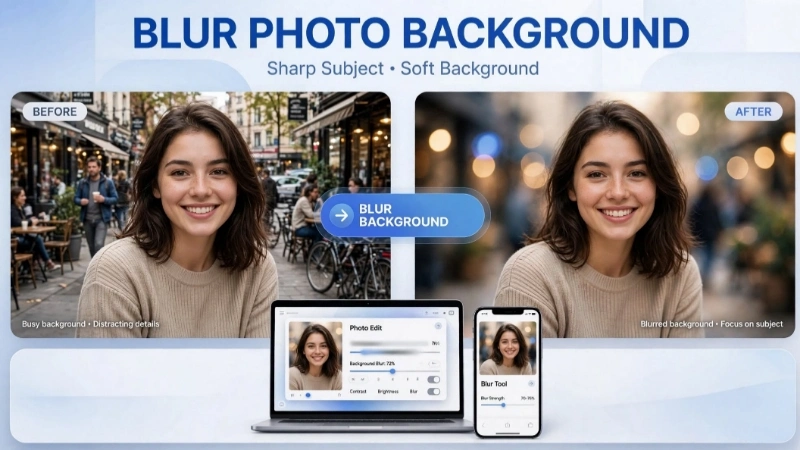
Hey there! Have you ever looked at a stunning portrait where the person pops out beautifully, but the messy background fades away softly? That magic is called background blur, and it’s easier than you think to achieve. Whether you’re asking how do you blur background in photos, how do you blur the background of a picture, or how do you blur the background of a photo, this guide has you covered.
I’m going to walk you through everything step by step—like a friend explaining it over coffee. No complicated jargon. By the end, you’ll know multiple ways to blur the image background on your phone, computer, or even for free online. Let’s dive in!
Why Blur the Background of a Photo Anyway?
Blurring the background (also known as bokeh effect) does wonders for your images:
- It makes your main subject stand out clearly.
- Removes distractions like clutter, strangers, or ugly walls.
- Gives a professional, DSLR-like look even if you shot with a basic camera or phone.
- Perfect for portraits, product photos, social media posts, and even hiding sensitive info.
Think about it: A crisp flower with a dreamy blurred garden behind it looks way more artistic than a busy photo where everything fights for attention.
Real-life example: I once took a photo of my friend at a crowded market. The background was chaotic with people and stalls. After blurring it, the photo looked magazine-worthy!
Different Ways to Blur Background in Photos
There isn’t just one answer to “how do you blur background in photos.” You have options based on your device and skill level. Let’s explore them one by one.
1. Blur Background Using Your Smartphone (Easiest for Beginners)
Most modern phones have built-in portrait mode that automatically blurs the background.
On iPhone:
- Open Camera app → Select Portrait mode.
- Take the photo. The blur happens automatically.
- To adjust later: Go to Photos → Edit → Portrait → Drag the depth slider.
On Android (like Samsung, Google Pixel):
- Use Portrait or Live Focus mode.
- After shooting, tap Edit → Background or adjust blur strength.
Pro Tip: Stand a bit away from your subject (3-5 feet) and make sure there’s distance between subject and background for natural blur.
If your phone doesn’t have Portrait mode, don’t worry—apps like Snapseed or Adobe Lightroom (free versions) let you add blur manually.
2. How to Blur the Background of a Picture on Computer
For more control, use software:
Using Photoshop (Paid but Powerful):
- Open your photo.
- Use Quick Selection or Object Selection tool to select your subject.
- Invert selection (Select → Inverse).
- Go to Filter → Blur Gallery → Field Blur or Iris Blur.
- Adjust and apply.
Free Alternative: GIMP
- Similar steps with Free Select tool and Gaussian Blur filter.
But honestly, not everyone wants to learn heavy software. That’s where online tools shine.
3. Best Free Online Tool: Blur Image Background with Top Image Fixer
If you want something super simple and free, head over to Top Image Fixer. Their Blur Image tool is fantastic—no signup, no upload to servers (privacy-friendly), and processes everything in your browser.
Step-by-step how to use Top Image Fixer Blur Tool:
- Go to topimagefixer.com and find the Blur tool.
- Upload your photo (or drag and drop).
- Use the smart selection to highlight your subject or let AI detect it.
- Adjust blur intensity—light for subtle effect, strong for dramatic bokeh.
- Preview and download your blurred background photo in high quality.
It’s perfect for quick edits. I recommend it especially for beginners because it’s intuitive and gives great results without learning curves. Many people use it to blur background pics for Instagram, LinkedIn profiles, or e-commerce products.
Direct link to try it now: Blur Image Background on Top Image Fixer
4. Using Mobile Apps for Background Blur
- PicsArt or Snapseed: Great for manual blur with brushes.
- AfterFocus: Specifically designed for blurring backgrounds with easy foreground/background selection.
Advanced Tips to Get Perfect Blur Background in Photos
- Distance matters: Greater distance between subject and background = better natural blur.
- Lighting: Good light helps the blur look smoother.
- Focal length: Longer zoom (like 85mm) creates nicer bokeh, but you can fake it digitally.
- Avoid over-blurring: Too much blur can make the photo look fake. Keep it natural.
- For group photos: Selectively blur only parts of the background.
Here’s a quick comparison table:
| Method | Difficulty | Cost | Best For | Control Level |
|---|---|---|---|---|
| Phone Portrait Mode | Very Easy | Free | Quick casual shots | Medium |
| Online Tool (Top Image Fixer) | Easy | Free | Fast professional results | High |
| Photoshop/GIMP | Medium | Free/Paid | Detailed creative edits | Very High |
| Mobile Apps | Easy | Free/Paid | On-the-go editing | High |
Common Mistakes to Avoid When Blurring Background of Photo
- Selecting edges poorly (hair or fine details get blurred accidentally).
- Using the same blur strength everywhere—vary it for realism.
- Ignoring photo resolution—always work on high-quality originals.
- Forgetting to save a copy of the original photo.
Creative Ideas to Use Blurred Background Photos

- Product photography: Make your items pop.
- Social media: Stand out in feeds.
- Privacy: Blur faces or license plates before posting.
- Artistic shots: Create dreamy portraits.
Example: A friend used background blur for her food blog. Her dishes looked restaurant-professional after a quick edit on Top Image Fixer.
How to Blur the Background in a Photo on Different Devices – Quick Summary
No matter your device, the goal stays the same: separate subject from background and apply Gaussian or lens blur. Online tools have made this accessible to everyone.
More Pro Techniques for Blur in Background of Photos
You can also combine methods. Take a photo in normal mode, then use selective blur tools for custom effects. Some advanced apps use AI to detect and create realistic depth maps.
FAQs About Blurring Background in Photos
How do you blur background in photos on Android?
Most Android phones have Portrait mode. Otherwise, use free apps like Google Photos or Top Image Fixer website.
Can I blur the background of a picture after it’s taken?
Yes! That’s the beauty of digital editing. Tools like Top Image Fixer make it simple.
Is there a way to blur background of photo without apps?
Built-in phone editors or basic online tools work fine for most people.
How much does it cost to blur background pics professionally?
Completely free with tools like Top Image Fixer. Paid software is optional.
Will blurring reduce photo quality?
Not if you use good tools. Always download in original or high resolution.
How to blur only part of the background?
Use brush tools in editors to apply blur selectively.
Final Thoughts: Start Blurring Your Photos Today
Learning how do you blur background in photos opens up a whole new level of creativity. Whether you need to blur the background of a picture for work, fun, or memories, you now have practical ways to do it.
My suggestion? Start simple. Grab a recent photo, head to Top Image Fixer, and try their blur tool right now. You’ll be amazed at the transformation in under a minute.
Don’t just read—take action! Pick one photo today and experiment. Share your before-and-after in the comments if you’re on a blog, or tag your creations online.
Happy editing! Your photos are about to look a lot more professional. 📸