
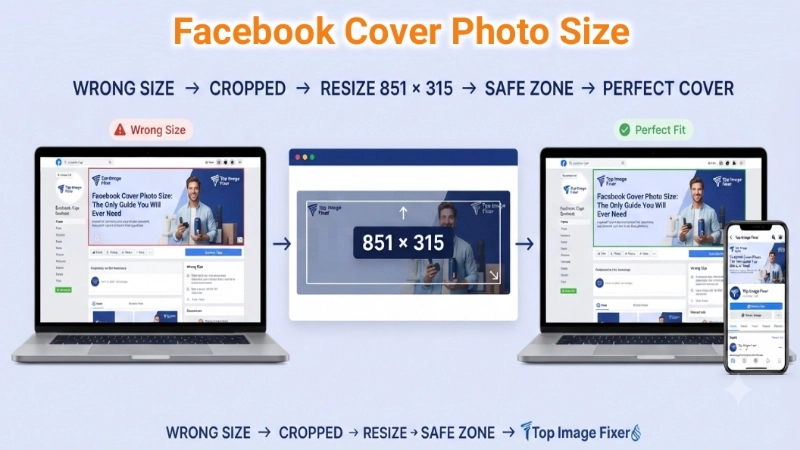
Let me tell you about the time I spent an hour designing the perfect Facebook cover photo. Beautiful colors. Perfect layout. Important text right where I wanted it.
Then I uploaded it to Facebook.
And Facebook cut off half my text. Cropped my logo. And made the whole thing look terrible.
I was so frustrated. I had no idea that Facebook cover photos have specific size requirements. I thought any picture would work.
It does not.
If you have ever uploaded a cover photo only to see Facebook chop off the top and bottom, you are not alone. Millions of people make this mistake every day.
Today, I am going to teach you everything about facebook cover photo size. The exact dimensions. The safe zones. The common mistakes. And how to get it right every time.
And yes, I will show you how to use Top Image Fixer to resize your cover photos for free.
Let me fix this for you once and for all.
First, Why Does Facebook Cover Photo Size Matter So Much?
Before I give you the exact numbers, let me explain why facebook pages cover photo size is not just some random technical detail.
Reason 1: Facebook crops your image automatically
If your image is the wrong size, Facebook decides what to keep and what to cut. And Facebook does not care about your logo or your text.
Reason 2: Different devices show different parts
What looks perfect on your computer might look terrible on a phone. The cover photo size on facebook needs to work everywhere.
Reason 3: First impressions matter
Your cover photo is the first thing people see when they visit your page. A blurry or badly cropped cover looks unprofessional.
Reason 4: Text gets cut off
If you put important text near the edges, Facebook might cut it off. You need to know the safe zone.
So when you learn cover photo size fb, you are not learning some boring technical detail. You are learning how to make your Facebook page look professional and polished.
The Exact Facebook Cover Photo Size (No Guessing)
Here is the answer you came for. The exact facebook cover photo size you need.
| Device/Display | Recommended Size | Safe Zone (Text Area) |
|---|---|---|
| Desktop (full width) | 851 x 315 pixels | Center 700 x 250 pixels |
| Mobile | 640 x 360 pixels | Center area |
| Minimum size | 400 x 150 pixels | N/A |
| Maximum file size | 100 KB (JPG) or 1 MB (PNG) | N/A |
The short answer: Use 851 x 315 pixels for your Facebook cover photo. That is the standard facebook pages cover photo size that works best across all devices.
But wait. There is more. Because Facebook is tricky.
The Safe Zone (Where to Put Your Text and Logo)
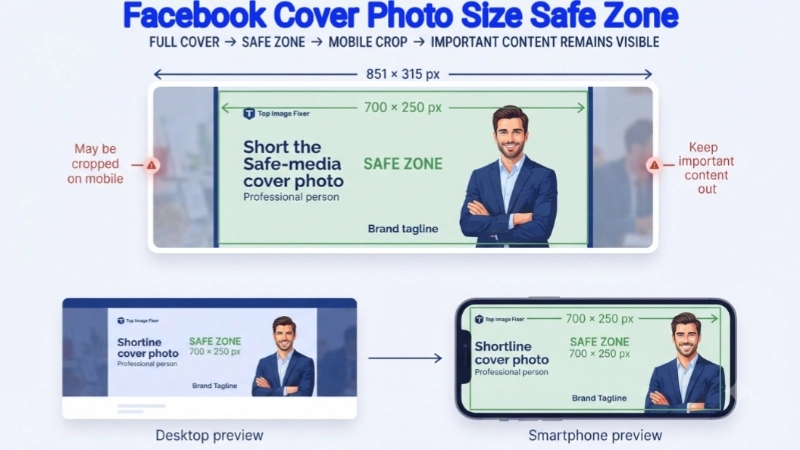
Here is something most people do not know. When you learn cover photo size on facebook, you also need to learn about the safe zone.
Facebook displays your cover photo differently on different devices.
- On a computer desktop, people see the full 851 x 315 pixels.
- On a phone, Facebook crops the left and right sides.
- On a tablet, it is somewhere in between.
So if you put your logo or important text near the edges, mobile users will not see it.
The safe zone: Keep all important text, logos, and faces in the center 700 x 250 pixel area. That area is visible on all devices.
Think of it like this. Your cover photo has “invisible” edges that might get cut off. Do not put anything important in those edges.
What Happens If You Use the Wrong Size?
Let me show you what happens when you ignore facebook cover photo size.
If your image is too small:
Facebook stretches it to fit. It becomes blurry and pixelated. It looks like you uploaded a postage stamp.
If your image is too big:
Facebook scales it down. That is usually fine. But the file might be huge and slow to load.
If your image is the wrong shape:
Facebook crops it randomly. You lose control over what people see.
If your image has text near the edges:
Mobile users will not see that text. They will see a blank space where your text used to be.
So yes. The correct facebook pages cover photo size matters. A lot.
Image Prompt 1 (For inside the article)
“A simple illustration showing a Facebook cover photo template. The full rectangle is labeled ‘851 x 315 pixels (Full size)’. A smaller inner rectangle is labeled ‘700 x 250 pixels (Safe zone – visible on all devices)’. Arrows point to the edges with text: ‘Text or logos here may get cut off on mobile.’ Clean, friendly, very beginner-friendly.”
Place this image after the “Safe Zone” section. It shows exactly where to put important content.
How to Create the Perfect Facebook Cover Photo (Step by Step)
Now you know the cover photo size fb. Let me walk you through creating one.
Step 1: Open any design tool (Canva, Photoshop, or even PowerPoint)
Step 2: Create a new canvas sized 851 x 315 pixels
Step 3: Add your background image or color
Step 4: Add your logo and text inside the safe zone (center 700 x 250 pixels)
Step 5: Keep the edges simple (no important text near the borders)
Step 6: Save as JPG or PNG
Step 7: Check the file size (under 100 KB for JPG, under 1 MB for PNG)
Step 8: Upload to Facebook
Step 9: Preview on desktop and mobile
Step 10: Adjust if needed
That is it. Ten steps. About ten minutes. A perfect cover photo.
How to Resize an Existing Photo for Facebook Cover
What if you already have a photo you want to use? Here is cover photo size on facebook resizing made easy.
Using Top Image Fixer (free):
- Go to Top Image Fixer
- Find the Image Resizer tool
- Upload your photo
- Enter 851 for width and 315 for height
- Click resize
- Download your perfectly sized cover photo
That is it. Your existing photo is now the correct facebook pages cover photo size.
Pro tip: If your photo is not a perfect rectangle, you might need to crop it first. Use the Image Cropper tool for that.
Facebook Cover Photo File Size (Keep It Small)
Facebook has file size limits. But more importantly, large files load slowly.
| Format | Maximum Size | Recommended Size |
|---|---|---|
| JPG | 100 KB | Under 100 KB |
| PNG | 1 MB | Under 500 KB |
How to reduce file size: Use Top Image Fixer’s Image Reducer tool. Compress your cover photo without losing quality.
Why this matters: A large cover photo takes longer to load. People might leave your page before it even finishes loading.
The Difference Between Personal Profile and Business Page Cover Photos
The facebook cover photo size is the same for personal profiles and business pages. Both use 851 x 315 pixels.
But the context is different.
Personal profile: Your cover photo sits behind your profile picture. Make sure they work together. Do not put important information behind your face.
Business page: Your cover photo is prime real estate. Use it to promote a sale, show your products, or communicate your brand message.
The size is the same. The strategy is different.
Common Mistakes (I Have Made Every Single One)
Let me save you from the mistakes I have made with cover photo size fb.
Mistake #1: Putting text near the edges
It gets cut off on mobile. Always keep text in the center safe zone.
Mistake #2: Using a low-resolution image
It looks blurry and unprofessional. Start with a high-quality image.
Mistake #3: Forgetting about the profile picture
Your profile picture covers part of the cover photo on desktop. The bottom left corner is hidden. Do not put anything important there.
Mistake #4: Using a huge file size
Your page loads slowly. Compress your image.
Mistake #5: Not previewing on mobile
What looks good on your computer might look terrible on a phone. Always check both.
Mistake #6: Changing cover photos too often
Consistency builds brand recognition. Stick with one cover for a while.
Avoid these, and your facebook pages cover photo size will be perfect.
Image Prompt 2 (For near the common mistakes section)
“A simple illustration showing two phones side by side. Left phone shows a cover photo with text near the left edge. The text is cut off. Red X. Right phone shows the same cover photo with text in the center. The text is fully visible. Green checkmark. Text below: ‘Keep text in the center. Mobile users will thank you.’ Clean and simple.”
Place this image near the “Common Mistakes” section. It shows why the safe zone matters.
Facebook Cover Photo Examples (What Works and What Does Not)
Let me give you real examples.
Good cover photo:
- Simple background
- Logo in the center or bottom right
- One clear message
- High resolution
- Under 100 KB file size
Bad cover photo:
- Text crammed everywhere
- Logo in the bottom left (hidden by profile picture)
- Blurry or pixelated
- Huge file size (slow loading)
Example of a good cover for a business: A clean photo of your product on a white background. Your logo in the bottom right corner. A simple tagline in the center. Nothing near the edges.
Example of a good cover for a personal profile: A landscape photo of your favorite place. No text. Your face shows up in the profile picture. The cover sets the mood.
How to Make Your Cover Photo Mobile-Friendly
More than 80% of Facebook users access the platform on their phones. So cover photo size on facebook for mobile is critical.
Mobile cover photo display:
- The center 640 x 360 pixels is what matters
- Left and right edges are cropped
- Top and bottom are also cropped slightly
What this means for you:
- Put your logo and text in the very center
- Assume 20% of the left and right edges will not be seen
- Keep it simple
How to test: After uploading your cover photo, open Facebook on your phone. Look at your page. Does it look right? If not, adjust and re-upload.
How to Add a Button to Your Facebook Cover Photo
Facebook lets you add a button (like “Shop Now” or “Learn More”) to your business page. That button sits below your cover photo.
The button does not affect your facebook pages cover photo size. But you should leave space for it.
What to do: Keep the bottom of your cover photo simple. Do not put important text near the bottom edge. The button will sit below that area.
How Often Should You Change Your Cover Photo?
There is no rule. But here is my advice.
Change it when:
- You have a new sale or promotion
- You launch a new product
- It is a holiday or special occasion
- Your old cover looks outdated
Do not change it when:
- You are bored (consistency matters)
- Every week (people stop noticing)
A good facebook cover photo size stays the same. But the image inside can change. Keep the dimensions consistent. Update the content as needed.
Tools to Create Facebook Cover Photos (Free Options)
You do not need Photoshop. Here are free tools that work.
| Tool | Best For | Learning Curve |
|---|---|---|
| Canva | Templates and easy design | Very easy |
| Top Image Fixer | Resizing and compressing | Very easy |
| PowerPoint | Basic designs | Easy |
| GIMP | Advanced editing | Steep |
For most people, Canva is the best choice. They have Facebook cover templates already sized to 851 x 315 pixels. Just pick a template, add your photos and text, and download.
Then use Top Image Fixer to compress the file size before uploading.
What About Facebook Cover Photos for Events?
Facebook events have their own cover photo size.
Event cover photo size: 1200 x 628 pixels (not 851 x 315)
Do not use the regular cover photo size fb for events. It will look stretched and weird.
Use 1200 x 628 for event covers. That is a different ratio (about 1.91:1). It is wider than standard covers.
Internal Linking Suggestions
While reading this article, you can link to these other helpful pages on your website:
- Top Image Fixer – Image Resizer Tool (for resizing to 851 x 315)
- Top Image Fixer – Image Reducer Tool (for compressing file size)
- Top Image Fixer – Image Cropper Tool (for cropping before resizing)
Place these links naturally. For example:
“After you learn facebook cover photo size, use our free Image Resizer tool to get your photos to exactly 851 x 315 pixels.”
FAQs About Facebook Cover Photo Size
1. What is the exact Facebook cover photo size?
851 x 315 pixels. That is the standard for both personal profiles and business pages.
2. What is the safe zone for text on a Facebook cover photo?
The center 700 x 250 pixel area. Keep all important text and logos within that zone.
3. What happens if my cover photo is the wrong size?
Facebook will crop it or stretch it. You lose control over what people see.
4. What is the maximum file size for a Facebook cover photo?
100 KB for JPG. 1 MB for PNG. But smaller is better for loading speed.
5. How do I resize a photo to Facebook cover size?
Use Top Image Fixer’s Image Resizer tool. Enter 851 for width and 315 for height.
6. Does Facebook cover photo size work on mobile?
851 x 315 works on mobile, but Facebook crops the left and right edges. Keep important content in the center.
7. What is the best format for Facebook cover photos?
JPG is best for photos. PNG is best for graphics with text. Both work.
8. How do I make my cover photo load faster?
Compress it using Top Image Fixer’s Image Reducer tool. Aim for under 100 KB.
9. Can I use a video as my Facebook cover?
Yes. Video covers are now supported. Recommended size is 820 x 312 pixels (slightly different from photo covers).
10. Where is the profile picture positioned on a cover photo?
On desktop, the profile picture covers the bottom left corner of the cover photo. Do not put anything important there.
A Quick Story: How I Fixed My Business Page Cover
My business page cover photo was a mess for months. I did not know about facebook pages cover photo size. I just uploaded whatever looked good on my computer.
Then a customer told me: “Your cover photo cuts off on my phone. I cannot read your tagline.”
I was embarrassed.
I looked up the correct size. I resized my cover to 851 x 315 pixels. I moved my logo and tagline to the center safe zone. I compressed the file size.
The result? A professional, clean cover that looks great on every device.
That customer? He became a regular. He appreciated that I fixed the issue.
Do not wait for a customer to tell you your cover looks bad. Fix it now.
Conclusion: Your 5-Minute Action Plan
You came here asking about cover photo size on facebook. Now you have the answer. Let me give you a simple action plan.
Minute 1: Open your current Facebook cover photo (or find a photo you want to use)
Minute 2: Go to Top Image Fixer and use the Image Resizer tool to resize it to 851 x 315 pixels
Minute 3: Move your logo and text to the center safe zone (700 x 250 pixel area)
Minute 4: Compress the file size using the Image Reducer tool (aim for under 100 KB)
Minute 5: Upload your new cover photo to Facebook and preview on your phone
Five minutes. That is all it takes to go from a blurry, badly cropped cover to a professional, polished one.
Now do it for your business page. Then share this guide with a friend who still has a stretched, pixelated cover photo.
Final Words From Me
Look, I used to ignore facebook cover photo size. I thought it was a minor detail. Then I realized that your cover photo is the first thing people see. It sets the tone for your entire page.
A bad cover makes you look amateur. A good cover makes you look professional.
Now you know how to make a good one. The right size. The safe zone. The right file size. All of it.
So go ahead. Fix that cover photo. Make your page look amazing.
Ready to resize your Facebook cover? Visit Top Image Fixer now and use their free Image Resizer tool. Your page will look better in five minutes.
One Last Reminder
Bookmark this page. Bookmark Top Image Fixer. And next time someone asks you “what is the facebook cover photo size,” send them here.
You have the knowledge. You have the tools. Now go make your Facebook page look professional.
Your perfect cover photo is waiting. Go create it.