
Have you ever found yourself with a PNG image and suddenly needed it in BMP format? Maybe you’re working on a project, using a specific program, or just trying to make an image work on an older system. It can feel confusing if you are not sure where to start.
I have been in that spot too, wondering how to change PNG to BMP without losing quality or messing up my file. The good news is, it is actually very simple once you know how. I will walk you through everything you need to know about converting PNG to BMP, from basic steps to the best tools you can use.
What Exactly Are PNG and BMP Files?
Before we jump into the “how,” it helps to understand what these formats are and why you might need to switch between them. PNG and BMP are both image file formats, but they are designed for different purposes. Let us look at each one closely.
Understanding PNG (Portable Network Graphics)
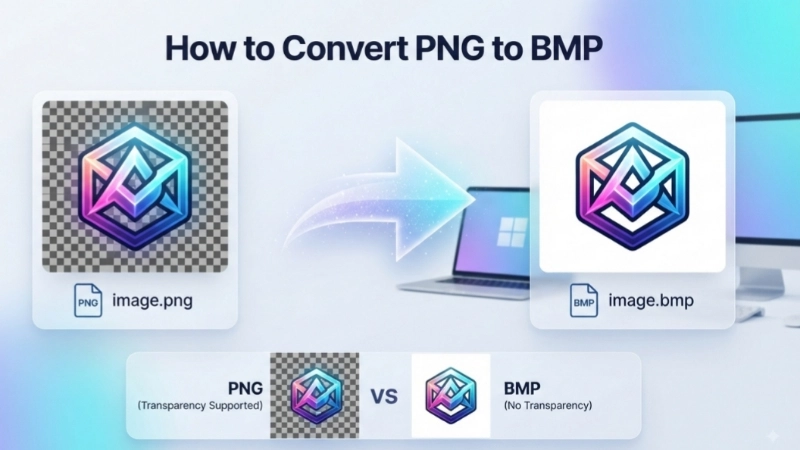
PNG is a raster graphics file format designed for efficient web use. It uses lossless image compression, which means your image quality stays high while the file size stays manageable . One of the best things about PNG is that it supports transparency. You can have an image with a see-through background, which is super useful for logos, web graphics, and overlays .
Understanding BMP (Bitmap File Format)
BMP is a raster graphics image file format used to store bitmap digital images. It is primarily known for its use on Windows systems . The BMP format stores pixel data in a simple, straightforward way. This makes it easy for computers to read and display BMP files quickly .
Unlike PNG, BMP files are generally uncompressed. This means they can hold excellent quality, but they also take up a lot of disk space . BMP files do not support transparency in the same way that PNG files do .
Why Would You Need to Convert PNG to BMP?
You might be wondering, why would anyone convert PNG to BMP when PNG seems better in many ways? Here are some real situations where a BMP file is exactly what you need.
1. Older Software Compatibility
Some older image editing programs, especially ones designed for Windows, work better with BMP files. If you are using legacy software, BMP might be the only format it understands .
2. Simple Storage Without Compression
Because BMP files are uncompressed, they store every single pixel exactly as it is. If your project requires raw, unaltered pixel data, BMP is a good choice.
3. Background Images for Windows
Old Windows systems commonly used BMP for background screens and screen saver programs . If you are setting up a classic Windows environment, you will need a BMP file.
4. Specific Editing Requirements
Some specialized editing tools and applications require BMP format for certain functions. If you are working with raw image data, BMP might be your only option.
Key Differences Between PNG and BMP
Let us lay out the differences clearly. This will help you understand why you might want to change PNG to BMP and what to expect from the conversion.
| Feature | PNG | BMP |
|---|---|---|
| Compression | Uses lossless compression | Usually uncompressed |
| File Size | Smaller, efficient for web | Larger, takes more disk space |
| Transparency | Supports transparent backgrounds | Does not support transparency |
| Best For | Web graphics, logos, sharing online | Windows applications, raw data storage |
| Quality | High quality, no data loss | Excellent quality, but large size |
Important Things to Know Before Converting

Before you start converting PNG to BMP, there is one very important detail you need to understand: transparency.
PNG files often have transparent backgrounds. BMP files do not support transparency at all . When you convert a PNG with a transparent background to BMP, those transparent areas will be replaced with a solid color—usually white or black .
If maintaining transparency is crucial for your project, BMP might not be the right format for you. In that case, you might want to stick with PNG or explore other formats like TIFF . If BMP is absolutely necessary, you will need to be okay with losing the transparent background.
Method 1: How to Convert PNG to BMP Online (The Easiest Way)
The quickest and easiest way to convert PNG to BMP is by using a free online converter. These tools require no downloads, no software installation, and work on any device with a browser. Whether you have a Windows PC, a Mac, a Chromebook, or an Android phone, online converters work everywhere .
Step-by-Step Guide
- Find a Reliable Converter: Open your browser and search for a free “PNG to BMP converter.” One excellent and trusted option is the PNG to BMP Converter available on Top Image Fixer. It is designed to be quick, secure, and hassle-free.
- Upload Your PNG File: Click the “Upload” or “Choose File” button. A file dialog will open on your device. Navigate to your PNG file and select it. Many converters also let you drag and drop your file directly into the upload area .
- Select BMP as Output: Ensure the output format is set to BMP. Most tools will automatically show you the input and output formats.
- Start the Conversion: Click the “Convert” button. The tool will upload your PNG file and process the conversion. This typically takes only a few seconds .
- Download Your BMP File: Once the conversion is complete, the tool will provide a “Download” link. Click it, and your new BMP file will be saved to your device .
Why I Recommend the Top Image Fixer PNG to BMP Converter
When you use a tool like the one at Top Image Fixer, you get a safe and fast experience. It uses secure servers to handle your files, and most reputable converters automatically delete your uploaded files from their servers after a short period—usually 24 hours . This protects your privacy.
Method 2: Using Microsoft Paint on Windows
If you prefer to keep everything offline and use tools built right into your computer, Microsoft Paint is a simple solution for converting PNG to BMP.
How to Use Paint to Convert PNG to BMP
- Open Microsoft Paint: Click the Start menu on your Windows computer. Type “Paint” into the search bar and open the Paint app .
- Open Your PNG File: In Paint, go to the top-left corner and click on “File.” Select “Open” from the menu. A window will appear, allowing you to browse and find your PNG file. Select it and click “Open” .
- Save as BMP: Now, click on “File” again and select “Save As” from the menu. A sub-menu will appear with different format options. Choose “BMP picture” .
- Name and Save: A dialog window will open. Give your file a name, choose where you want to save it on your computer, and click “Save.”
Important Note: Remember, if your PNG has a transparent background, Paint will not preserve it when you save as BMP . The transparent areas will be filled with a solid color, usually white.
Method 3: Using Preview on Mac
Mac users have a built-in tool that makes converting image formats very simple: the Preview app.
How to Use Preview to Convert PNG to BMP
- Open Your PNG in Preview: Double-click on your PNG file. It should automatically open in Preview. If it does not, right-click the file, choose “Open With,” and select “Preview.”
- Export the File: In the top menu bar, click on “File.” From the drop-down menu, select “Export…” .
- Choose BMP Format: A pop-up window will appear. Look for the “Format” drop-down menu next to it. Click on it and select “BMP” from the list of options.
- Save: Choose where you want to save the new BMP file, give it a name if you wish, and click “Save.”
Method 4: Using Desktop Software for Batch Conversion
If you regularly need to convert many PNGs to BMP, using a desktop application or a tool with batch processing capabilities can save you a huge amount of time.
Image Editing Software (Photoshop, GIMP)
Programs like Adobe Photoshop and GIMP let you open a PNG and save it as BMP. You can often adjust settings like color depth during the save process, giving you more control over the final output. However, this method works best for one or a few files at a time.
Batch Conversion Tools
Many online converters and some desktop applications allow you to upload and convert multiple PNG files at once . This is incredibly useful if you have a whole folder of images to convert. Look for a tool that specifically mentions “bulk” or “batch” conversion to handle this task efficiently.
Practical Tips for Converting PNG to BMP
Here are some actionable tips to help you get the best results when you convert PNG to BMP.
1. Remember the Transparency Issue
This is the most common “gotcha.” Since BMP does not support transparency, your transparent PNG backgrounds will become a solid color . If this is a dealbreaker, keep your image in PNG format or use a different format like TIFF .
2. Check Your Color Depth
BMP files can support different color depths, like 24-bit or 32-bit. A higher bit depth means more colors and better quality, but it also increases the file size. If you are saving a simple logo, you might not need the full 32-bit depth. Choose the option that best balances quality and file size for your needs.
3. Make a Backup
Always keep a copy of your original PNG file before converting it to BMP . This way, if the conversion does not turn out how you expected, or if you need the transparency later, you will have the original to fall back on. It is a simple safety net that can save you a lot of frustration .
4. Watch Out for Quality Changes
Because BMP is uncompressed, you are not losing image quality during the conversion itself. However, some programs might try to resize or alter your image when saving. Always double-check the settings to make sure the resolution and dimensions are correct before you save .
5. Consider File Size
Be aware that the BMP file you create will be much larger than the original PNG file . If you are short on disk space or need to send the file by email, the large size of a BMP might be a problem.
Frequently Asked Questions (FAQs)
Let us go through some common questions people ask about converting PNG to BMP.
1. Can I convert PNG to BMP without losing transparency?
No, the BMP format does not support transparency. If you convert a PNG with a transparent background to BMP, the transparent areas will become a solid color, usually white or black .
2. Is it safe to use online PNG to BMP converters?
It is safe if you use reputable and trusted tools. Good converters delete your files from their servers after a set time, often 24 hours, to protect your privacy . The Top Image Fixer PNG to BMP Converter follows these best practices.
3. What is the best way to convert PNG to BMP?
The easiest and fastest way is using a free online converter like the one at Top Image Fixer. It requires no downloads and works on any device . For offline use, you can use Microsoft Paint on Windows or Preview on Mac.
4. Why is my BMP file so big?
BMP files are typically uncompressed, meaning they store detailed information for every single pixel in the image . This results in excellent quality but also large file sizes.
5. Can I convert multiple PNG files to BMP at once?
Yes, many online tools and desktop applications support batch conversion. This lets you select and convert many PNG files to BMP in a single operation . Look for a tool with a “bulk” or “batch” conversion feature.
Conclusion: Which Conversion Method Should You Use?
Converting PNG to BMP is a straightforward process, and the best method depends on your specific needs. Let us break it down.
- For the quickest and most convenient option on any device, use a free online converter. The PNG to BMP Converter on Top Image Fixer is a great choice. It is fast, secure, and does not require any downloads.
- If you prefer offline, built-in tools on your computer, use Microsoft Paint on Windows or Preview on Mac. They are simple and effective for single-file conversions.
- If you need to convert many files at once, look for a tool that offers batch conversion.
Always keep in mind the key limitation of BMP—it does not support transparency. If that is a dealbreaker, consider sticking with PNG or using another format.
I hope this guide has given you all the information you need to confidently convert your PNG images to BMP. Just pick the method that works best for you, follow the steps, and you will have your BMP file in no time.