
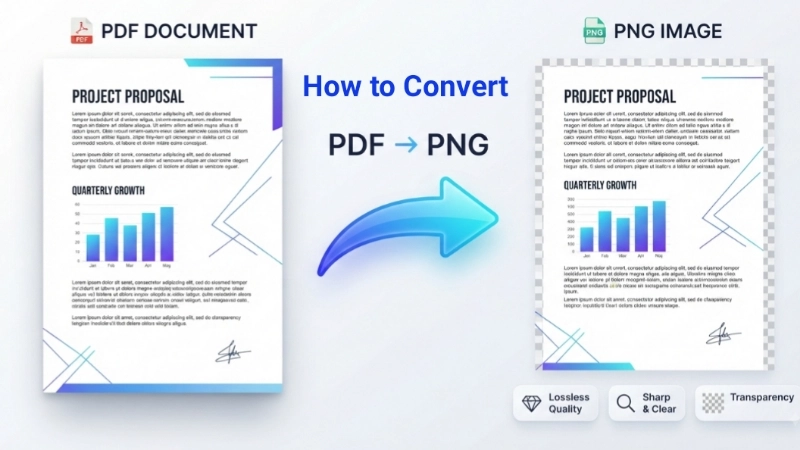
Have you ever had a PDF file and wished you could use just one page as a picture? Maybe you want to share a chart on social media, add a document page to a presentation, or save a form signature as an image. This is exactly why you need to know how to convert a PDF file to PNG.
PDFs are great for sharing documents, but they’re not always easy to work with when you need just an image. PNG files, on the other hand, are perfect for high-quality pictures with clear text and sharp lines. When you convert PDF to PNG, you get each page as a separate image file that you can use anywhere.
In this complete guide, I’ll show you how to convert a PDF to a PNG file using different methods. I’ll cover everything from free online tools to built-in options on your computer. By the end, you’ll be able to turn any PDF into PNG images with confidence.
What is a PNG File and Why Convert PDF to PNG?
Before we dive into the how-to part, let’s understand what makes PNG special. PNG (Portable Network Graphics) is an image format that keeps every detail intact. Unlike JPG, which can make pictures blurry to save space, PNG uses something called “lossless compression.” This means the image quality stays perfect .
Key Benefits of PNG Files
Sharp Text and Lines: If your PDF has text, charts, or diagrams, PNG keeps them looking crisp and clean. This makes PNG perfect for converting documents, forms, and technical pages .
Transparent Backgrounds: PNG supports transparency. If your PDF has a transparent background, the PNG will keep it that way. JPG doesn’t do this and will add a white background instead .
No Quality Loss: Every time you save a PNG, it keeps all the original image data. This makes it ideal for editing in design tools like Photoshop or Illustrator .
Widely Supported: PNG works on every device, browser, and software. You can use it on websites, in presentations, or any place that accepts images.
When Should You Convert PDF to PNG?
- You need to share a single page from a PDF on social media
- You want to add a document page to a PowerPoint presentation
- You’re creating thumbnails for your website or app
- You need to extract a diagram, chart, or signature from a PDF
- You’re working with a PDF that has transparent elements you want to keep
- You want to display a PDF page on a website without using a PDF viewer
Now that you understand why PNG is a great choice, let’s explore all the ways you can convert PDF to PNG.
Method 1: How to Convert PDF to PNG Using Online Tools
Online converters are the easiest way to convert a PDF file to PNG. You don’t need to install any software, and most tools are free to use. Here’s how to do it:
Step-by-Step Guide
- Find a reliable PDF to PNG converter online. I recommend using a trusted service that doesn’t compromise your privacy.
- Upload your PDF file. Most tools let you drag and drop your file or click to select it from your computer. They typically support files up to 100 MB .
- Click the convert button. The tool will process your PDF and convert each page to a PNG image.
- Download your PNG files. You can usually download individual PNGs or get all pages in a ZIP file.
Recommended Online Tool: Top Image Fixer
For the best experience, you should check out the PDF to PNG Converter tool available on Top Image Fixer. It’s completely free to use with no sign-up required. Here’s why it stands out:
- No registration needed – Just upload and convert
- High-quality output – Your PNGs will be sharp and clear
- Fast processing – Even large PDFs convert quickly
- Secure – Your files are removed from the server after conversion
- No watermarks – You get clean, professional PNG images
To start converting right now, visit Top Image Fixer and look for the PDF to PNG Converter tool. It’s designed to be simple enough for anyone to use, whether you’re a beginner or a professional.
Pros and Cons of Online Converters
Pros:
- No software installation needed
- Works on any device with internet
- Usually free
- Very easy to use
- Great for one-time conversions
Cons:
- Need internet connection
- File size limitations (usually 50-100 MB)
- Privacy concerns if uploading sensitive documents
- May be slower with large files
Method 2: How to Convert a PDF to a PNG on Mac Using Preview
If you’re a Mac user, you already have a built-in tool to convert PDF to PNG. Preview is a free app that comes with every Mac, and it does this job perfectly.
Step-by-Step Guide
- Open your PDF in Preview. Double-click the PDF file. If it opens in another app, right-click and choose “Open With” > “Preview” .
- Navigate to the page you want. Use the thumbnail sidebar or page arrows to find the page you want to convert.
- Click File > Export from the menu bar.
- Choose PNG as the format. In the export window, click the format dropdown and select “PNG” .
- Name your file and choose a location. Give your PNG a descriptive name and pick where to save it.
- Click Save. Your PNG is ready!
Converting Multiple Pages on Mac
Preview’s export feature works best for single pages. If you need to convert all pages or multiple pages, you can use the print to PDF method:
- Open your PDF in Preview
- Click File > Print
- Click the “PDF” button in the print dialog and choose “Save as PDF”
- When you export again, you can repeat for each page you need
Tips for Best Quality on Mac
- Preview uses your screen’s resolution for PNG export. For sharper images, zoom in before exporting
- If text looks blurry, try increasing the page view size before export
- For print-quality images, consider using a dedicated converter tool instead
Method 3: How to Convert PDF to PNG on Windows
Windows doesn’t have a built-in export to PNG feature like Mac’s Preview. But there are still easy ways to convert your PDF to PNG.
Using Snipping Tool for Single Pages
The Snipping Tool is already on your Windows computer and works well for capturing PDF pages as images.
- Open your PDF in Microsoft Edge or Adobe Acrobat Reader
- Zoom in to fill the screen with the page you want
- Open Snipping Tool (search for it in the Start menu)
- Click New and select the full page area
- Save as PNG from the save options
This method works best for single pages. For better quality, make sure you zoom in so the text is clear before capturing .
Using Print to PDF for Better Quality
For higher-quality results, especially with text-heavy PDFs:
- Open your PDF in a viewer
- Look for print options that let you adjust quality
- Consider using a third-party PDF to PNG converter for professional results
Recommended Windows Option
If you need to convert multiple pages or want better quality than Snipping Tool provides, I strongly recommend using an online tool like the one on Top Image Fixer. It gives you professional-quality PNGs without installing anything.
Method 4: How to Convert a PDF to a PNG Using Command Line Tools
For those comfortable with technology, command-line tools offer powerful ways to convert PDF to PNG. These are especially useful when you need to process many files.
PDF2IMG on Linux and macOS
Many Linux distributions include Poppler utilities, which include pdf2img for converting PDFs.
Basic usage:
pdf2img document.pdfCommon options:
-f jpeg– Save as JPEG instead of PNG-d 300– Set DPI (higher = better quality)-p 1-5– Convert specific pages
Using Node.js Libraries
Developers can use packages like pdf-to-png-converter for programmatic conversion :
const { pdfToPng } = require('pdf-to-png-converter');

(async () => {
    const pngPages = await pdfToPng('document.pdf', {
        outputFolder: './output',
    });
})();
When to Use Command Line Tools
- Processing many PDFs in batch
- Automating conversion as part of a workflow
- Working on a server without a GUI
- When you need fine control over image quality settings
Method 5: How to Convert a PDF File to PNG with Professional Software
For the best quality and most features, professional PDF software is the way to go.
Adobe Acrobat
Adobe Acrobat is the industry standard for PDF work. Here’s how to convert PDF to PNG in Acrobat :
- Open your PDF in Acrobat
- Click Convert from the global bar
- Select Image format in the left pane
- Choose PNG from the dropdown
- Click Convert to PNG
- Choose where to save your file
Acrobat lets you control quality settings and convert multiple pages at once.
Other Professional Tools
Many paid tools offer PDF to PNG conversion with features like:
- Batch processing
- Custom DPI settings
- Page range selection
- High-quality rendering
- OCR for scanned documents
These are ideal for business users who convert PDFs regularly.
PDF to PNG vs. Other Image Formats

Choosing the right format matters. Let’s compare PNG with other options:
| Feature | PNG | JPG | TIFF |
|---|---|---|---|
| Quality | Lossless (perfect) | Lossy (some quality lost) | Lossless (perfect) |
| File Size | Medium to large | Small to medium | Very large |
| Transparency | Yes | No | Yes |
| Best For | Text, charts, logos | Photos | Print, archival |
| Web Use | Excellent | Good | Not recommended |
Why PNG is Better for Documents
For documents, PNG is almost always the better choice. Here’s why :
Sharp Text: PNG keeps text edges crisp. JPG often adds blur around letters.
No Artifacts: JPG compression creates visible artifacts, especially around text. PNG has none.
Transparency: If your document uses transparency, only PNG preserves it.
Editable: Designers prefer PNG because it doesn’t degrade when edited and saved multiple times.
Common Problems and How to Fix Them
Problem 1: My PNG Looks Blurry
Solution: Blurry images usually mean low resolution. Try these fixes :
- Use an export option with higher DPI (150-300 DPI is good for most uses)
- Zoom in before capturing on Windows
- Use a professional converter that supports quality settings
- For online tools, check if they offer quality options
Problem 2: The PNG is Cropped
Solution: This happens when the viewer doesn’t show the full page.
- Fit the page to the screen before exporting
- Use a converter tool that processes the actual file, not screen capture
- Check if your viewer has a “fit to page” option
Problem 3: Colors Look Wrong
Solution: Color differences can happen with display profiles.
- For print work, stick with the PDF instead
- For web use, the difference is usually minor
- Try different conversion methods to compare results
Problem 4: File Size is Too Large
Solution: PNG files can be large because they keep all quality.
- Consider JPG for photo-heavy pages
- Use online tools to compress PNG after conversion
- Reduce resolution if you don’t need high quality
- For documents, the quality is worth the file size
Problem 5: I Need to Convert Just One Page
Solution: Most tools let you select pages:
- In Acrobat and professional tools, choose page range
- On Mac Preview, navigate to the page then export
- Online tools often let you select specific pages
- Free tools usually convert all pages – just select the one you need
Best Practices for Converting PDF to PNG
Choose the Right Resolution
- For web use: 72-150 DPI is enough
- For presentations: 150 DPI works well
- For printing: 300 DPI is recommended
- For archiving: Use the highest quality available
Handle Sensitive Documents Safely
- Use local software for confidential files
- If using online tools, choose services that delete files after conversion
- Check the privacy policy of any online tool you use
- Top Image Fixer is a trusted choice that prioritizes your privacy
Batch Processing Tips
If you’re converting many PDFs:
- Use professional software with batch support
- Consider command-line tools for automation
- Keep your PDFs organized in a single folder
- Use consistent naming for output files
- Set quality options once and apply to all files
Frequently Asked Questions (FAQs)
Q1: Is it free to convert a PDF file to PNG?
Yes, many online tools offer free PDF to PNG conversion. The Top Image Fixer PDF to PNG Converter is completely free with no hidden charges. Professional software may charge for advanced features.
Q2: Can I convert multiple pages at once?
Yes. Most converters handle all pages of your PDF. You’ll get a separate PNG for each page. Some tools even let you download all pages as a ZIP file .
Q3: What’s the difference between PDF to PNG and PDF to JPG?
PNG keeps perfect quality and supports transparency but creates larger files. JPG compresses images (some quality is lost) and doesn’t support transparency, but files are smaller .
Q4: How do I convert a scanned PDF to PNG?
Scanned PDFs work the same way. Use any converter tool, and it will create PNG images of the scanned pages. The quality will depend on the scan quality.
Q5: Will converting PDF to PNG reduce quality?
No, if you use PNG format. PNG uses lossless compression, so the image quality stays perfect . The only way quality is affected is if you choose a low resolution setting.
Q6: Can I convert PDF to PNG on my phone?
Yes! Most online converters work on mobile browsers. You can upload PDFs from your phone and download PNGs. Some apps also offer mobile PDF to PNG conversion.
Q7: Why is my converted PNG file so large?
PNG preserves all quality and detail, which means larger files. This is normal and expected. If you need smaller files, consider using JPG for photos or compressing PNG files after conversion.
Q8: What is the best PDF to PNG converter?
The best converter depends on your needs. For quick, free conversions, use Top Image Fixer PDF to PNG Converter. For professional needs, Adobe Acrobat is excellent. For Mac users, Preview is built-in and works great.
Q9: Is PDF to PNG conversion secure?
It can be, depending on the tool. Always use trusted services. The Top Image Fixer tool processes your files securely and removes them after conversion. For highly sensitive documents, use offline software instead.
Q10: Can I convert password-protected PDFs to PNG?
Yes, if you know the password. Many converters support encrypted PDFs . You’ll need to enter the password during the conversion process.
Quick Comparison: Best PDF to PNG Methods
| Method | Best For | Cost | Quality | Ease of Use |
|---|---|---|---|---|
| Top Image Fixer Online Tool | Everyone | Free | Excellent | Very Easy |
| Mac Preview | Mac users | Free | Good | Easy |
| Windows Snipping Tool | Single pages | Free | Fair | Easy |
| Adobe Acrobat | Professionals | Paid | Excellent | Moderate |
| Command Line | Developers | Free | Excellent | Hard |
Final Thoughts and Actionable Tips
Converting PDF to PNG doesn’t have to be complicated. Here’s my simple advice:
For most people: Use the free PDF to PNG Converter on Top Image Fixer. It’s fast, free, and gives you professional-quality results without any technical knowledge.
For Mac users: Preview is built-in and works great for occasional conversions.
For Windows users: If you only need a few pages, Snipping Tool works. For better results, use an online converter.
For professionals: Invest in Adobe Acrobat or similar software for the best quality and features.
For developers: Use command-line tools or libraries for automation and batch processing.
Three Simple Steps to Get Started
- Choose your method – online tool, built-in software, or professional software
- Prepare your PDF – know which pages you need
- Convert – follow the steps for your chosen method
Remember, PNG is the format you want when image quality matters. Whether you’re saving a chart, sharing a form, or creating website thumbnails, converting PDF to PNG gives you the clean, professional images you need.
Ready to convert your PDF? Head over to Top Image Fixer right now and try their free PDF to PNG Converter tool. You’ll have your images in seconds!
Have you tried converting a PDF to PNG before? Share your experience in the comments below!