
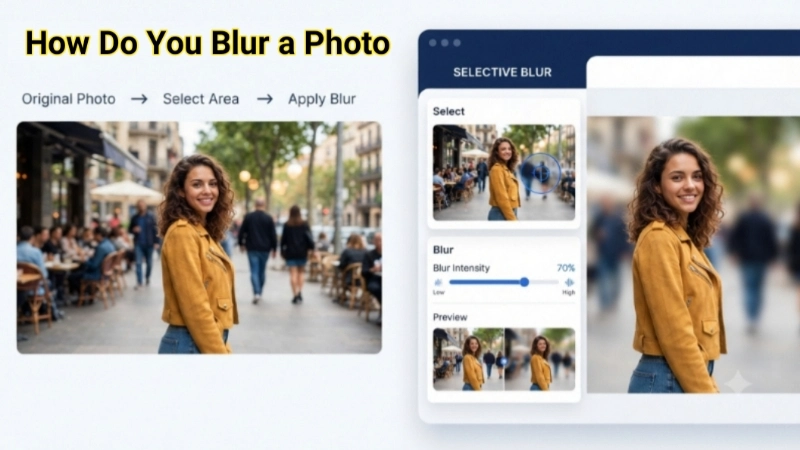
Hey friend, have you ever clicked a beautiful picture but later realized something in it was too distracting? Or maybe you wanted to hide sensitive information before sharing it online? I’ve been there many times. That’s exactly why learning how do you blur a photo is such a handy skill.
Whether it’s your vacation snaps, family memories, or product pictures, blurring helps you control what people notice. In this complete guide, I’ll show you simple, practical ways to blur photos — from your phone to free online tools. No complicated jargon, just straightforward steps that even complete beginners can follow.
Let’s get started so you can start creating cleaner, more professional-looking photos today.
Why Should You Blur a Photo?
Blurring isn’t just for hiding things. People blur a photo for many reasons:
- Make the main subject stand out by softening the background
- Protect privacy (faces, license plates, documents)
- Fix distracting elements in the picture
- Create artistic effects for social media
- Prepare images for presentations or websites
I remember when I posted a group trip photo and later wished I had blurred part of a picture where someone looked awkward. Learning these techniques saved me from similar mistakes later.
How do you blur photos in today’s world? There are many easy options — mobile apps, desktop software, and best of all, free online tools.
Different Ways to Blur a Photo
You have choices depending on your device and needs. Here’s a quick overview:
- Mobile Apps – Fast and convenient
- Online Tools – No installation needed (my top recommendation)
- Desktop Software – For more control
Let’s explore each method with clear steps.
How to Blur a Photo on Your Phone (Android & iPhone)
Most of us use phones to take pictures, so starting here makes sense.
On iPhone:
- Open the Photos app
- Tap Edit → Markup
- Use the pen tool and adjust opacity, or use third-party apps like Snapseed
On Android:
- Google Photos has a built-in blur tool
- Or try apps like Blur Photo, PicsArt, or Snapseed
Step-by-step in Snapseed (works on both):
- Open the app and load your photo
- Tap Tools → Blur
- Adjust the blur strength
- Use the brush to apply blur only where you want
- Save and you’re done!
This method works great when you want to blur a picture quickly on the go.
Best Free Online Way: Top Image Fixer Blur Tool
If you want the easiest experience without downloading anything, I strongly recommend Top Image Fixer. Their Blur Image tool is free, fast, and gives beautiful natural results.
Here’s why I like it:
- Works on phone, tablet, or computer
- No watermarks on basic use
- Simple brush tool for selective blurring
- Quick processing even for large images
How do you blur a photo using Top Image Fixer?
- Visit the Top Image Fixer website
- Find and open the Blur Image tool
- Upload your photo
- Use the brush to paint over the area you want to blur
- Adjust intensity slider for perfect results
- Click preview, then download your blurred photo
Try it right now while reading this — just go to Top Image Fixer Blur Image Tool and test it with one of your pictures. You’ll be amazed how simple it is.
How to Blur Photos Using Desktop Software
For those who want more precision, try these:
Free Option: GIMP
- Open image in GIMP
- Use the selection tool (Free Select or Fuzzy Select)
- Apply Gaussian Blur filter
- Adjust radius until it looks natural
Photoshop (Paid but powerful):
- Select the area using Quick Selection tool
- Filter → Blur Gallery → Field Blur
- Fine-tune and save
These tools are excellent when you need to blur image online alternatives with advanced control.
How Do You Blur Part of a Picture? (Selective Blurring)
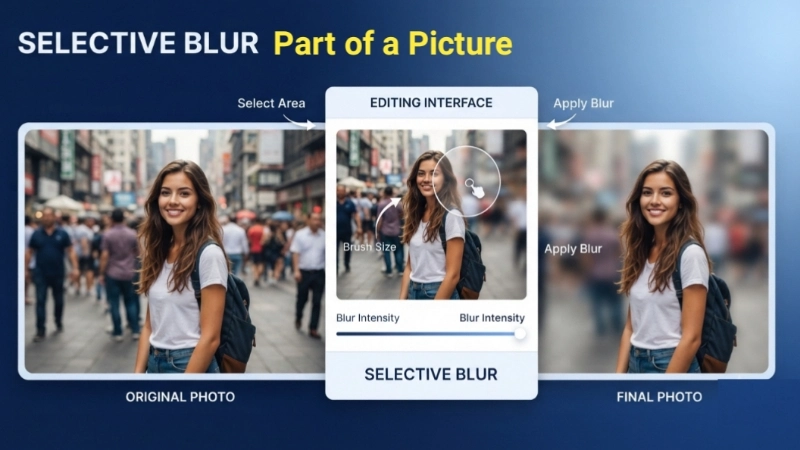
This is one of the most asked questions. Selective blur helps keep your subject sharp while softening everything else.
Tips for perfect selective blur:
- Use a soft brush with feather edges
- Start with lower blur intensity and increase gradually
- Zoom in for accuracy
- Always compare before and after
You can blur a photo online free for this purpose using tools like Top Image Fixer.
Creative Ideas to Blur Pictures
Blurring isn’t only about privacy. Try these fun ideas:
- Create depth in portraits by blurring the background
- Hide text or logos in screenshots
- Make product photos look more professional
- Add artistic touch to Instagram posts
- Soften busy backgrounds in travel photos
One of my favorite tricks is using blur image techniques to create a dreamy effect in evening shots.
Pro Tips to Get Better Results
Here are some practical tips I’ve learned over time:
- Always work on a copy of your original photo
- Match blur intensity with the photo’s overall style
- Check the image at 100% zoom for smooth edges
- Use different blur types (Gaussian, Lens Blur, Motion)
- Save in high quality format
Common Mistakes to Avoid:
- Overdoing the blur (looks unnatural)
- Hard edges around blurred areas
- Blurring important details by mistake
- Using low-resolution output
| Method | Best For | Free? | Speed | Control Level |
|---|---|---|---|---|
| Phone Apps | Quick edits | Mostly Yes | Very Fast | Medium |
| Top Image Fixer | Online selective blur | Yes | Fast | High |
| GIMP | Free advanced editing | Yes | Medium | High |
| Photoshop | Professional work | No | Medium | Very High |
| Canva | Social media graphics | Yes | Fast | Easy |
How Do You Blur Photos in Bulk?
If you have multiple images, look for tools that support batch processing. Some online platforms let you upload several photos and apply consistent blur settings.
FAQs: How Do You Blur a Photo?
How do you blur a photo on Android phone?
Open Google Photos, tap edit, and use the blur tool or download Snapseed for more control.
Is there a free way to blur image online?
Yes! Top Image Fixer offers a completely free Blur Image tool that works perfectly.
How do you blur part of a picture without affecting the rest?
Use selective brush tools in apps or online editors like Top Image Fixer.
Does blurring reduce photo quality?
Good tools maintain quality. Always save in high resolution.
How do you blur photos for Instagram?
Blur distracting parts using mobile apps or online tools before posting.
Can I unblur a photo after saving?
Only if you have the original unedited version saved separately.
What’s the easiest way to blur a picture?
For most people, using a free online tool like Top Image Fixer is the simplest.
How do you blur background in a photo?
Select the subject carefully and apply blur to the background area only.
Final Thoughts: Start Blurring Your Photos Today
Now you know exactly how do you blur a photo, how do you blur photos, and how do you blur a picture using different methods. The key is choosing the right tool for your needs and practicing a few times.
I genuinely recommend trying the free Blur Image tool at Top Image Fixer first. It’s designed to make the whole process stress-free and enjoyable.
Go ahead — pick one photo from your gallery right now, visit the tool, and experiment. You’ll quickly see how much better your images can look with just a little blur.
Remember, great photos aren’t always about perfect sharpness. Sometimes, knowing what to soften makes all the difference.
If you have any questions or want to share your before-after results, feel free to comment below. Happy editing, and enjoy creating better photos!