
💧 Add Watermark to Photos – Bulk Image Watermark Tool
watermark image • add watermark to photo • batch watermark • protect your pictures
Protect your images online. Add text or logo watermark to photos in bulk without quality loss. Free, private, no upload.
📂 Choose images (0)
tap or drag & drop – supports batch🔒 your privacy matters
We do not store any images. All watermarking runs directly in your browser (client‑side). No upload, no tracking, no server storage. Your photos never leave your phone or computer.
About this tool – why I built it
Hey, I'm Naresh – a small business owner and part-time coder. A few years ago, I started selling my pottery online, but soon discovered people were copying my product photos and using them on their own sites. I needed a way to protect my images without spending hours in Photoshop. I tried many "free" watermark tools, but they either uploaded my images to unknown servers or added their own logo. That felt wrong.
So I built this one night. It works entirely in your browser – your photos never leave your computer. I've been using it for my own shop for two years, and now my neighbor who's a photographer uses it to protect his proofs. It's simple, private, and actually works. No sign-ups, no hidden costs. Just upload, customize, and download.
– Naresh, creator of TopImageFixer
How to add watermark to images (step by step)
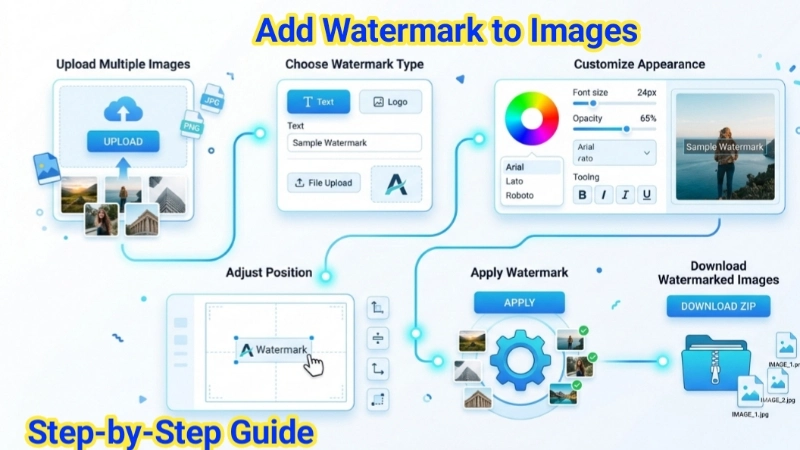
Step 1: Click the upload area and select your photos (JPG, PNG, WEBP – mix allowed).
Step 2: Choose watermark type: enter text OR upload a logo image (PNG with transparency works best).
Step 3: Customize: pick font, size, color, opacity, and position (9 positions available).
Step 4: Hit “Add Watermark to Images”. Your browser does all the work; nothing is uploaded.
Pro tip: after processing, you can download each image individually or click “Download all as ZIP”.
Tips for effective watermarks
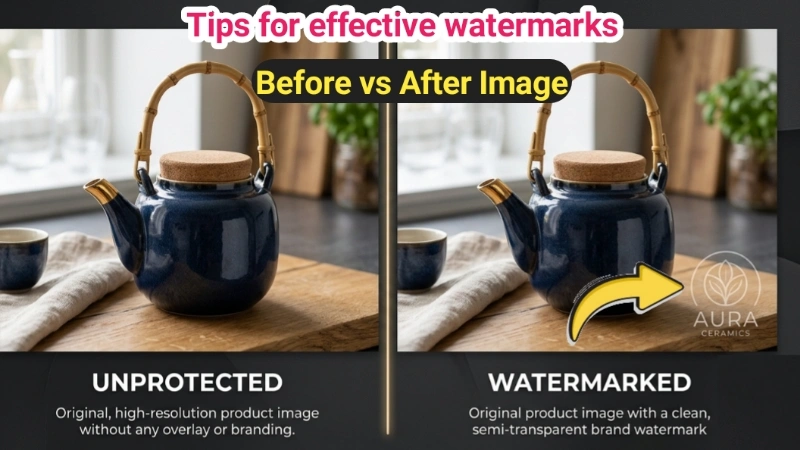
• Don't overpower the image – use semi-transparent text (60-80% opacity) so the photo remains visible.
• Position matters: corners are least intrusive, but center makes it harder to crop out. For social media, bottom-right works well.
• Logo vs text: Use a PNG logo with transparency for professional look. For quick protection, text is faster.
• Font choice: Script fonts look artistic, but sans-serif fonts are more readable at small sizes.
• Add shadow: Our tool adds subtle text shadow automatically for better visibility on any background.
Frequently asked questions (Watermark Tool)
⚡ Image Optimizer – more free tools You Might Need
Check these other free Quickly your photos, pictures – most popular tools all private, no upload
📖 Helpful Articles From read our Blog
How to Watermark Images: Complete Beginner’s Guide for 2026
You do not need expensive software like Photoshop, design skills. In this guide, I will show you how to add watermark to images using free tools.👉Read more ?
Best File Type for Website Images: Stop Guessing and Start Using the Right Format
By the end of this guide, you will know exactly which format to use for every single image on your site. Your website will load faster. Your visitors will stay longer. And Google will rank you higher.👉Read more ?
How Do You Blur a Photo: Super Easy Guide for Beginners (2026)
Whether it’s your vacation snaps, family memories, or product pictures, blurring complete guide, I’ll show you simple, practical ways to blur photos — from your phone to free online tools.👉Read more ?
Supported Image Formats
JPG, JPEG, PNG, WEBP, BMP, GIF, TIFF and more – all work for watermarking